


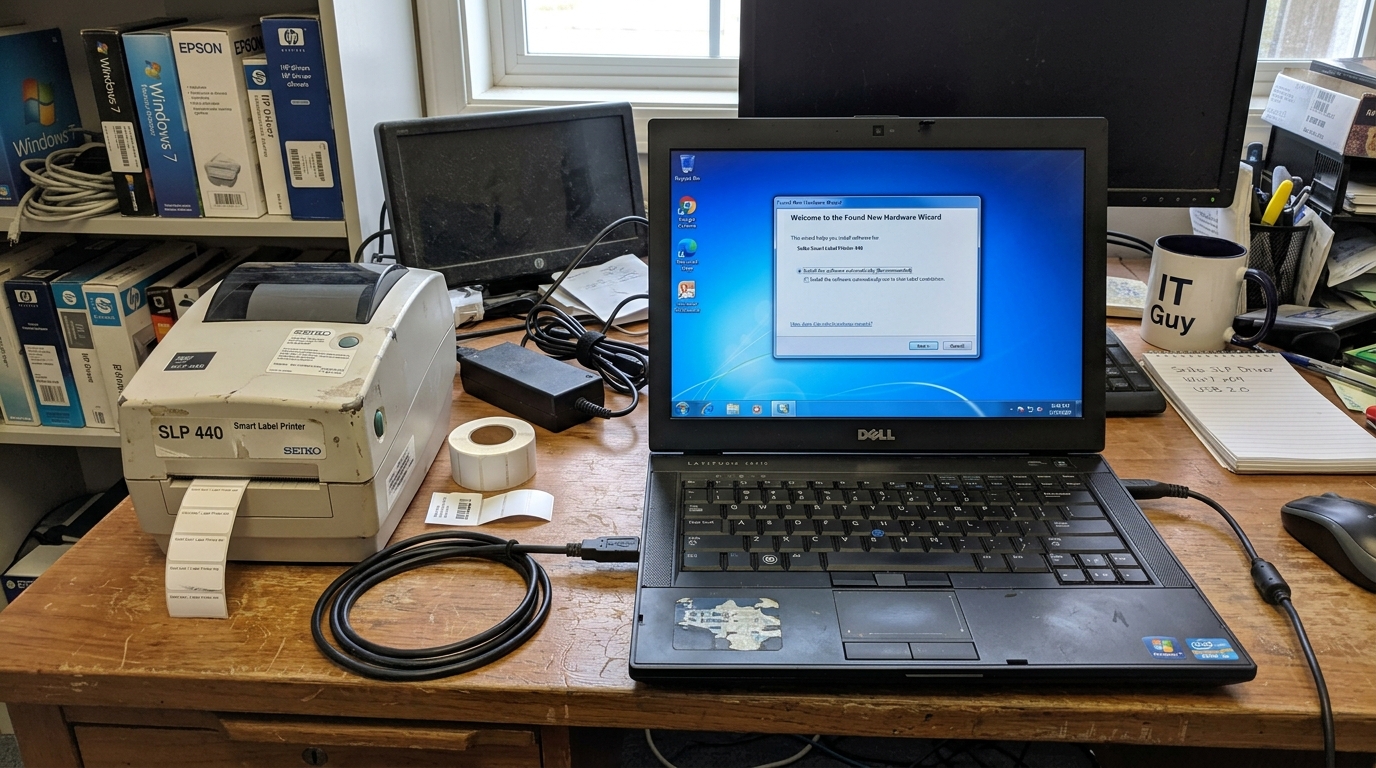
Why This Happens
The core of the compatibility issue lies in the evolution of operating system driver models and USB communication standards. Legacy Seiko SLPs were designed during an era when 32-bit operating systems were standard, and driver signing requirements were far less stringent. When you attempt to install a 32-bit driver on a modern 64-bit OS like Windows 10 or modern macOS, the system's hardware abstraction layer rejects it outright. Windows 7 marked a transitional period where 64-bit systems became prevalent, leading to significant driver fragmentation for older peripherals. Furthermore, the Seiko Smart Label software itself relies on specific APIs to send proprietary rendering commands to the printer. Older versions of the software (like Smart Label Creator version 6 or earlier) utilized deprecated graphics rendering techniques that are no longer supported in modern OS environments. When the software attempts to call a non-existent API, it crashes or fails to send the correct thermal dot matrix data, resulting in blank labels or garbage text. On the Mac side, Apple's transition from 32-bit to 64-bit architecture (completed with macOS Catalina) rendered all older Seiko Mac drivers obsolete. Additionally, changes to the CUPS (Common UNIX Printing System) architecture in macOS have altered how raw printer data is handled. Older Seiko Mac drivers often bypassed standard CUPS queues to communicate directly with the USB port, a method that Apple's modern security protocols (like SIP) now aggressively block. Another contributing factor is firmware. Legacy SLPs possess older firmware that may not negotiate USB connections correctly with modern USB 3.0 or USB-C controllers. The timing of the USB packets expected by the printer's aging microcontroller may not align with the rapid polling rates of modern motherboards, leading to intermittent connection drops or the dreaded "USB Device Not Recognized" error in Windows Device Manager.Step-by-Step Fix
- Identify Your Exact Model and OS Architecture: First, look at the sticker on the bottom of your Seiko SLP to confirm the exact model number (e. g. , SLP 450, SLP 620). Next, determine if your operating system is 32-bit or 64-bit. In Windows 7 or 10, right-click 'Computer' or 'This PC' and select 'Properties' to view the system type. This dictates exactly which driver package you must hunt down.
- Download the Correct Legacy Driver: Do not use the CD that came with the printer. Visit the official Seiko Instruments archive or a reputable driver repository. For Windows 7 (64-bit) and newer, you need at least Smart Label Software version 6. 5. 2 or version 7. x, which includes updated 64-bit drivers. For Mac. You must find the specific package designed for your OS version, noting that anything older than the SLP 600 series may require virtualization on modern macOS.
- Disable Driver Signature Enforcement (Windows Only): If you are forced to use an older driver on Windows 10, you must temporarily disable driver signature enforcement. Hold the Shift key while clicking 'Restart' in the Start menu. Navigate to Troubleshoot > Advanced options > Startup Settings > Restart. Press '7' or 'F7' to Disable driver signature enforcement. This allows the installation of unsigned legacy drivers.
- Perform a Clean Installation: Disconnect the printer from the USB port. Uninstall any existing Seiko software and drivers from the Control Panel. Reboot the computer. Run the newly downloaded installer as an Administrator (right-click > Run as administrator). Follow the prompts carefully. And only connect the printer's USB cable when explicitly instructed by the software, or after the installation is completely finished.
- Configure the Printer Port Manually: If the printer installs but won't print, open 'Devices and Printers', right-click the Seiko SLP, and select 'Printer properties'. Go to the 'Ports' tab. Ensure it is assigned to a virtual USB printer port (e. g. , USB001, USB002). If it's assigned to LPT1 or COM1 by mistake, uncheck that box. Select the correct USB port, then apply the changes.
Advanced Troubleshooting
When standard driver installations fail, virtualization is often the most reliable workaround for modern machines. If you are on an M-series Mac or a Windows 11 machine and absolutely must use an SLP 420, consider using software like Parallels Desktop, VMware Fusion, or VirtualBox. You can set up a lightweight Windows 7 virtual machine, install the legacy Seiko drivers within that VM, and pass the USB connection directly through to the virtual OS. This guarantees perfect driver compatibility by mimicking the environment the printer was designed for. Another advanced trick for Windows users involves manually extracting the driver files from the installer package (using a tool like 7-Zip) and installing the driver via the Device Manager using the "Have Disk" method. This bypasses the sometimes-buggy Seiko installer wrapper. Navigate to Device Manager, find the unrecognized device, choose 'Update Driver', select 'Browse my computer for drivers', then 'Let me pick from a list', click 'Have Disk', and point it to the extracted .inf file. If you are dealing with network sharing of a legacy SLP, ensure you are dealing with permissions correctly. Sharing an SLP installed on a 32-bit Windows 7 machine to a 64-bit Windows 10 machine requires providing both 32-bit and 64-bit drivers on the host machine. In the printer's Sharing tab, click 'Additional Drivers' and check the box for x64, providing the path to the 64-bit driver files. This allows the modern client machine to pull the correct driver architecture across the network.FAQ
Will an SLP 440 work natively on macOS Ventura or Sonoma?
No. Seiko does not provide 64-bit native drivers for the 400 series on modern macOS.
Why does the printer print blank labels after I upgraded to Windows 10?
This is usually a spooler formatting error. The old driver is failing to convert the text into the correct thermal bitmap format.
Can I use a serial-to-USB adapter with an ancient SLP 200?
Yes, but it is highly dependent on the chipset of the adapter. Adapters using genuine FTDI chipsets tend to work best.
Is there an alternative software I can use instead of Smart Label Creator?
Yes. Because the printers install standard Windows drivers.
