


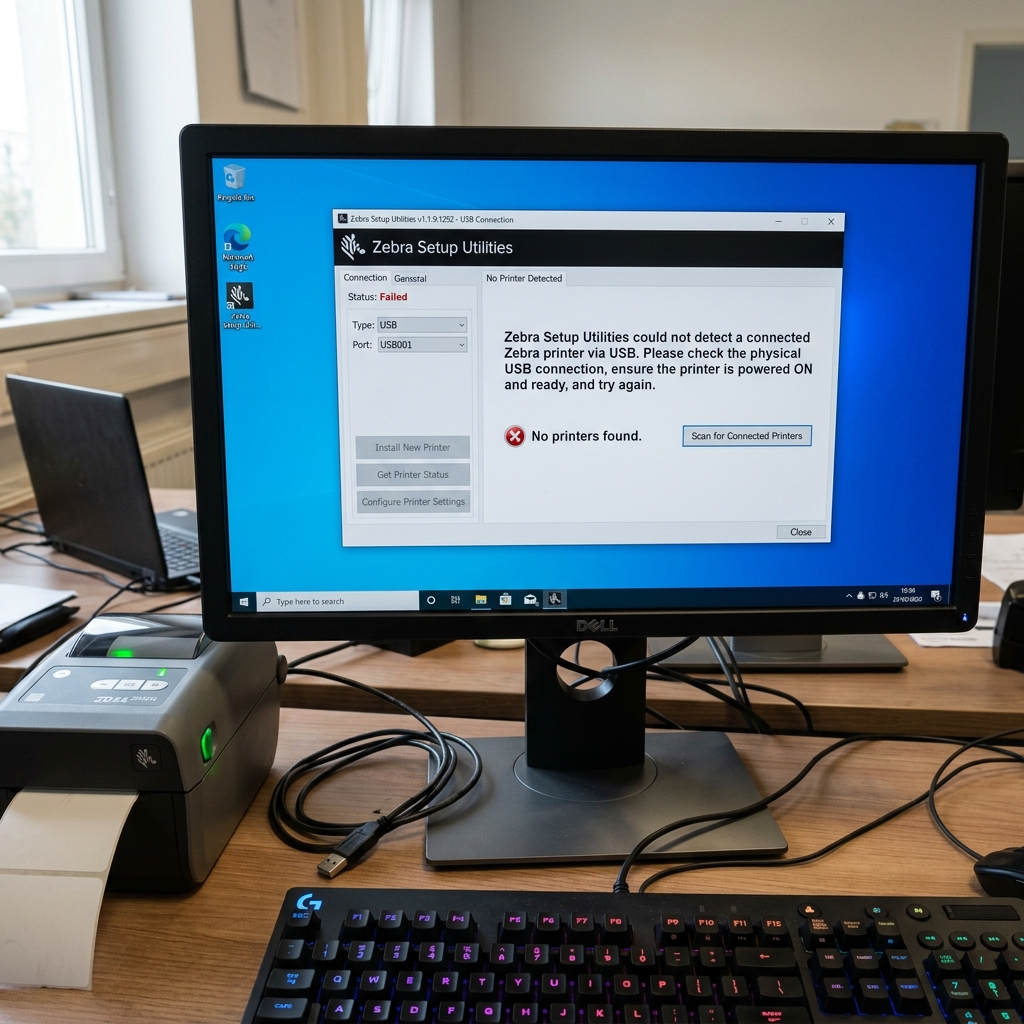
Setting up a Zebra thermal printer for barcode generation, shipping labels, or industrial tagging should be a straightforward process. Encountering a scenario where the Zebra Setup Utilities software fails to detect the printer or returns a "Driver Install Failed" error can halt operations entirely.
Zebra printers are robust, industrial-grade machines that rely on precise driver communication to parse complex printing languages like ZPL or EPL.When the Windows operating system cannot establish a solid handshake with the hardware during the initial setup via USB or network. The entire installation sequence collapses.This guide is designed to dismantle the complexities surrounding driver installation failures, USB port confusion.
Underlying operating system conflicts that prevent the Zebra Setup Utilities from recognizing your device.By understanding the root causes of these communication breakdowns and following a methodical troubleshooting process, you can bypass these software roadblocks, successfully install the necessary drivers. Integrate the printer seamlessly into your workflow.
Taking a patient and structured approach will resolve the vast majority of these seemingly complex driver issues without requiring factory support or hardware replacement.
Why This Happens
The "Zebra Setup Utilities not detecting printer". Subsequent driver installation failures almost always originate from Windows operating system quirks, specifically how Windows handles USB plug-and-play events and driver signing.When you plug a Zebra printer into a computer via USB before installing the official software, Windows eagerly attempts to identify the device.
Install a generic, often incorrect, driver from its own internal repository.Once this generic driver is latched onto the USB port, the official Zebra Setup Utilities software cannot override it, resulting in the utility failing to "see" the printer or throwing an installation error. The port is essentially blocked or misconfigured.
This behavior is meant to be helpful for generic devices but is detrimental to specialized industrial equipment.
Another major culprit is the Windows Print Spooler service and lingering registry entries from previous, failed installation attempts. If an installation was aborted or failed halfway through, corrupted files are left behind.
When you attempt to reinstall, the installer encounters these corrupted files, panics, and fails.Furthermore, strict corporate IT policies. Antivirus software, or firewall settings can actively block the Zebra installer from writing necessary files to the System32 directory or modifying registry keys, interpreting the driver installation as a security threat.Finally, physical hardware issues, such as using a cheap, unshielded USB cable, plugging into an unpowered USB hub, or a malfunctioning USB controller on the motherboard, can corrupt the data packets being sent between the printer.
The PC, making detection impossible.The software simply cannot build a bridge over a faulty physical connection. No matter how many times the driver is reinstalled.
Step-by-Step Fix
- Disconnect and Isolate: Immediately unplug the USB cable connecting the Zebra printer to the computer. Leave the printer powered on. Do not plug it back in until specifically instructed. This prevents Windows from attempting further automatic, incorrect configurations and allows you to clean the software environment safely.
- Clean Up Failed Installations: Open the Windows "Settings" menu, go to "Apps," and locate the Zebra Setup Utilities. Uninstall it completely. Next, press Windows Key + R, type 'control printers', and press Enter.If you see any icons for your Zebra printer (even if they are grayed out or named "Unspecified Device"), right-click them. Select "Remove device." This ensures a clean slate for the next installation attempt.
- Clear the Windows Print Spooler: A clogged spooler will prevent new driver installations. Press Windows Key + R, type 'services.msc', and hit Enter. Find "Print Spooler" in the list, right-click, and select "Stop." Leave the window open. Open File Explorer, navigate to 'C:\Windows\System32\spool\PRINTERS', and delete everything inside this folder. Return to the Services window, right-click "Print Spooler," and select "Start."
- Remove Phantom Drivers (Crucial Step): This requires accessing the Print Server Properties.In the "Devices and Printers" window you opened earlier. Click once on any existing printer (like Microsoft Print to PDF) to highlight it. A menu bar will appear at the top of the window; click on "Print server properties." Go to the "Drivers" tab. Look for any Zebra drivers listed here. Select them and click "Remove." Choose the option to remove "Remove driver and driver package." This completely wipes the system of corrupted Zebra files. Restart your computer immediately.
- Run Installer as Administrator: Download the absolute latest version of the Zebra Setup Utilities from the official Zebra support website. Do not use an old CD that came with the printer, as those drivers are likely severely outdated. Right-click the downloaded executable file (.exe) and select "Run as administrator." This bypasses many security restrictions that prevent driver installation on modern Windows systems.
- Follow the Prompts Carefully: Proceed through the installer. When the software prompts you to select how the printer is connected, choose "USB." ONLY at this exact moment, when the software instructs you to do so. Should you plug the USB cable from the printer directly into a main USB port on the back of the computer (avoid front panel ports or hubs to ensure direct connection to the motherboard).
- Manual Port Assignment (If Auto-Detect Fails): If the utility still hangs, you may need to force a manual install. In the Setup Utility, choose to install a new printer manually. Select your specific model from the list. When asked for a port, do not choose LPT or COM. Scroll down and look for a port named "USB001", "USB002", or "ZDesigner Port." Select the highest numbered USB port available. Complete the installation and print a test page from the utility to confirm full functionality and correct port assignment.
Advanced Troubleshooting
If standard cleanup methods fail, the issue might reside deep within the Windows Registry or Device Manager. With the printer plugged in, open Device Manager (Windows Key + X > Device Manager).
Look for any devices with a yellow warning triangle under "Universal Serial Bus controllers," "Printers," or "Other devices." Right-click the problematic device, select "Uninstall device,". Critically, check the box that says "Delete the driver software for this device." Unplug the printer, restart the PC, and try the installation process again.
For stubborn network installations (Ethernet/Wi-Fi), ensure the printer and the PC are on the same subnet. You can print a network settings label directly from the printer (usually by holding the feed button during power-on until it flashes once) to verify its IP address.
Ping this address from your computer's command prompt. If the ping fails, a network firewall or router settings is blocking communication, not a driver issue.
Furthermore, some older Zebra models require specific firmware (internal software) versions to interact correctly with modern Windows 10/11 environments. If you are deploying an older printer, you may need to use a different utility (like ZebraNet Bridge) or a serial (RS-232) connection to push a firmware (internal software) update to the printer before the USB driver can successfully install on a modern OS.
Always ensure you are using a high-quality, shielded USB 2.0 cable no longer than 6 feet, as signal degradation over long or cheap cables is a frequent, invisible cause of data corruption. Failed detection that mimics software errors perfectly.
FAQ
Why does my printer show up as "Unspecified" in Devices and Printers?
This happens when Windows detects the physical hardware via USB. Cannot find or associate the correct driver to interpret what the device actually is.
Can I just use the default Windows drivers instead of the Zebra Setup Utilities?
While Windows might occasionally install a generic text-only driver that can send basic commands, it will lack support for advanced features like barcode rendering, specific font scaling, darkness control. For reliable operation, especially when printing from inventory or shipping software.
What is a ZDesigner Port and why is it needed?
A ZDesigner Port is a virtual port created by the Zebra driver software.Because Zebra printers often communicate using specific languages (like ZPL), the driver creates this specialized port to manage the translation. Data flow between the Windows print spooler and the physical USB connection, ensuring the complex commands are sent correctly without interruption from the OS.
The installation keeps freezing halfway through. What should I do?
A freezing installation usually points to a conflict with an existing process or strict antivirus software blocking the installer. Ensure you have stopped the Print Spooler and deleted its contents before starting.Temporarily disable any aggressive third-party antivirus software. Ensure you are running the installer by right-clicking and selecting "Run as administrator."
