


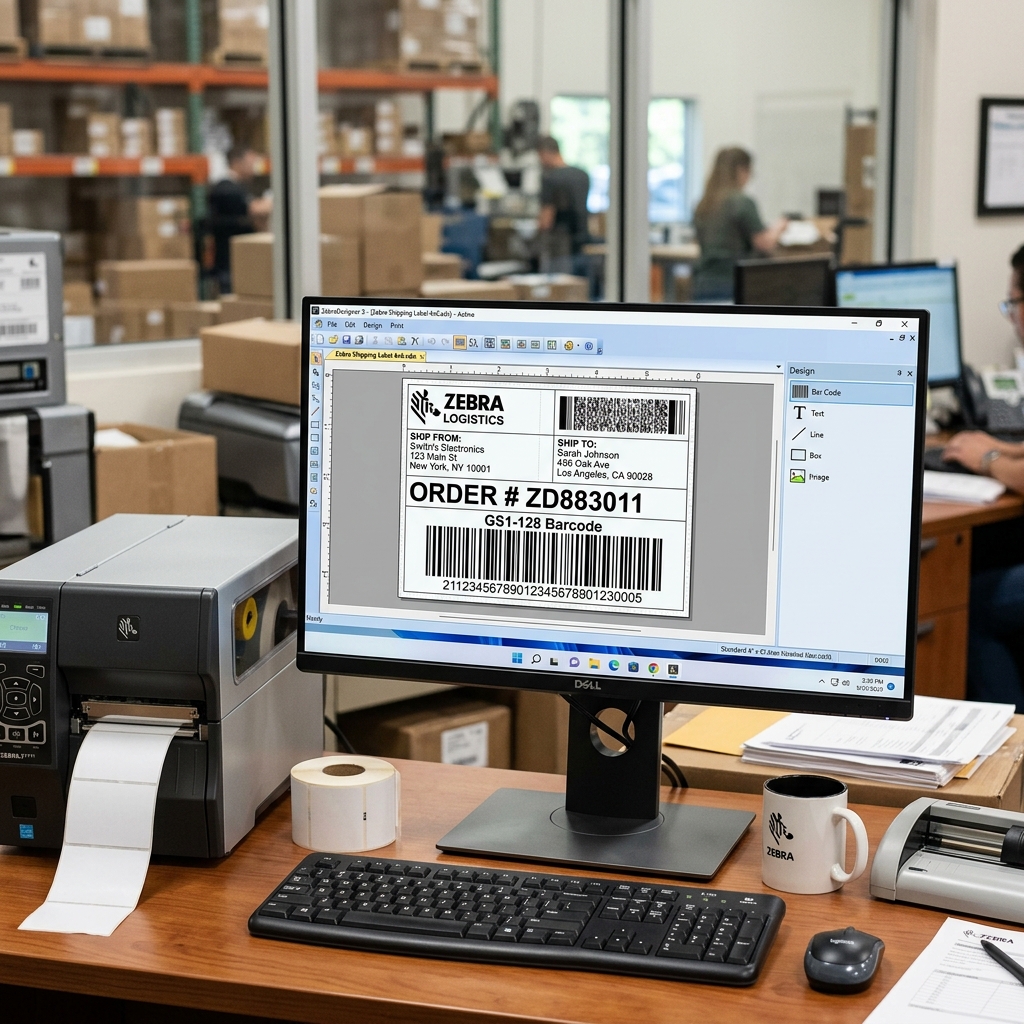
Zebra printers integrate smoothly into web-based workflows. You use Zebra Browser Print for this.
This helps logistics, healthcare, and retail applications. It lets web applications talk directly to local hardware.
You avoid messy print dialogs. Sometimes a user designs a flawless label in ZebraDesigner.
However, it refuses to print via the web application. This bottleneck hurts productivity.
The failure scenario involves multiple layers. It involves label design software and the local print spooler.
It also includes the background daemon and web browser security rules. This guide helps you diagnose and resolve these issues.
We fix ZebraDesigner templates failing through Zebra Browser Print.
Why This Happens
To fix this, you must understand the data flow. ZebraDesigner creates a visual label.
It ultimately generates raw ZPL (Zebra Programming Language) code. The web application sends an HTTP POST request.
This contains the ZPL data. It goes to a local web server on the user machine.
This local server is the Zebra Browser Print application. Browser Print takes the ZPL payload.
It pushes it directly to the connected printer. This bypasses the standard Windows print spooler.
Failures happen when any link breaks. The most prevalent cause is security restrictions.
Modern web browsers block cross-origin resource sharing (CORS). Your web application might try to make a background request.
If the app is HTTPS, it cannot communicate with an HTTP local endpoint. Second, Browser Print requires explicit user approval.
A popup appears asking the user to accept the connection. If you miss this popup, all print jobs fail silently.
Finally, incorrect settings cause failures. You might send a 300dpi template to a 203dpi printer.
The printer receives the data but fails to render it.
Step-by-Step Fix
- Verify Zebra Browser Print is Running: Check that the program is active. Look for the Zebra icon in the Windows system tray. Launch "Zebra Browser Print" from the Start menu if missing. Right-click the icon and select "Settings". Ensure it recognizes your connected printer.
- Check the Browser Console for Errors: Open your web application. Press F12 to open Developer Tools. Navigate to the "Console" tab. Attempt to trigger a print job. You might see red errors mentioning "CORS policy blocked". The browser is blocking the local server.
- Accept the Browser Print Security Prompt: Users often miss this critical step. The app generates a popup on the first connection. You MUST click "Yes" or "Accept." If you clicked "No" previously, right-click the tray icon. Go to "Settings," then "Accepted Hosts," and add your domain.
- Resolve HTTPS Issues: If your web app uses HTTPS, Browser Print must too. Browser Print installs a local certificate for this. Browsers often flag this certificate as invalid. Instruct the browser to trust it. Navigate directly to
https://localhost:9141. Click "Advanced" and then "Proceed to localhost (unsafe)." - Export Raw ZPL from ZebraDesigner: Do not print a PDF generated by ZebraDesigner. Browser Print handles raw ZPL strings. Select "Print to File" or "Export as ZPL" in ZebraDesigner. Open the file in Notepad. Your web application needs this raw text code.
- Validate Printer Resolution: Open your ZPL code. Check formatting commands. Coordinates are scaled for specific dots per inch. Ensure the printer model in ZebraDesigner perfectly matches the physical hardware.
- Test with the Zebra Sample Page: Navigate to the official Zebra Browser Print sample page. Try to print the test label. If it works here but not in your app, your web app integration is flawed.
Advanced Troubleshooting
When standard fixes fail, check network settings. IT environments often use strict firewall rules. Browser Print binds to ports 9100, 9101, and 9141. Antivirus software might block these local servers. Review the firewall logs. Add exceptions for the browserprint.exe process.
Another diagnostic technique involves intercepting the raw data. The web application might modify the ZPL string incorrectly. Use Wireshark or Fiddler to capture the HTTP POST request. Inspect the payload body. The data must be pure ZPL. Incorrect JSON formatting causes the printer to reject commands silently.
Finally, check the Browser Print API version. Zebra occasionally updates the API endpoints. Your web application might use an older JavaScript library. It could be making bad calls to a newer background daemon. Ensure the JavaScript SDK matches the installed Browser Print version.
FAQ
Why does Chrome say "net::ERR_CERT_AUTHORITY_INVALID" when trying to print?
This is a security issue. Chrome does not trust the self-signed SSL certificate.
Can I print a PDF generated by my web app using Browser Print?
Newer versions can handle PDFs. However, sending raw ZPL code is much better.
The Browser Print icon is red instead of white. What does this mean?
A red icon indicates the daemon is running. However, it cannot detect a compatible Zebra printer.
My web app sends the job, but the printer prints raw text. Why?
The printer driver is intercepting the text. It treats it as a standard document.
Do I have to accept the security popup every time I print?
No. The security prompt only appears the very first time.
