


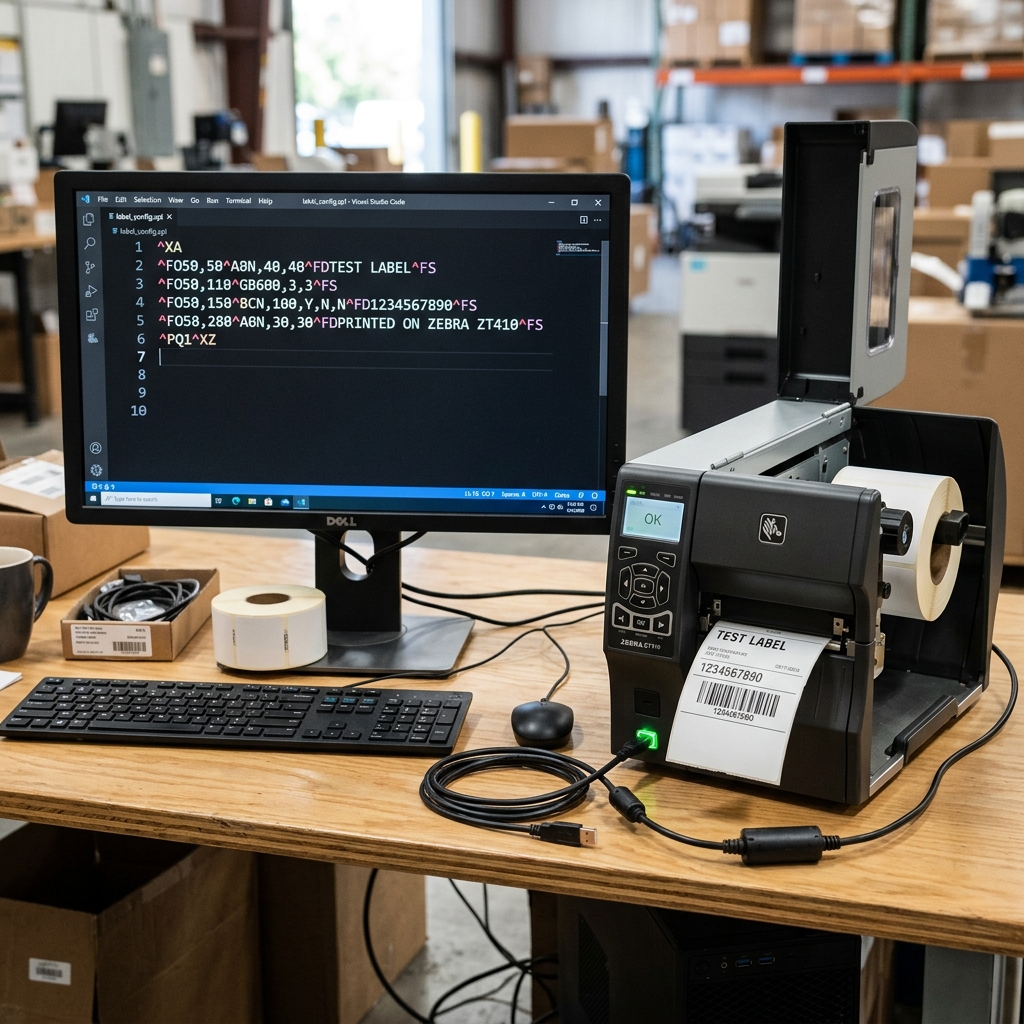
Zebra Printer ZPL Command Not Working or Ignored: Comprehensive Troubleshooting Guide
When you are managing a warehouse, logistics center, or retail environment, Zebra thermal printers are the backbone of your operations. However, encountering an issue where a Zebra Programming Language (ZPL) command is not working, is ignored.
Or results in a blank label can bring operations to a grinding halt. You might be sending strings of code directly to the printer via network, USB.
Or serial connection, expecting a perfectly formatted barcode or text label, only to see the printer do absolutely nothing or print something entirely unexpected. This guide provides an in-depth, highly technical exploration of why ZPL commands fail, how the Zebra printer interprets these commands.
And the exact steps to diagnose and resolve command-level issues to get your printing back on track.
Understanding ZPL is like understanding any programming language; it requires strict adherence to syntax, formatting, and structural rules. ZPL II, the current standard, is incredibly powerful but unforgiving.
A single misplaced caret (^), tilde (~), or comma can invalidate an entire label format. Moreover, the environment in which the printer operates—including its firmware (internal software), memory constraints, network protocols.
And driver settings—plays a crucial role in how commands are processed. We will explore the intricacies of ZPL command parsing, printer buffer management.
And communication interfaces to unravel the mystery of ignored ZPL commands.
Why This Happens
The reasons behind a Zebra printer ignoring ZPL commands range from simple syntax errors to complex network or memory issues. Here is a detailed breakdown of the common culprits:
1. Incorrect Command Syntax or Structure: The most frequent cause of ignored ZPL is syntax errors.
Every ZPL format must begin with the Start Format command ^XA and end with the End Format command ^XZ. If either is missing, the printer will discard the data.
Furthermore, commands within the format have specific parameters. For instance, the ^B3 (Code 39 barcode) command expects specific parameters for orientation, height, and check digit.
If you provide invalid parameters or separate them incorrectly (e.g.. Using a period instead of a comma), the command will be ignored or cause the rest of the label to fail.
2. Control Character Mismatch: By default, ZPL uses the caret (^) for format commands and the tilde (~) for control commands.
However, these prefix characters can be changed using the ^CC (Change Caret) or ^CT (Change Tilde) commands, or via the printer's front panel/web interface. If your software sends commands using standard prefixes.
But the printer has been reconfigured to expect something else (like a backslash or a pipe character), it will completely ignore the standard ZPL stream.
3. Out-of-Bounds Coordinates: ZPL uses a coordinate system based on dots (which depends on the printhead resolution: 203dpi, 300dpi, or 600dpi).
The ^FO (Field Origin) command sets the X and Y coordinates for the next element. If you specify an origin that is outside the physical dimensions of the label (e.g., ^FO2000,3000 on a small label at 203dpi), the element will be drawn off the canvas.
Making it look like the command was ignored, even though it was processed correctly.
4. Missing or Unsupported Fonts and Graphics: If you use a font command like ^A specifying a font that does not exist in the printer's memory (e.g..
Trying to use an Asian character set without the proper font pack installed), the text will not print. Similarly, if you reference a graphic stored in memory (e.g., ^XGR:LOGO.GRF) and the file is missing or corrupted, nothing will print in that field.
5. Driver Interference (Pass-through Mode): When using a Windows print driver (like the ZebraDesigner driver or Seagull Scientific driver).
Sending raw ZPL requires the driver to be in "Pass-through" mode. If you try to send raw ZPL text through a standard word processor without configuring the driver to bypass rendering, the driver will treat the ZPL code as literal text and print the code itself.
Or the spooler might mangle it, rendering it unreadable to the ZPL interpreter.
6. Buffer Overflows and Communication Errors: When sending large batches of labels over a serial or network connection without proper flow control (like XON/XOFF or hardware handshaking).
The printer's receive buffer can overflow. When this happens, the printer simply drops the excess data, which often results in truncated ZPL formats and missing labels.
Additionally, network latency or packet loss can cause partial commands to arrive, which the printer will discard.
7. firmware (internal software) Bugs or Incompatibilities: Older firmware (internal software) versions may not support newer ZPL commands. For example, some advanced RFID commands or specific barcode symbologies were introduced in newer Link-OS updates.
If you are sending a modern command to an outdated printer, it will be ignored as an unrecognized instruction.
Step-by-Step Fix
- Verify the Label Structure: Open your raw ZPL code in a text editor (like Notepad++). Ensure that the very first command is
^XAand the very last command is^XZ. There should be no extraneous characters before the^XA. If you are sending multiple labels, ensure each format is properly enclosed. You can use an online ZPL viewer to test your code before sending it to the printer. - Check Prefix Characters: Print a settings label from the printer by pressing and holding the Feed button until it flashes once. Then release it (depending on the model). Look for the settings labeled "COMMAND CHAR" and "CONTROL CHAR". They should typically be
^(5E Hex) and~(7E Hex). If they are different, you must either change your code to match or reset the printer to factory defaults using the^JUFcommand. - Audit Field Origins and Resolution: Determine your printer's resolution (e.g., 203 dots per inch). A 4x6 label at 203dpi is roughly 812 dots wide and 1218 dots long. Check your
^FOcommands. If you see^FO900,100on a 4-inch wide 203dpi label, it will print off the right edge. Adjust your coordinates to fall within the printable area. Remember that^LL(Label Length) and^PW(Print Width) commands can also restrict the printable canvas. - Test Driver Settings (Generic / Text Only): If you are printing from Windows and the code is printing out literally instead of rendering as a label. Install the printer using the "Generic / Text Only" driver built into Windows. This bypasses all graphic rendering and sends the raw ASCII text directly to the printer port. Ensuring the ZPL remains intact. Alternatively, in the ZebraDesigner driver. Go to Printer Properties > Advanced > Printing Defaults > Advanced Setup and enable "Pass-through mode".
- Validate Fonts and Memory: Use the
~WD(Directory Listing) command to print or retrieve a list of all files stored in the printer's E: or R: memory. Ensure that any fonts or graphics referenced in your ZPL code actually exist on the printer. If a font is missing, you will need to download it to the printer using Zebra Setup Utilities. - Check Flow Control and Buffers: If you are printing over a Serial (RS-232) connection, verify that the baud rate, data bits, stop bits. And parity match exactly between the host and the printer. More importantly, ensure that hardware flow control (DTR/DSR) or software flow control (XON/XOFF) is enabled on both ends to prevent buffer overruns.
- Monitor Printer Status: Send the
~HS(Host Status Return) command to the printer via Zebra Setup Utilities > Open Communication With Printer. The printer will return three strings of comma-separated values. Decode this string using the Zebra ZPL manual to check for errors like "Paper Out," "Ribbon Out," or "Head Open," which will halt ZPL processing even if the commands are correct. - Update Printer firmware (internal software): Visit the Zebra support website, enter your printer model, and download the latest firmware (internal software). Use the Zebra Setup Utilities to send the firmware (internal software) (.zpl or .firm file) to the printer. This can resolve underlying bugs and add support for missing commands.
Advanced Troubleshooting
When basic syntax and communication checks fail, you need to dive deeper into how the printer processes data streams. One of the most powerful diagnostic tools built into Zebra printers is the Communications Diagnostic Mode (often referred to as Dump Mode).
In this mode, the printer stops interpreting ZPL commands and instead prints out the literal ASCII characters and their hexadecimal equivalents as they are received by the port.
To enter Dump Mode, you can usually hold the Feed button while turning the printer on, or send the ~JD (Enable Communications Diagnostics) command. Once in Dump Mode, send your ZPL file.
The printer will print a label showing exactly what it received. If you see garbage characters, you have a communication port settings issue or a bad cable.
If you see Windows driver header information prepended to your ZPL, the driver is interfering. To exit Dump Mode, cycle the power or send the ~JE (Disable Diagnostics) command.
Another advanced area to investigate is the use of the ^MC (Map Clear) and ^PM (Print Mirror) commands. If a previous label format left the printer in an unusual state—for example, if a script crashed before sending ^XZ—the printer might still be waiting for data to complete the format, ignoring new ^XA commands.
Sending a few carriage returns followed by an ^XZ can sometimes clear a hung buffer. Additionally, ensure you are not using commands that conflict with the printer's current media sensor settings.
Such as forcing continuous mode (^MNC) when the printer is loaded with gap labels, which will cause a media out error.
FAQ
Why is my barcode printing as text instead of a barcode?
This happens when the barcode command (like ^B3 or ^BC) is missing, malformed. Or the data string following the ^FD (Field Data) command contains invalid characters for that specific barcode symbology.
Can I test my ZPL commands without wasting labels?
Yes. You can use free online ZPL viewers (like Labelary) to paste your ZPL code and instantly see a digital rendering of the label.
Why does the printer just feed a blank label when I send ZPL?
A blank label usually indicates that the ^XA and ^XZ commands were processed. , printing white on white).
How do I send raw ZPL commands over a network?
You can send raw ZPL over a network by opening a raw TCP socket connection to the printer's IP address on port 9100. Using languages like Python (with the socket library) or C#.
What does the ~HS command do?
The ~HS (Host Status) command is a diagnostic control command that tells the printer to immediately return its current operating status back to the host computer. It returns data indicating if the printer is paused, out of paper, has a memory error.
