


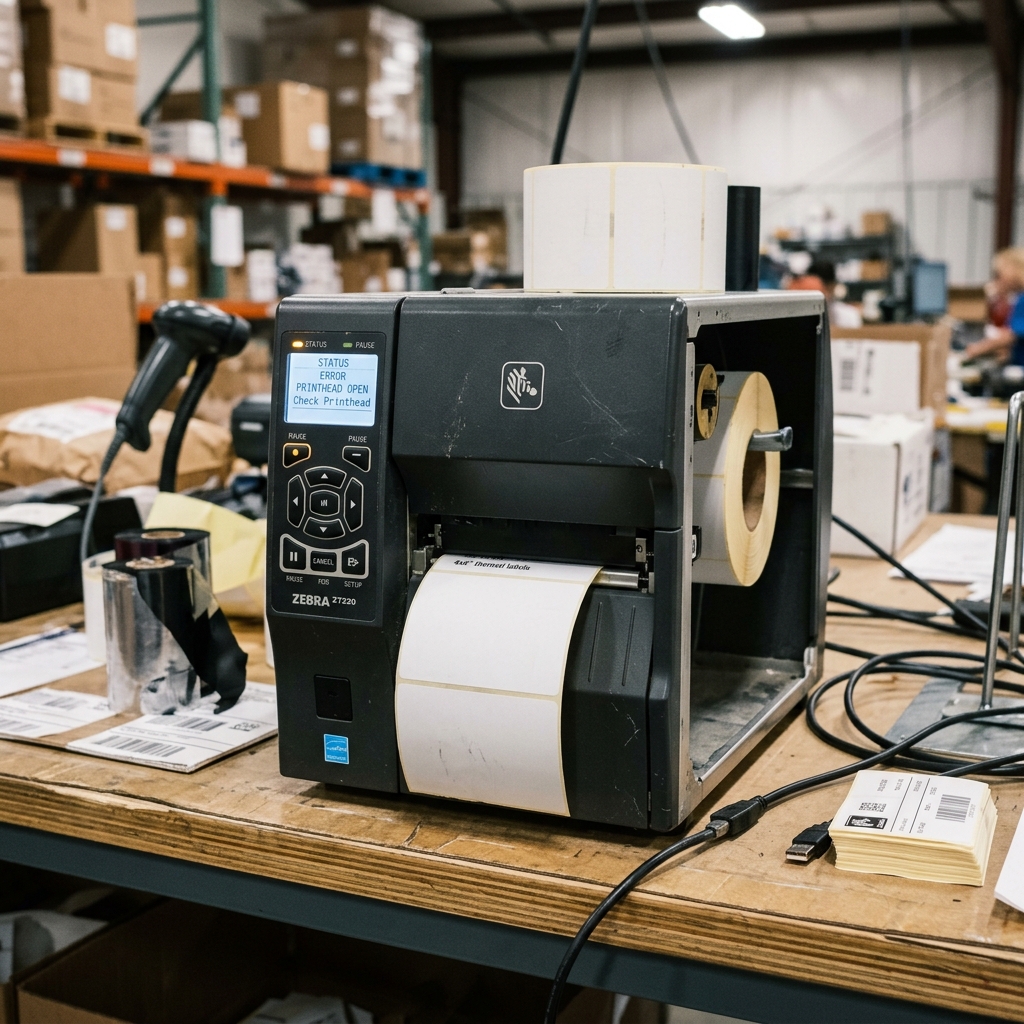
Industrial label printers like the Zebra ZT230 and ZT410 are the workhorses of warehouses, manufacturing floors, and logistics hubs. They are designed to withstand harsh environments and output thousands of labels daily.
However, even these robust machines can encounter critical issues that bring operations to a standstill. Two of the most common and frustrating problems are printhead errors on the ZT230.
And network connectivity drops on the ZT410. When a printhead fails or a network connection is lost, it can lead to shipping delays.
Mislabeled products, and severe supply chain disruptions. In this extensive troubleshooting guide, we will dissect the root causes of these specific errors, guide you through comprehensive diagnostic procedures.
And provide actionable, step-by-step solutions to get your Zebra printers back online and producing crisp, scannable labels.
Understanding the intricacies of modern hardware is essential for maintaining a seamless workflow. When devices fail to operate as expected, it not only impacts productivity but can also lead to significant operational downtime.
Manufacturers continuously update firmware (internal software), drivers, and software utilities to address emerging bugs. And improve compatibility with new operating systems and network protocols.
Therefore, staying informed about the latest technological updates and adhering strictly to the recommended maintenance schedules is paramount. This foundational knowledge serves as the bedrock for effective troubleshooting, allowing IT professionals.
And end-users alike to diagnose complex issues with confidence. By systematically eliminating potential variables—such as faulty cables, outdated software, or environmental interference—you can drastically reduce the time spent on resolving hardware malfunctions and ensure long-term reliability.
Why This Happens
Printhead errors on the Zebra ZT230 often stem from physical damage, debris accumulation, or incorrect printhead pressure settings. The printhead consists of hundreds of tiny heating elements; if a label gets jammed and is pulled out forcefully.
Or if abrasive materials are used, these elements can blow, resulting in a "Printhead Open" or "Printhead Element Failure" error. Additionally, failing to clean the printhead regularly leads to adhesive and dust buildup that triggers thermal sensors.
On the ZT410, connectivity issues are frequently related to print server misconfigurations. The internal ZebraNet print server might lose its IP address lease, or network security protocols (like 802.
1x authentication) might reject the printer. In some cases, outdated firmware (internal software) on the printer cannot communicate effectively with modern enterprise routers.
Leading to intermittent disconnects or a complete failure to register on the network.
The root causes of these hardware and software discrepancies often trace back to a lack of standardization in peripheral communication protocols. While Universal Serial Bus (USB) and IEEE 802.
11 Wi-Fi standards have bridged many gaps, the built-in nature of device drivers means that even a minor operating system update can disrupt previously stable connections. Furthermore, environmental factors in industrial or retail settings—such as excessive dust.
Fluctuating temperatures, and electrical noise from heavy machinery—can degrade electronic components faster than in standard office environments. Preventative maintenance, such as regular physical cleaning and environmental monitoring, plays a crucial role in mitigating these risks.
Ignoring these subtle environmental warning signs frequently exacerbates minor software glitches, culminating in total hardware failure.
Step-by-Step Fix
- Turn off the Zebra printer and disconnect the power cord before attempting any physical inspections.
- Open the media door and release the printhead latch to inspect the printhead for visible damage. Adhesive buildup, or physical obstructions.
- Clean the printhead thoroughly using a Zebra-approved cleaning pen or a lint-free cloth soaked in 99% isopropyl alcohol.
- Check the printhead cables to ensure they are securely plugged into both the printhead assembly and the main logic board.
- Power the printer back on and perform a manual calibration by holding the PAUSE. And CANCEL buttons to reset sensor values.
- For ZT410 connectivity issues, navigate to the printers LCD menu under Network > IP Protocol. And ensure it is set correctly (ALL or PERMANENT).
- Print a network settings label to verify the IP address, Subnet Mask, and Gateway are correct for your local network.
- Ping the printers IP address from a computer on the same network to test basic connectivity and response times.
- If using a wireless print server, verify the SSID, security mode (WPA2/WPA3). And pre-shared key via the Zebra Setup Utilities software.
Executing these steps requires careful attention to detail. Skipping a diagnostic phase or rushing through a firmware (internal software) update can result in a "bricked" device, leaving it entirely inoperable.
It is highly recommended to perform these maintenance tasks during off-peak hours to minimize disruption to your business operations. Documenting each change you make—such as new IP addresses, driver versions.
Or modified settings settings—will create an invaluable reference log for future troubleshooting. If you manage a large fleet of devices, utilizing centralized endpoint management software can automate many of these settings pushes.
Ensuring uniformity across your organization and drastically reducing the manual labor required to maintain hardware health.
Advanced Troubleshooting
Advanced troubleshooting for a recurring printhead error may require a complete printhead replacement. When replacing the printhead on a ZT230, it is crucial to input the new printheads resistance value (measured in ohms.
And printed on a sticker on the new part) into the printers settings, otherwise, it will under-heat or overheat the labels. For deep network issues on the ZT410, you may need to use ZebraNet Bridge Enterprise or the printers web interface to examine network logs.
If the printer keeps dropping off a Wi-Fi network, check the roaming aggressiveness settings. And ensure the firmware (internal software) is updated to handle modern mesh network handoffs.
Sometimes, performing a factory default reset on the network parameters (via the ^JUN ZPL command). And reconfiguring from scratch is the most reliable way to clear corrupted NVRAM settings.
In cases where standard operating procedures fall short, engaging with deep-level diagnostic tools becomes necessary. System administrators might need to employ packet sniffers like Wireshark to intercept.
And analyze the raw data packets traveling between the host machine and the peripheral device. This level of analysis can reveal malformed network requests, latency spikes, or unauthorized broadcast storms that disrupt communication.
Additionally, reviewing the Windows Event Viewer or Linux Syslog can uncover underlying operating system errors that indirectly affect peripheral performance. When hardware degradation is suspected, using multimeters to test power supply voltage stability or inspecting internal circuit boards for blown capacitors can isolate the physical failure points.
Engaging the manufacturers tier-two support with this detailed diagnostic data usually expedites the RMA (Return Merchandise Authorization) process or yields specialized beta firmware (internal software) designed to patch highly specific edge-case bugs.
We also strongly advise creating a robust backup strategy for all device configurations. Many modern peripherals offer the ability to export their settings to an XML or JSON file.
By securely storing these settings backups on a central server, you can rapidly provision replacement hardware in the event of an unrecoverable failure. Training your frontline staff on basic triage—such as identifying error light codes.
Safely power-cycling equipment, and replacing consumable supplies correctly—forms the first line of defense against prolonged downtime. Cultivating a proactive maintenance culture rather than a reactive repair mentality ultimately translates to lower total cost of ownership and higher overall operational efficiency.
FAQ
How often should I clean the Zebra printhead?
It is highly recommended to clean the printhead every time you change the ribbon. Or at least every roll of labels for direct thermal printing, to maximize the lifespan of the heating elements.
What does a "Head Open" error mean when the head is closed?
This usually indicates a faulty head-open sensor or a misaligned sensor flag. You may need to inspect the sensor mechanism near the latch and ensure dust is not blocking the optical path.
Why is my ZT410 printing blank labels after reconnecting?
Blank labels often mean the ribbon is installed backwards (ink side facing the wrong way) or the print method in the settings is incorrectly set to Direct Thermal instead of Thermal Transfer.
Can I upgrade my ZT230 to wireless networking?
Yes, Zebra offers user-installable wireless print server upgrade kits that slot into the back of the printer. Allowing you to connect it to standard Wi-Fi networks.
