


Introduction
The Zebra ZD421 and ZD620 desktop printers are workhorses in retail, healthcare. Logistics environments, prized for their reliability and advanced feature sets.
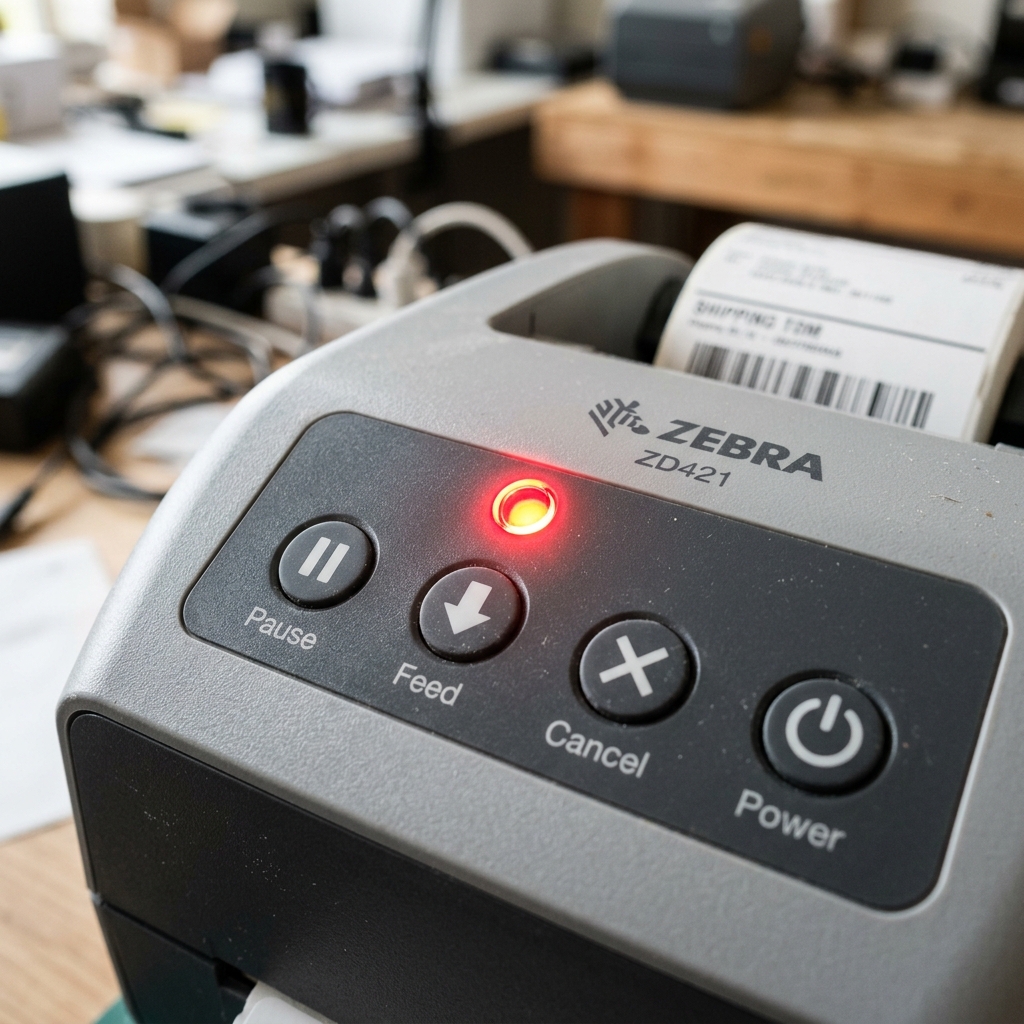
However, when the physical interface fails, such as the cancel button becoming unresponsive, or. When cryptic error lights begin flashing, business operations can grind to an abrupt halt.
A non-functioning cancel button prevents operators from quickly aborting erroneous print jobs, leading to wasted labels and potential data mismatches. Simultaneously, error lights on the ZD620 can indicate a multitude of issues, ranging from media out errors.
Ribbon supply problems to complex memory faults and thermal head overheating. Navigating these diagnostic indicators requires a systematic approach to identify the root cause without resorting to complete hardware replacement.
This extensive guide is designed to empower IT technicians. Everyday users alike to troubleshoot and resolve unresponsive buttons and error light conditions on Zebra ZD-series printers.
Understanding the architecture of Zebra printers is essential for effective troubleshooting. These devices operate on Zebra's Link-OS environment, a robust operating.
System that manages everything from network connectivity to mechanical sensor calibration. When a hardware button like the cancel button stops responding, the issue could be mechanical (a broken switch), electrical. (a disconnected ribbon cable), or software-related (the printer being locked in a specific mode or executing an uninterruptible script).
Similarly, error lights are the printer's primary method of communicating its internal state when a screen is unavailable or unreadable. By decoding the specific sequences and colors of these LED indicators, we can pinpoint exactly what subsystem requires attention.
In this article, we will cover mechanical inspection, sensor recalibration, firmware (internal software) (internal software) diagnostics,. Software resets to bring your Zebra printer back online.
We will proceed by first examining the most common causes for these failures, followed by a detailed, step-by-step resolution process. We will then dive into advanced techniques for persistent issues that defy basic troubleshooting, such as performing manual sensor calibrations.
Analyzing settings labels. Finally, we will answer the most frequently asked questions regarding the ZD421 and ZD620 models.
With patience and the right diagnostic steps, you can minimize. Downtime and extend the operational life of your vital printing equipment.
Why This Happens
The unresponsiveness of the cancel button on a Zebra ZD421 or ZD620 can stem from several distinct sources. Mechanically, the tactile switch beneath the membrane keypad may wear out after thousands of presses, or liquid ingress.
Dust accumulation might interfere with the electrical contact. On the software side, if the printer is actively receiving a massive data payload or is in the middle.
Of a critical firmware (internal software) (internal software) operation, it may temporarily ignore input from the cancel button to prevent data corruption. Furthermore, specific ZPL (Zebra Programming Language) commands sent by host applications can intentionally lock out the.
Front panel buttons for security reasons, preventing users from altering the printer's state during batch printing.
Regarding the error lights, particularly on the ZD620, the LED. Status indicators are designed to reflect the state of internal sensors.
A solid red status light typically signifies a hard error, such as the. Print head being open, the media (labels) running out, or a critical mechanical jam.
A flashing red light often points to a ribbon out error in thermal transfer models, or. A memory out error if the printer receives a label format that exceeds its available RAM.
A flashing yellow light might indicate that the print head is over temperature and needs to cool down. The complexity arises when the sensors themselves become dirty or out of alignment.
A dust-covered media sensor might falsely report a paper out condition. Triggering an error light even when a full roll is loaded.
Therefore, determining whether the error is a genuine supply issue or. A sensor malfunction is the critical first step in the diagnostic process.
Step-by-Step Fix
- Check for Front Panel Lockout: First, ensure that the host application or print server has not locked the front panel. You can override this by power cycling the printer. Turn the printer off using the power switch, wait ten seconds, and turn it back on. If the cancel button works momentarily during boot. Stops working once connected to the network, a ZPL command (such as ^HH) from your software is likely disabling the interface. Review your application settings.
- Perform a Factory Reset (Two-Button Reset): To clear any software glitches causing the unresponsive button or erratic error lights, perform a factory reset. Turn off the printer. Hold down the PAUSE and FEED buttons simultaneously while turning the printer back on. Continue holding the buttons until the status indicator flashes, then release them. This will reset the printer's settings to factory defaults. Note that Make sure to reconfigure network settings afterward.
- Clean and Calibrate Media Sensors: If error lights indicate a media issue, open the printer and remove the labels and ribbon. Use a can of compressed air to blow out any dust. From the media path, paying special attention to the movable media sensor. Next, perform a manual media and ribbon calibration. Press and hold the PAUSE and CANCEL buttons for two seconds. The printer will feed several labels and measure the length and gap to recalibrate the sensors.
- Update or Reflash firmware (internal software) (internal software): Outdated or corrupted firmware (internal software) (internal software) can cause hardware interface anomalies. Download the Zebra Setup Utilities software. The latest firmware (internal software) (internal software) for your specific printer model from the official Zebra website. Connect the printer to your PC via USB. Use the utility to send the firmware (internal software) (internal software) file to the printer. Do not interrupt this process, as it can take several minutes and the printer will restart automatically.
- Inspect the Control Panel Ribbon Cable: If software resets fail to revive the cancel button, a mechanical or electrical issue is likely. Unplug the printer. Carefully remove the side panels (refer to the Zebra service. Manual for exact screw locations) to access the main logic board. Inspect the ribbon cable connecting the front control panel to the main board. Ensure it is firmly seated and free of crimps or damage. Reseat the connection carefully.
Advanced Troubleshooting
When basic calibration and resets fail to clear error lights on the ZD620, you must interpret the specific LED sequences. Zebra printers use a combination of Status, Pause, Data, Supplies, and Network LEDs.
For example, if the Supplies LED is flashing red. The Status LED is solid red, the printer is definitively reporting a ribbon out or media out condition.
If you have verified the supplies are full and loaded correctly, the sensors may be physically damaged. You can perform a sensor profile printout by holding the FEED and CANCEL buttons.
This prints a graphical representation of the sensor readings. If the graph shows a flat line regardless of whether media is present, the transmissive or reflective sensor has failed.
The sensor assembly requires replacement.
For persistent cancel button failures where the ribbon cable is intact, the entire front panel bezel assembly may need replacing. The tactile switches are integrated into a single printed circuit board (PCB) behind the membrane.
Testing this requires a multimeter to check for continuity when the button is pressed. If no continuity is detected, the switch is dead. ^XA^JUS^XZ to clear non-volatile memory, or ~JA to cancel all current formats.
Additionally, ensure that the label formats being sent are optimized; excessively large graphic files sent with every print job can quickly overwhelm the printer's buffer, causing it to lock up. Display error lights.
FAQ
What does a flashing yellow status light mean on the ZD620?
A flashing yellow (or amber) status light generally indicates that the thermal print head has overheated. This can occur during extended, continuous printing runs, especially if the print darkness setting is configured excessively high.
How do I know if my ZD421 cancel button is mechanically broken?
If the cancel button does not physically depress or lacks the tactile 'click' feel compared. To the pause or feed buttons, the underlying dome switch is likely collapsed or broken.
Why does the media out error occur when I switch from thermal transfer to direct thermal printing?
When switching printing methods, the printer must be reconfigured to understand that it no longer requires a ribbon. If you remove the ribbon.
Can I bypass a damaged cancel button using software?
Yes, while waiting for hardware repairs, you can manage the printer's queue via software. You can cancel print jobs directly from the Windows Print Spooler on the host computer.
