


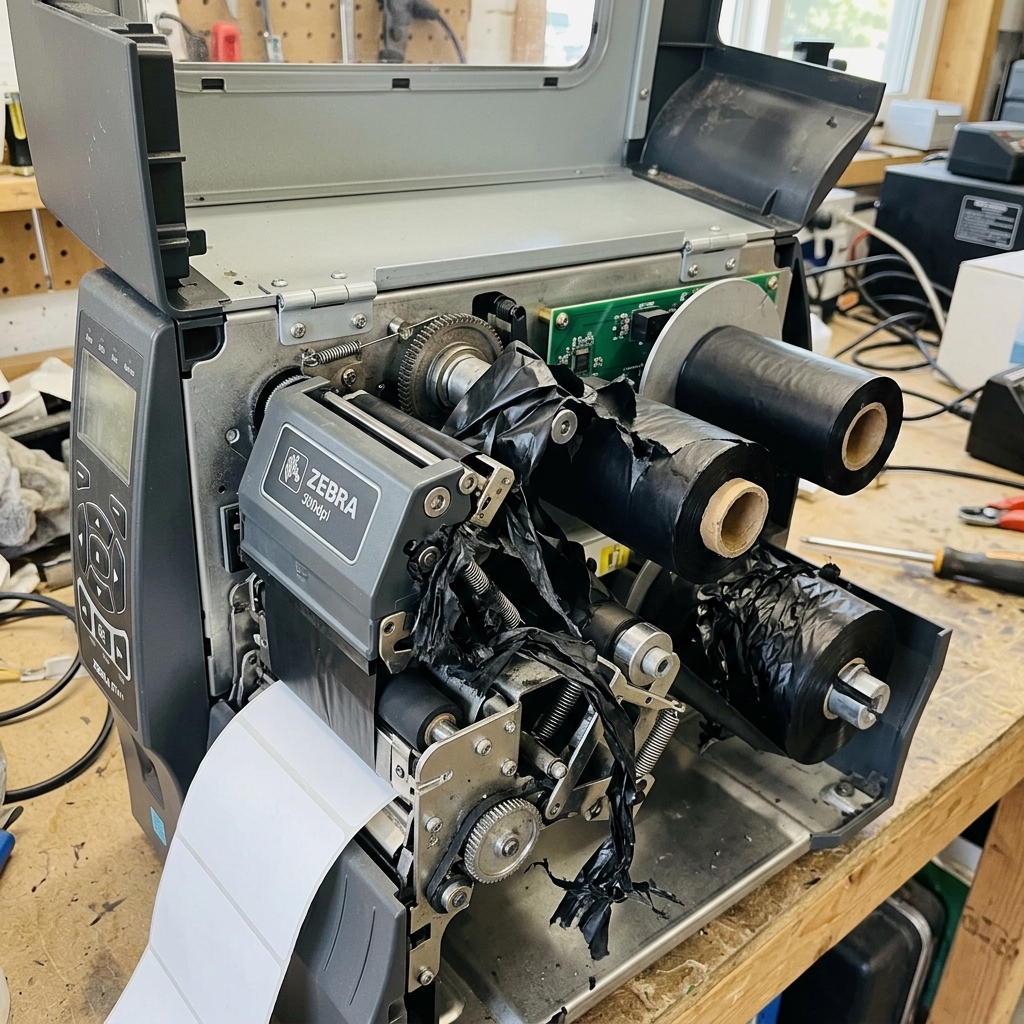
Introduction to Zebra Printer Ribbon and Cover Issues
Zebra thermal transfer printers are industrial workhorses, relied upon for high-volume shipping labels, barcodes, and inventory tracking. When these critical machines stop working, business grinds to a halt.
Two of the most common and confounding errors are the "Ribbon. Not Feeding" error (or Ribbon Out) and persistent "Top Cover Open" errors.
These issues can strike models across the board. From the desktop GK420t and ZD420 series to the industrial ZT200 and ZT400 series.
This detailed guide is engineered to help IT personnel. And warehouse operators diagnose and resolve these specific mechanical and sensor-related failures rapidly.
Thermal transfer printing relies on synchronized movement. The platen roller must pull the label media forward precisely while the ribbon take-up spindle pulls.
The used ribbon at a matching rate, melting ink onto the label as they pass the printhead. If this delicate synchronization fails, or if the printer believes it is open, the system shuts down to prevent damage.
We will dissect the sensors and mechanisms involved to provide actionable fixes.
Why This Happens: The Root Causes
Understanding the architecture of Zebra printers is vital for troubleshooting. These errors are rarely software bugs; they are almost exclusively physical issues involving sensors, tension, or mechanical alignment.
- Ribbon Sensor Calibration Failure: Zebra printers use an optical sensor to detect the presence and movement of the ribbon. If this sensor is dirty, misaligned, or uncalibrated for the specific ribbon type (especially shiny. Or transparent leader ribbons), it will falsely report a "Ribbon Out" or failure to feed.
- Incorrect Ribbon Routing: The path the ribbon takes from the supply spindle, under the printhead, and onto the take-up spindle is precise. Routing the ribbon incorrectly, threading it over a guide instead of under. Or putting it in backwards (ink side facing the wrong way) will cause tension failures and feeding errors.
- Spindle Tension and Core Issues: The take-up spindle must maintain tension to pull the ribbon. If the ribbon core is slipping on the spindle. Or if the internal tension spring within the spindle mechanism is broken, the ribbon will sag and fail to feed.
- Faulty Head Open / Top Cover Sensor:The "Top Cover Open" or "Head Open" error is triggered by a mechanical microswitch. Or a magnetic sensor that engages when the printhead mechanism is locked down. If this sensor is physically broken. Gummed up with adhesive, or misaligned, the printer will refuse to operate, thinking it is open.
- Media/Ribbon Incompatibility:Using a ribbon that is too narrow for the labels, or a ribbon formulated for a different type of media. Can cause the ribbon to stick to the labels and get pulled out of alignment, triggering a feed error.
By approaching the problem logically and checking the mechanical pathways. And sensors, these errors can be resolved without requiring costly support calls.
Step-by-Step Fix
Follow these procedures to address ribbon feed and top cover errors on your Zebra printer.
- Verify Ribbon Orientation and Routing: This is the most common mistake. Remove the ribbon entirely. Inspect the ribbon to ensure the dull side (ink side) will face the label media. Consult the diagram printed on the inside of the printer cover. Rethread the ribbon meticulously, ensuring it passes completely under the printhead assembly and attaches securely to the take-up core.
- Check the Ribbon Take-up Core: Ensure the empty cardboard core on the take-up spindle is firmly attached. If the core is slipping when the spindle turns, the ribbon won't wind. Use a piece of tape to secure the ribbon leader to the core. And manually spin the take-up spindle to ensure it creates tension.
- Clean the Ribbon Sensor: Locate the ribbon sensor (usually a small optical eye located near the ribbon supply spindle or under the printhead mechanism). Turn off the printer. Use a Q-tip lightly moistened with 99% isopropyl alcohol to. Gently wipe the sensor clean of any dust or wax buildup.
- Perform a Manual Media and Ribbon Calibration: This is critical. Do not rely on auto-calibration. " Follow the prompts precisely, which usually involves removing the ribbon. And media, closing the head, and then replacing them as instructed. This reteaches the sensors the baseline values.
- Inspect the Head Open / Cover Sensor: For "Top Cover Open" errors, locate the latch mechanism. Inspect the latch for debris, stuck label adhesive, or physical damage. Find the small microswitch or sensor that the latch engages. Manually depress the switch with a pen to see if the error clears. If it does, the latch mechanism needs adjustment or cleaning to engage the switch fully.
- Check Printhead Pressure Toggles:If the printhead pressure toggles are set unevenly or too lightly, the printhead might not lock down securely. Causing a false Head Open error. Or it might not provide enough friction for the platen roller to pull the ribbon/media evenly. Adjust the toggles to apply even pressure across the media width.
- Update Printer Firmware (internal software) (internal software): Occasionally, sensor logic is improved via firmware (internal software) (internal software) updates. Use the Zebra Setup Utilities to check for. And apply the latest firmware (internal software) (internal software) for your specific printer model.
- Test with Different Consumables:If the problem persists, swap out both the ribbon roll. And the label roll for brand new ones from a different batch. A defective ribbon roll with inconsistent tension or a warped core can cause intractable feeding issues.
Advanced Troubleshooting
If standard calibration and cleaning fail to resolve the issue, deeper mechanical investigation is required.
Spindle Drive Belt Inspection (Industrial Models): On larger printers like the ZT series, the ribbon spindles are driven by internal belts and stepper motors. If you hear the motor grinding or whining. But the spindle isn't turning, the drive belt may be loose, stripped, or snapped, requiring a replacement part.
Printhead Cable Continuity: The Head Open sensor is often routed through the main printhead wiring harness. Constant opening and closing of the printhead can cause a wire to break internally within the harness. A technician can use a multimeter to check the continuity of the sensor wiring.
Baud Rate and Flow Control: While rare for feed errors, ensure your communication settings (baud rate, handshake) between the host PC and printer are correct. Malformed data can sometimes cause the printer to freeze and throw anomalous errors.
Factory Default Reset:As a last resort before calling support, perform a factory default reset to clear all custom settings. And sensor calibrations, returning the printer to a blank slate state. Then re-run the manual calibration.
FAQ
Can I use a direct thermal label with a ribbon?
While you can, it's unnecessary and often messy. Direct thermal labels have chemical coatings that react to heat.
Why does the ribbon wrinkle diagonally?
Diagonal wrinkling is caused by uneven tension. This is usually due to improper printhead toggle pressure.
The printer says 'Ribbon In' when using Direct Thermal mode. Why?
If the printer is set to Direct Thermal mode (no ribbon required). But the ribbon sensor detects something blocking its path (dust, a stray piece of label), it will throw an error.
How often should I clean the sensors and printhead?
Best practice is to clean the printhead and inspect sensors every time you change a roll of ribbon. Regular maintenance prevents adhesive buildup and sensor false positives.
What is a ribbon take-up spindle slip clutch?
Industrial Zebra printers use a slip clutch mechanism in the. Take-up spindle to maintain constant tension as the roll gets thicker.
