


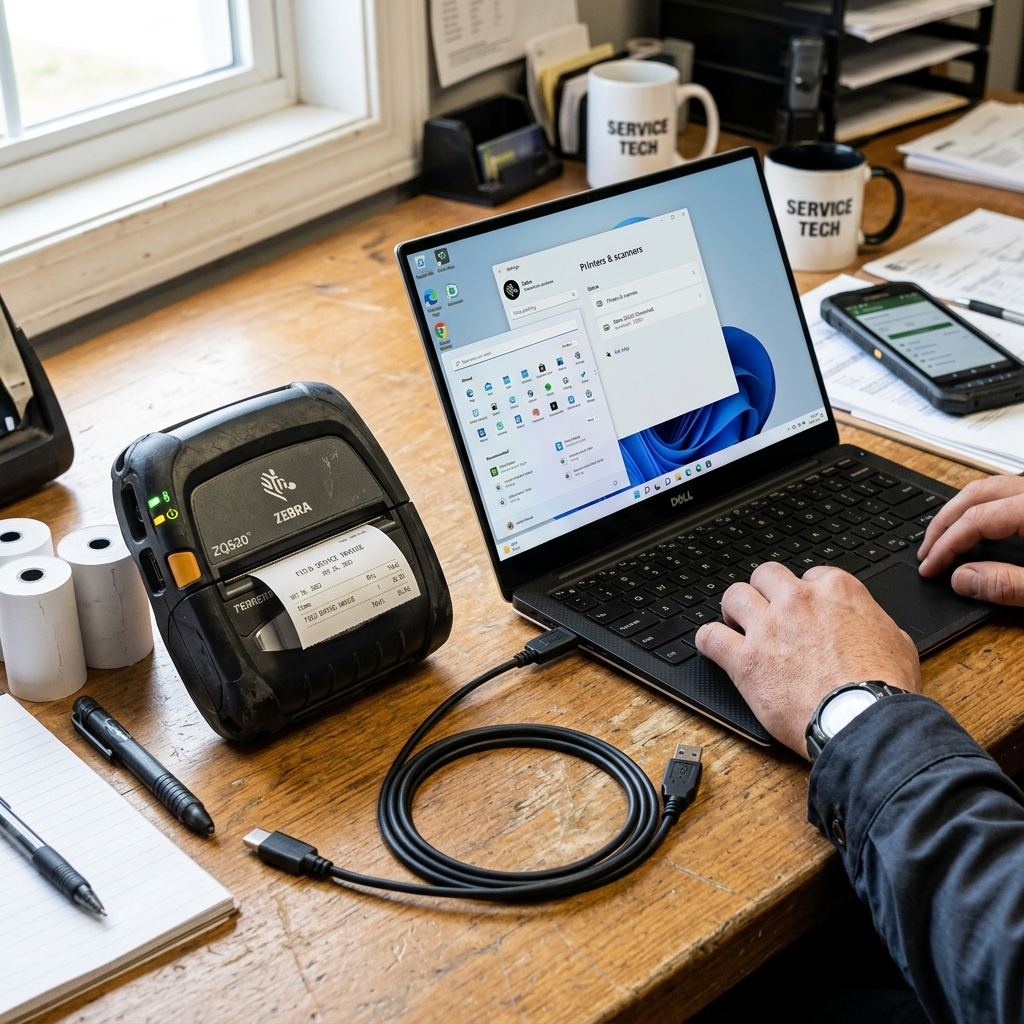
Deploying Zebra thermal printers like the mobile ZQ520. The venerable desktop GK420d on modern Windows 11 operating systems presents a unique.
Set of challenges that can bewilder IT administrators and end-users alike. Zebra Technologies is the undisputed industry standard for rugged, high-volume barcode and label printing in logistics, healthcare, and retail.However, their reliance on legacy printing languages (ZPL/EPL).
Older driver architectures often clashes with the aggressive security updates and modernized driver frameworks introduced in Windows 11.The GK420d, a workhorse direct thermal printer, and the ZQ520. A premium mobile device, serve different physical needs but share a common software ecosystem through the ZebraDesigner driver suite.When migrating a fleet of these devices to Windows 11.
Users frequently encounter issues ranging from drivers failing to install due to Core Isolation security features. To USB ports silently reassigning and breaking the print queue.This comprehensive guide will dissect the complex interaction between Zebra hardware.
The ZDesigner driver stack, and the Windows 11 printing subsystem. Providing you with actionable, step-by-step methodologies to achieve a stable and reliable setup.
The root causes of installation and operational failures for Zebra printers on Windows 11 are multifaceted. Stemming primarily from architectural changes Microsoft has implemented to bolster OS security.
A significant hurdle is Windows 11's Memory Integrity feature, also known as Hypervisor-protected Code Integrity (HVCI) or Core Isolation.HVCI prevents malicious code from running in the Windows kernel by verifying the digital signatures. Integrity of all kernel-mode drivers before they are loaded.Many older iterations of the ZDesigner driver, particularly those designed during the Windows 7/10 era.
Contain components that fail these strict integrity checks.When a user attempts to install an older Zebra driver on a. Fresh Windows 11 machine with Core Isolation enabled by default.
The OS silently blocks the driver from loading into memory.The printer might show up in Device Manager as an unrecognized device. Or the installation wizard might complete without error,.
The print queue simply will not transmit data to the hardware because the underlying kernel communication channel is blocked.
Furthermore, Windows 11's aggressive management of USB power states and port assignments frequently wreaks havoc on label printers. To conserve energy, Windows 11 employs USB Selective Suspend, which cuts power to idle USB devices.While fine for a mouse, thermal printers often fail to wake up.
Properly from this suspended state when a print job is sent. Resulting in an "Offline" or "Error" status in the print queue.
Additionally, the Windows Plug and Play (PnP) enumerator can sometimes assign a new virtual USB port (e.g., changing from USB001 to USB002) if the printer is unplugged. Moved to a different physical port on the PC.
The Zebra print spooler, however, remains hardcoded to the original port. Consequently, print jobs pile up in the queue, destined for a port that no longer connects to the physical device.This creates a confusing scenario where the printer is powered on and physically connected.
But the software is talking to a ghost port.
Another layer of complexity involves the Page Description Language (PDL).The GK420d natively understands EPL (Eltron Programming Language) and ZPL (Zebra Programming Language). While the ZQ520 relies heavily on CPCL and ZPL.If the Windows driver is configured to send the wrong language.
Or if a generic text driver is accidentally selected, the printer receives unintelligible command strings.It will either ignore the job completely or print reams of raw alphanumeric. Code (the ZPL commands themselves) instead of a formatted barcode label.Ensuring the Windows driver is correctly translating graphic rendering calls into the precise dialect.
Of ZPL required by the specific printer model is critical for success.
- Before connecting the GK420d or ZQ520, completely purge any existing Zebra software.Open Windows Settings -> Apps -> Installed apps,. Uninstall any instance of "Zebra Setup Utilities" or "ZDesigner Windows Printer Driver". Next, open "Print Management" (type it in the Start menu search). Navigate to "All Drivers", right-click any Zebra drivers, and select "Remove Driver Package". Restart your PC to ensure all locked files are released.
- Navigate to the official Zebra support website. Do not rely on third-party driver sites. You must download the latest "ZDesigner v8 Driver for Windows".The version 8 architecture is crucial because it has been specifically re-engineered. Cryptographically signed to be fully compliant with Windows 11's Core Isolation and HVCI requirements. Do not download the legacy v5 drivers unless instructed by enterprise support for a specific legacy application.
- Run the downloaded executable file (e.g., zd86423851-certified.exe). This process unpacks the driver files into a specific directory, typically C:\Zebra. Follow the wizard until you reach the screen asking how the printer is connected. AT THIS POINT, pause the installation.
- Now, connect your GK420d or ZQ520 to the computer via USB and turn the printer power on. Windows 11 will attempt to automatically detect the device. The Zebra installation wizard should recognize the new hardware and prompt you to complete the setup.If connecting the ZQ520 via Bluetooth, pair it first in Windows Settings before running the driver installer. Then select the "Bluetooth" or corresponding COM port option in the installer.
- Once installed, go to Windows Settings -> Bluetooth & devices -> Printers & scanners. Click on your newly installed Zebra printer, then select "Printer properties". Navigate to the "Advanced" tab and click "Printing Defaults". This is a critical step. Ensure the Stock size (e.g., 4x6, 2x1) exactly matches the physical media loaded in the printer. Go to the "Options" tab and set the Darkness (typically between 10 and 15) and Print Speed to optimal levels. Apply these settings.
- To prevent the printer from falling asleep and disconnecting. Open the old "Control Panel", go to "Hardware and Sound" -> "Power Options". Click "Change plan settings" next to your active plan, then "Change advanced power settings". Expand "USB settings" -> "USB selective suspend setting" and change the setting to "Disabled". Click Apply and OK.
- Finally, calibrate the printer to the media. For the GK420d, turn it on, then press and hold the green feed button. The light will flash once, then twice, then three times. Release the button after the specific flash sequence corresponding to manual calibration (usually the two-flash sequence, but consult the manual). The printer will feed several blank labels and align itself. Test print a Windows test page.
If you encounter a scenario where the ZDesigner v8 driver absolutely refuses to install on Windows 11. Throwing cryptographic errors, you may need to temporarily investigate your Core Isolation settings.
Navigate to Windows Security -> Device Security -> Core isolation details. If Memory Integrity is ON, check if it lists any incompatible drivers blocking the process.
Sometimes, older leftover drivers from other devices interfere with the system's ability to trust new kernel drivers.While it is generally not recommended to disable Memory Integrity permanently for security reasons. Toggling it off, rebooting, installing the Zebra driver, and then toggling it back on can sometimes bypass stubborn installation blockages.
If you cannot turn it back on afterward, you will need to hunt down the specific incompatible .sys file identified by Windows Security and remove it using the 'pnputil' command in an elevated command prompt.
For persistent queue hanging (where jobs stay stuck in "Printing" status forever), the issue is almost always port mismatch. Open Printer Properties -> Ports tab.
Look closely at the checked port. It should say something like "USB001 - Virtual printer port for USB".
Unplug the printer and plug it into a different USB port. Does a new USB002 appear?
If so, Windows has created a new logical path. You must manually check the box for the new USB port and uncheck the old one to re-establish communication.Alternatively, installing the "Zebra Setup Utilities" tool provides a "USB Port Recovery" feature that automates this fix.
Resetting the Windows spooler and reconnecting the logical port to the physical hardware ID of the printer.
When dealing with the ZQ520 mobile printer over Bluetooth, range and interference are your biggest enemies. The ZQ520 uses older Bluetooth standards compared to modern smartphones.If printing from a Windows 11 tablet or laptop in a warehouse.
Ensure the device is within 15 feet of the printer.Furthermore, ensure the ZQ520's internal battery is fully charged. A low battery state often forces the printer to throttle its radio output power.
Causing connection drops right as the print job is transmitting. Resulting in half-printed labels or "communication errors" in the Windows spooler.
Why is my Zebra GK420d printing blank labels on Windows 11?
Printing blank labels usually means one of two things: either the label roll. Is inserted upside down (the thermal coating must face the heated printhead).
Can I use the Zebra GK420d and ZQ520 on a Mac instead of Windows 11?
Yes, but the experience is drastically different. You must install the printer using the built-in macOS CUPS driver architecture.
What is the difference between ZDesigner v5 and v8 drivers?
The v5 driver is a legacy architecture designed primarily for Windows 7 and Windows 10. The v8 driver is a completely rewritten, modern driver stack that is fully certified for Windows 11.
How do I reset the Zebra GK420d to factory default settings?
To perform a factory reset on the GK420d, turn the printer off. Press and hold the feed button, and turn the power switch back on.
