


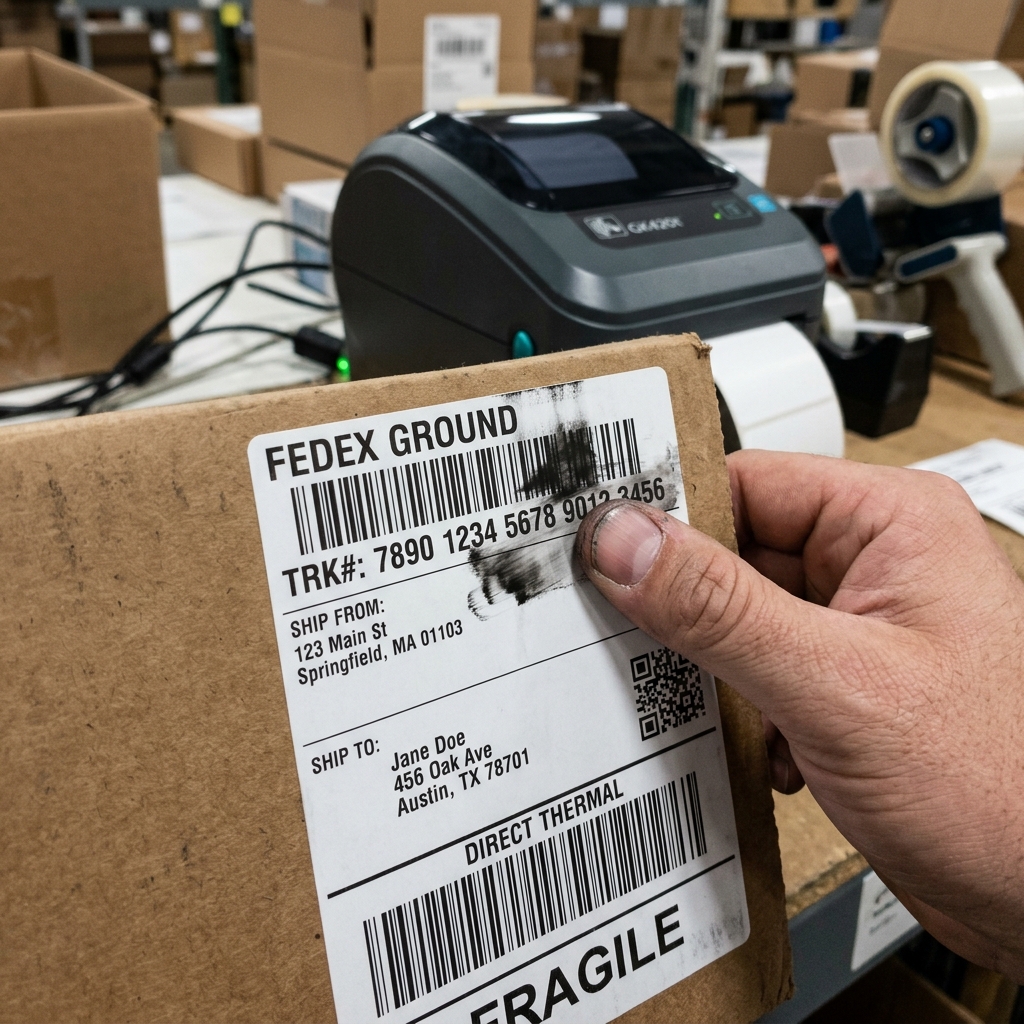
Introduction to Thermal Printing Technologies
When operating a logistics, retail, or manufacturing business, the durability and legibility of your printed labels are non-negotiable. A smudged barcode can derail an entire shipping process, causing packages to be misrouted or rejected by carrier scanning systems.
Zebra Technologies offers robust printers that utilize two distinct printing methods: Direct Thermal (DT) and Thermal Transfer (TT). A fundamental misunderstanding of these two technologies.
Applying the wrong media type to your specific use case, is the leading cause of label smudging, fading, and overall poor print quality. While Direct Thermal is favored for its simplicity—requiring no ink ribbons—it is inherently susceptible to environmental degradation.
Conversely, Thermal Transfer provides archival-quality durability but introduces the complexity of matching the correct ribbon formula (wax, wax/resin. Full resin) to the specific label substrate.
This comprehensive guide will deeply analyze the mechanics of both Direct Thermal and Thermal Transfer printing, explain the chemical and physical reasons behind smudging. Provide highly detailed, step-by-step methodologies to troubleshoot and permanently resolve print quality issues on your Zebra printers.
Why This Happens: The Technical Breakdown of Smudging
To fix smudging, you must first understand the physics of how the image is created on the label. In Direct Thermal (DT) printing, the printhead applies heat directly to a specially coated thermal paper.
This coating contains microcapsules of a color former and a developer. When heated, the capsules melt, the chemicals mix, and a black image is formed.
Smudging or fading in DT printing happens because this chemical reaction is reversible and highly sensitive to environmental factors. Exposure to intense heat (like a dashboard on a summer day), prolonged direct sunlight (UV degradation).
Harsh chemical solvents (even oils from human hands or certain types of clear packing tape) will cause the background to darken or the printed image to fade away completely. If your DT labels are smudging immediately out of the printer, it usually means the printer's heat setting (Darkness) is too high, essentially burning the label and causing the coating to spread.
You are using low-grade, highly porous thermal paper that doesn't hold the chemical reaction precisely.
Thermal Transfer (TT) printing, however, operates on a completely different principle. The printhead heats a ribbon coated with a specific ink formulation, melting the ink and physically transferring it onto the label surface.
Smudging in TT printing is almost entirely a result of a mismatch between the ribbon type, the label material, and the printer settings. Ribbons come in three main categories: Wax (for standard paper labels, easiest to melt, but most prone to smudging), Wax/Resin (for coated paper or matte synthetic labels, offering moderate smudge resistance).
Resin (for glossy synthetic materials like polyester, requiring high heat but offering extreme resistance to chemicals and scratching). If you use a standard Wax ribbon on a glossy polyester label, the wax cannot adhere to the smooth surface.
The ink sits on top and will smear off with the lightest touch. Furthermore, if the printer's darkness setting is too low for a Resin ribbon, the ink won't melt sufficiently to bond with the label, causing a flaky, easily smudged print.
Conversely, too much heat with a Wax ribbon will cause the ink to bleed laterally, ruining barcode resolution.
Another critical mechanical factor is the printhead pressure and the condition of the platen roller. The platen roller is the rubber cylinder directly underneath the printhead that feeds the labels and provides the necessary back-pressure against the thermal elements.
If this roller is worn down, uneven, or coated in adhesive residue, the pressure applied to the label or ribbon will be inconsistent. This results in areas of the label where the heat transfer is poor, leading to faded spots, while other areas might receive too much pressure, causing the ink (in TT) or chemical reaction (in DT) to smudge.
A dirty printhead—covered in paper dust or burnt-on ribbon residue—also acts as an insulator, preventing even heat distribution and severely degrading print quality, often manifesting as vertical white lines or general blurriness.
Step-by-Step Fix for Smudging Issues
- Identify the Technology and Media: First, determine which technology you are actually using. Open the printer. If there is a ribbon spindle with a ribbon installed, you are using Thermal Transfer. If there is only a roll of labels, you are using Direct Thermal. Next, verify your media. Scratch the label quickly with your fingernail. If it leaves a black mark, it is Direct Thermal media. If it leaves no mark, it is standard paper or synthetic media meant for Thermal Transfer. NEVER use Direct Thermal media with a Thermal Transfer ribbon; this combination causes severe smudging and can damage the printhead.
- Clean the Printhead and Platen Roller: Before making any software changes, address the hardware. Turn off the printer. Use a Zebra-approved cleaning pen or a lint-free swab dipped in 99% isopropyl alcohol. Gently wipe the thin brown/gray line on the printhead assembly (this is the actual heating element). Then, clean the rubber platen roller underneath, rotating it to clean all sides. Remove any stuck labels or adhesive goo. Let the alcohol dry completely before turning the printer back on. This step alone fixes 50% of smudging issues.
- Match Ribbon to Material (For Thermal Transfer): If you are using TT, examine your application. If your labels will face rough handling, moisture, or chemicals, you must upgrade your media. Standard paper with wax ribbon will always smudge under stress. Switch to a synthetic label (like Kimdura or Polypropylene) and pair it with a Wax/Resin or full Resin ribbon. Consult your label supplier to ensure exact compatibility.
- Adjust the Darkness Setting: Open the "Printer properties" on your computer (or access the printer's web interface if networked). Go to the Advanced/Printing Defaults section. Locate the "Darkness" setting. For Direct Thermal, if the label is smudging or the barcode lines look too thick and bleeding, reduce the darkness (try setting it between 8 and 12). For Thermal Transfer using Wax ribbons, keep darkness moderate (10-15). If using Resin ribbons on synthetic labels, you MUST increase the darkness significantly (often 20-30) to melt the tough resin polymers properly.
- Optimize Print Speed: Speed inversely affects heat transfer. If you are printing at 6 or 8 inches per second (IPS) and experiencing smudging, slow the printer down. Reducing the speed to 3 or 4 IPS gives the printhead more time to transfer heat effectively into the chemical coating (DT) or melt the ink onto the substrate (TT), resulting in a sharper, more durable image.
- Calibrate and Verify: After adjusting settings and cleaning, run a manual calibration (usually holding the feed button for a specific flash sequence). Then, print a test label containing complex barcodes. Perform a simple smudge test: rub your thumb firmly across the printed area. If it smears, you need to revisit the media matching or increase heat (for resin) / decrease heat (for DT/wax).
Advanced Troubleshooting
If you have meticulously cleaned the hardware and optimized the settings, yet smudging persists—particularly on Thermal Transfer printers—you may need to adjust the physical printhead pressure toggles. Many industrial Zebra printers (like the ZT411 or Xi4 series) have mechanical dials on top of the printhead assembly.
These dials control the downward force applied to the media. If you are printing on thick tag stock or complex synthetic labels, the standard pressure might not be sufficient to force the molten ribbon ink into the microscopic pores of the label material.
Conversely, if you are printing very narrow labels on a wide printer, uneven pressure can cause the ribbon to wrinkle, leading to diagonal smudges or unprinted streaks. You must balance the toggles to provide even pressure across the specific width of the media you are currently using.
Refer to the specific hardware manual for your printer model for exact toggle adjustment procedures.
Another advanced issue involves ribbon wrinkle, which manifests as sharp, diagonal unprinted lines cutting through your label, often accompanied by smeared edges. Ribbon wrinkle is caused by uneven tension between the ribbon supply spindle and the ribbon take-up spindle.
An improperly aligned printhead. Check the tension mechanism on the ribbon spindles (some models allow adjustment).
Ensure the ribbon is loaded perfectly straight and flat, without any slack. If the printer is old, the ribbon take-up motor or clutches might be failing, failing to pull the ribbon taut during high-speed printing, necessitating hardware replacement.
Finally, consider the environmental storage of your media. Direct Thermal labels have a definite shelf life.
If they are stored in a hot warehouse or exposed to humidity, the chemical coating degrades prematurely. When you finally print on them, the reaction is compromised, resulting in faint, easily smudged images regardless of printer settings.
Thermal Transfer ribbons can also degrade if stored in extreme temperatures, causing the wax or resin to become brittle and flake off rather than transferring cleanly. Always store media in a climate-controlled environment, away from direct sunlight.
Rotate stock to use older materials first.
Frequently Asked Questions (FAQ)
Why does clear packing tape make my Direct Thermal labels disappear?
This is a chemical reaction. The adhesive used in many clear packing tapes contains specific plasticizers or solvents that react with the color-forming chemicals in Direct Thermal paper.
Can I use a Thermal Transfer printer without a ribbon?
Yes, most Zebra Thermal Transfer printers can operate in Direct Thermal mode. You simply remove the ribbon and load Direct Thermal media.
What is the most durable type of label for outdoor use?
For outdoor use, exposure to rain, UV light, or chemicals, Direct Thermal is completely inadequate. You must use a Thermal Transfer setup utilizing a synthetic label (such as polyester or polyimide) paired exclusively with a Full Resin ribbon.
How often should I clean my Zebra printhead to prevent smudging?
A good rule of thumb is to clean the printhead and platen roller every time you change the roll of ribbon (for Thermal Transfer) or every time you change the roll of labels (for Direct Thermal). Regular maintenance prevents the buildup of adhesive, paper dust.
