


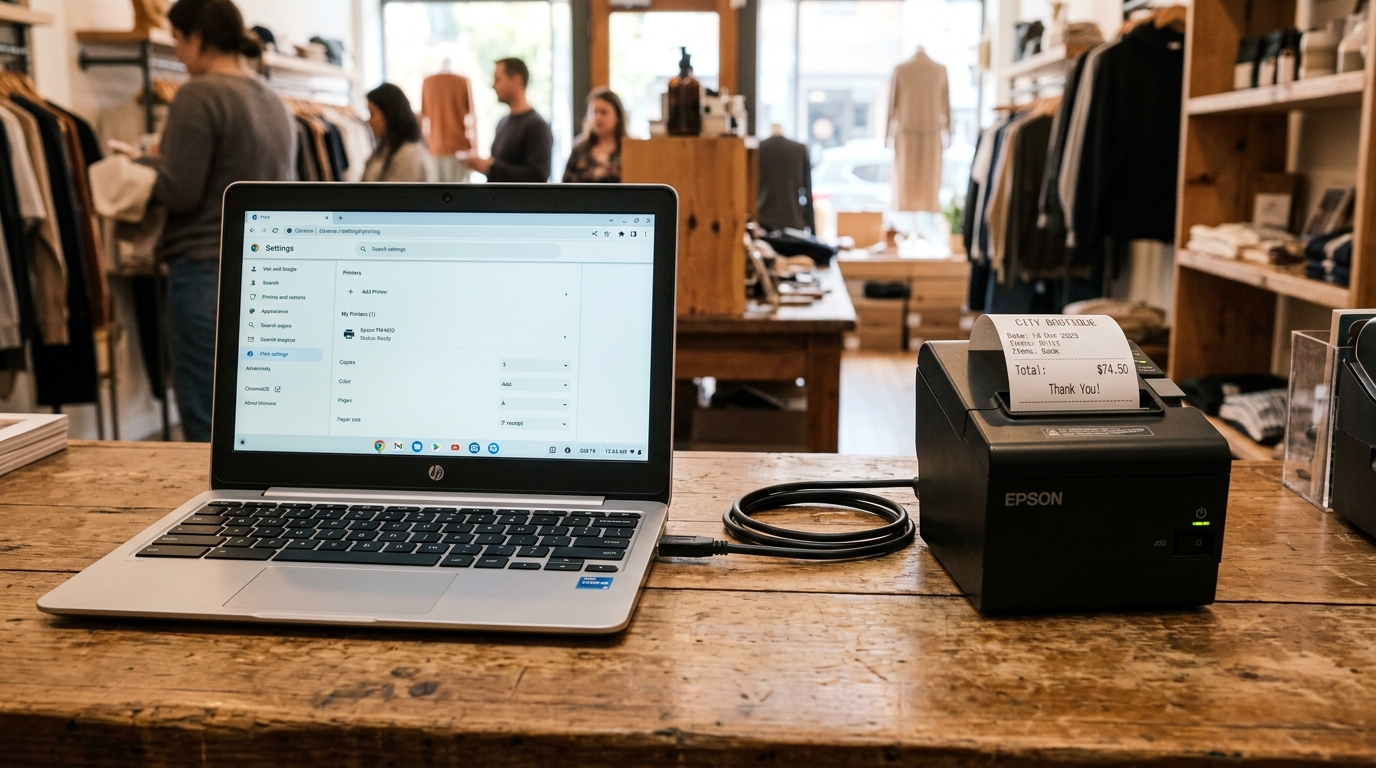
Printing to Bixolon from Google Chromebooks
ChromeOS devices in retail, school, and food service kiosks rely on cloud printing and native CUPS network print architecture. Bixolon receipt and barcode printers do not provide native ChromeOS driver executables.
When a Chromebook fails to recognize a Bixolon printer plugged in via USB or shows it as an unsupported peripheral, manual CUPS configuration using generic protocols is required.
Step 1: Connect via Network IP Using Generic ESC/POS
Network Ethernet and Wi-Fi connections are the most reliable method for ChromeOS printing:
- Connect printer to network: Connect your Bixolon printer to your Wi-Fi router or switch and print a self-test to verify its IP address.
- Open ChromeOS Settings: On your Chromebook, open Settings > Advanced > Print and scan > Printers.
- Add Printer Manually: Click Add printer.
- Enter network parameters: Type a name (e.g.,
Kitchen Bixolon), enter the printer's IP address, and select protocol AppSocket (RAW) on port9100. - Select Generic Manufacturer: Under Manufacturer, select Generic, and under Model, select Generic ESC/POS Printer.
- Save and test: Click Add and print a sample web receipt.
Step 2: Troubleshoot Direct USB-C Connections
Connecting a USB-B thermal printer to modern USB-C Chromebooks requires compatible OTG adapters:
- Use certified USB-C OTG adapters: Avoid unpowered multiport hubs; use a direct USB-C to USB-B printer cable.
- Inspect ChromeOS USB dialog: When plugged in, verify a system notification appears stating "USB Printer detected".
- Select Generic PCL or ESC/POS: In the printer setup prompt, choose Generic / Standard ESC/POS emulation.
Step 3: Web-Based POS Apps in Chrome Browser
Web-based POS software running inside Google Chrome can trigger silent receipt printing:
- Enable Kiosk Printing flag: Open Chrome browser, enter
chrome://flags, and search for Kiosk Printing. - Enable flag: Set Kiosk Printing to Enabled and relaunch Chrome.
- Bypass print preview: Receipts will automatically route directly to your default Bixolon printer without opening the Chrome print confirmation dialog.
Frequently Asked Questions
Does Bixolon have an official Chrome Web Store app?
No, ChromeOS uses integrated CUPS printing with generic ESC/POS or PostScript/PCL emulation profiles.
Can I print shipping labels from a Chromebook to a Bixolon XD3-40?
Yes, configure the printer using Generic ZPL or Generic Raw printer profiles in ChromeOS settings.
Why does my Chromebook say "Filter Failed" when printing?
The selected driver profile is incompatible; delete the printer and re-add it using the "Generic ESC/POS" profile.
