


The Quick Answer
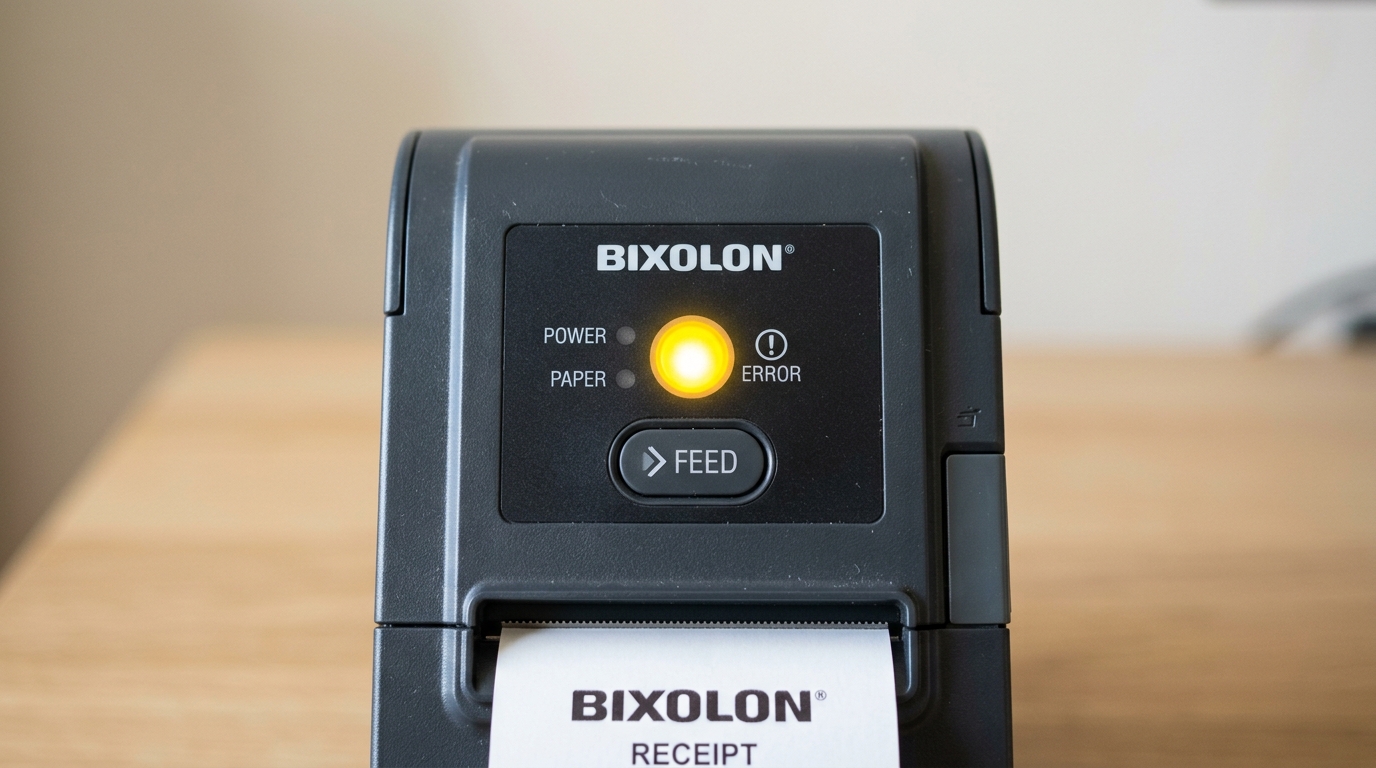
A yellow or amber light on a Bixolon printer can mean a communication error. A charging state, or a mode change. Learn what it means for your specific model and how to resolve it.
A stuck yellow light on a Bixolon printer is one of those symptoms where the fix depends heavily on which model you're looking at. Bixolon uses yellow (also called amber or orange) as an indicator for different things across their lineup.
On a countertop receipt printer, a solid yellow light likely points to a communication issue. On the XD5-40 label printer, orange is used as one half of a mode-switching indicator.
On mobile printers, orange typically means charging.
This guide covers every scenario so you can identify what your specific printer is telling you — and what to do next.
Step 1: Identify Which Kind of Yellow You're Seeing
Yellow isn't yellow across the board.
- Solid steady yellow — usually a status or communication indication, not a hard error
- Blinking yellow — usually a transitional or in-progress state (charging, connecting, calibrating)
- Yellow-and-red combined — model-specific error mode (most common on the XD5-40 series)
- Yellow appears only briefly, then changes to another color — a normal transition, not a stuck state
If it's genuinely stuck — meaning it's been solid or blinking yellow for more than a minute or two with no change — move to the section that matches your printer type.
On Countertop Receipt Printers (SRP-350, SRP-330, SRP-E300, and Similar)
On most standard Bixolon SRP-series receipt printers, a solid yellow or amber light almost always means the printer has power. Is technically ready, but something in the communication path with your computer or POS system is off.
Most common causes:
- Driver mismatch or not installed correctly
- USB cable failing intermittently
- Wrong COM port assigned in Windows (especially for serial or virtual serial connections)
- POS software configured for a different printer entirely
Fix in order:
- Run a self-test (hold the Feed button while powering on) to confirm the printer itself works. If the self-test prints cleanly, the printer hardware is fine.
- Swap the interface cable — this alone resolves a surprising share of "stuck yellow" cases.
- Uninstall and reinstall the driver. Making sure to use the exact match for your model and OS version from Bixolon's official support site.
- In Windows. Check Device Manager for a yellow warning triangle next to the printer — a genuine driver conflict shows up there and needs to be cleared.
- Check that your POS software is pointing at the right printer, not one that's been renamed or removed.
On Mobile/Portable Printers (SPP-R200, SPP-R310, and Similar)
On battery-powered Bixolon mobile printers, an orange or amber light typically has a completely different meaning: it's the charging indicator . Depending on the model:
- Solid orange or amber — battery is currently charging
- Blinking orange or amber — charging in progress with intermittent status
- Turns green or blue when done — battery is fully charged
If your mobile printer is "stuck" on orange for hours, that's usually just charging behavior that hasn't completed.
- If the printer has been on the charger for an unusually long time (well over the model's spec charge time — usually 3–4 hours max). Never transitions to a full-charge indicator, suspect either a worn battery or a faulty charging cable.
- If the charger LED itself is off, the issue is upstream of the printer — check the outlet. Charger cable before troubleshooting the printer.
On XD5-40 Label Printers (Orange LEDs Specifically)
The XD5-40 series uses orange as part of its two-LED status system. Orange doesn't always mean "error" on this model.
- Both LEDs orange, solid — Mode Switching notification (the printer is changing operational mode; wait for it to complete)
- LED 1 red on, LED 2 orange on — Media jam or gap/black mark not recognized
- LED 1 red on, LED 2 orange blink — No media loaded
If both LEDs are solid orange, don't do anything — the printer is mid-transition and will settle on its own. If a red LED is combined with orange. Refer to the specific error's fix (media jam → run gap sensor auto-calibration; no media → load a fresh roll).
On XD3-40 Label Printers
The XD3-40 doesn't use orange or yellow prominently in its status LEDs — most states are green (ready/paused) or red (error).
- The green and red LEDs both partially lit simultaneously during a state transition
- Ambient light on a semi-transparent LED cover making a red or green light look amber
Wait a few seconds — a genuinely stuck state on an XD3-40 will clearly resolve to either green or red. Not remain amber.
When Yellow Combines With Other Symptoms
If the yellow light is stuck AND another symptom is present. Address the other symptom first — the yellow light is often reporting a side-effect, not the root cause:
| Yellow light + this symptom | What to check first |
|---|---|
| ...and printer won't print at all | Driver / cable / self-test (communication issue) |
| ...and printer won't power on fully | Adapter LED and power source |
| ...and printer prints but garbled | Reinstall driver — see the garbled-text guide |
| ...and just installed a Windows update | Windows update conflict — roll back or update driver |
Model-Agnostic Fixes to Try If You're Not Sure
If you're unable to identify your exact model or the symptom doesn't cleanly match anything above. Work through these general steps:
- Power cycle — turn off, wait 15 seconds, turn back on. Clears transient status states.
- Run a self-test (feed button while powering on for most models) — confirms whether the printer hardware itself is working.
- Swap the interface cable — cables fail more often than people expect.
- Reinstall the driver — matched to your exact model and OS from Bixolon's support site.
- Check for stuck print jobs — a stalled job in the Windows print queue can hold the printer in a not-ready state.
- Verify power supply — the adapter's own LED should be lit; if it's not, the issue is upstream of the printer.
When to Contact Support
If you've worked through the checks that match your model and the yellow light is still stuck, and:
- The self-test consistently fails or produces visibly damaged output
- The printer refuses to power on cleanly (adapter LED confirmed working)
- The battery on a mobile printer won't charge properly after replacement
That's when to escalate to Bixolon support — at that point you're likely dealing with genuine hardware wear rather than a settings or connection issue.
Frequently Asked Questions
Is a yellow light always a warning or error on Bixolon printers? No — the meaning depends entirely on model.
On mobile printers it's typically charging. On the XD5-40 label printer, orange can be a normal mode-switching indicator.
Only on countertop receipt printers does it consistently point to a communication or driver issue.
Why is my printer stuck on yellow after a Windows update? Windows updates occasionally break Bixolon driver compatibility. Reinstall the current driver for your specific OS version. Or roll back the Windows update if a fix isn't yet available.
My mobile printer has been on orange for hours — is the battery bad? If the charging light hasn't transitioned to a full-charge indicator well past the normal charge time (typically 3–4 hours for most SPP models).
Suspect the battery, the charger cable, or the charger itself before assuming the printer is broken.
Does a yellow light always mean I can't print? Not necessarily — on some models it's a "not-ready-but-not-errored" state. Try sending a test print; if it goes through, the light may be reporting something informational rather than blocking.
Quick Checklist
- [ ] Identified printer type (receipt, mobile, or label) — determines what yellow means
- [ ] Confirmed whether the light is solid, blinking, or in combination with another LED
- [ ] Self-test run to confirm hardware works
- [ ] Interface cable swapped
- [ ] Driver reinstalled for exact model and OS
- [ ] Power adapter LED confirmed working
- [ ] Stuck jobs cleared from print queue
- [ ] Waited through any mode-transition state on label printers before assuming an error
Yellow isn't a single error condition on Bixolon printers — it's a color that means different things on different models. Identifying which model you have is more than half the diagnostic work. Once you know what the color means on your specific printer, the fix is usually straightforward.
