


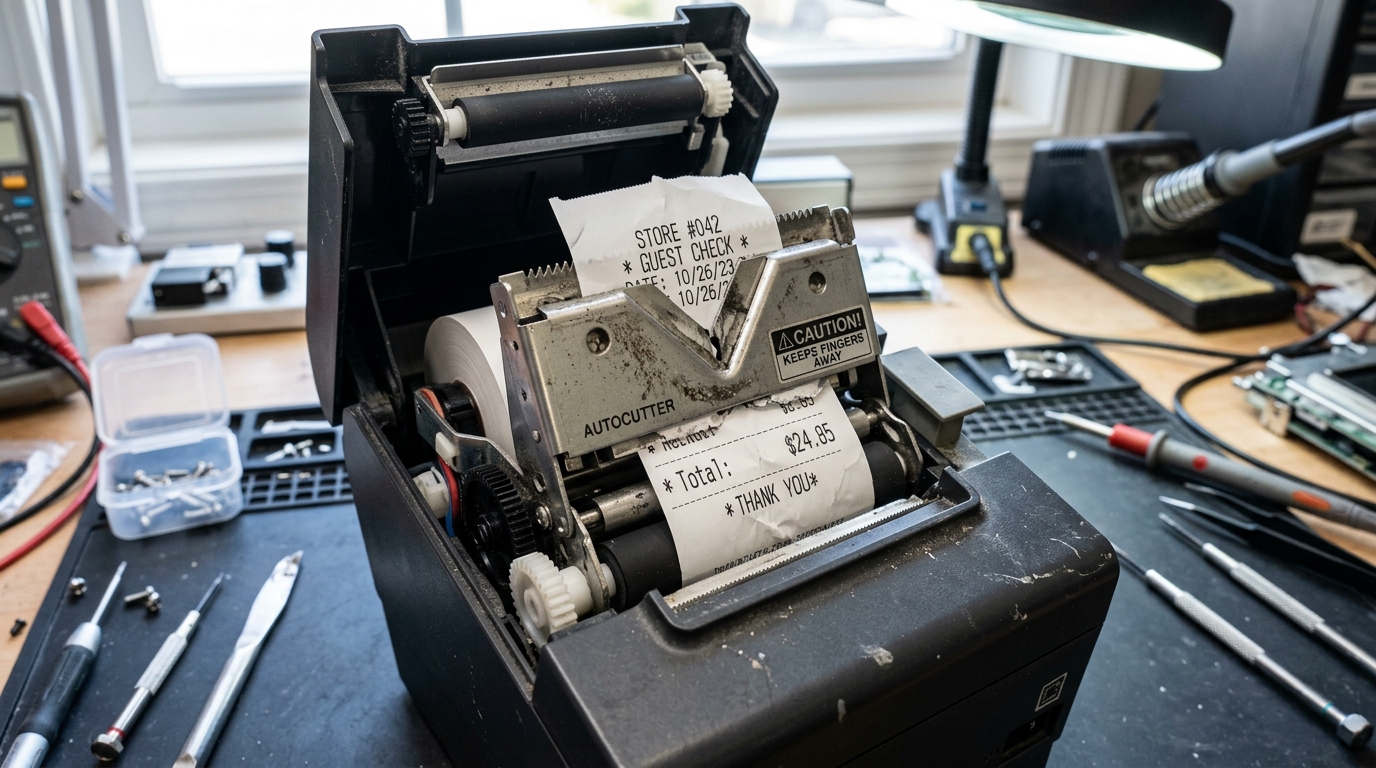
Troubleshooting Receipt Auto-Cutter Errors
Bixolon thermal receipt printers (such as the SRP-350plusIII, SRP-330II, and SRP-Q300) utilize motorized rotary guillotine cutters. They are engineered to perform over 1.5 million clean cuts.
When receipts cut directly through printed text, cut completely off instead of leaving a partial tab, or jam the cutter blade mid-cycle, mechanical jams or software cut margins are to blame.
Step 1: Clear Cutter Knife Jams and Reset Blade
When thick paper or paper clips jam the cutter blade, the top cover locks shut and error lights flash:
- Power cycle the printer: Turn off the power switch, wait 5 seconds, and power on. In most cases, the motor automatically retracts the blade to home position.
- Open manual cutter cover: If the lid remains locked, pull off the front plastic cutter cover plate.
- Rotate emergency cutter knob: Turn the white emergency thumb wheel in the direction of the arrow until the blade retracts completely.
- Open lid and clear scraps: Open the clam-shell cover and extract all shredded paper fragments from the blade track.
Step 2: Adjust Top and Bottom Cut Margins in Driver
If the auto-cutter cuts through barcode lines or receipt totals, the feed-before-cut parameter is too short:
- Open Windows Printing Preferences: Open Control Panel > Devices and Printers > right-click your Bixolon > Printing Preferences.
- Navigate to Document Settings: Click the Document Settings or Paper/Quality tab.
- Adjust Feed and Cut options: Under Cut Options, set the command to Feed and Cut rather than immediate cut.
- Increase feed margin: Increase the Extra Feed Length to
15mmor20mmto ensure all text clears the cutter blade before cutting.
Step 3: Configure Partial Cut vs Full Cut in VMSM
Receipt printers usually leave a 1mm uncut center tab (Partial Cut) so receipts don't fall to the floor:
- Launch Bixolon POS Utility: Open the utility on your Windows PC and connect to the printer.
- Access VMSM configuration: Open Virtual Memory Switch Manager (VMSM).
- Set Cutting Action: Change the auto-cutter switch between Partial Cut (with uncut center tab) and Full Cut according to your workflow preference.
- Save parameters: Click Save to Printer to write settings to permanent flash memory.
Frequently Asked Questions
Why is the printer cutting receipts into multiple tiny strips?
Your POS software is sending premature Form Feed or ESC/POS cut commands between order line items; check POS template settings.
Can I disable the auto-cutter completely and tear receipts manually?
Yes, set Auto-Cutter to "Disabled" in the Bixolon VMSM utility or driver preferences and use the jagged tear bar.
What should I do if the cutter blade makes a loud grinding crunch?
Inspect the gear train for broken plastic teeth; worn cutter assemblies must be replaced as a complete sub-module.
