


Understanding Canon imagePROGRAF Sub-Tank Architecture
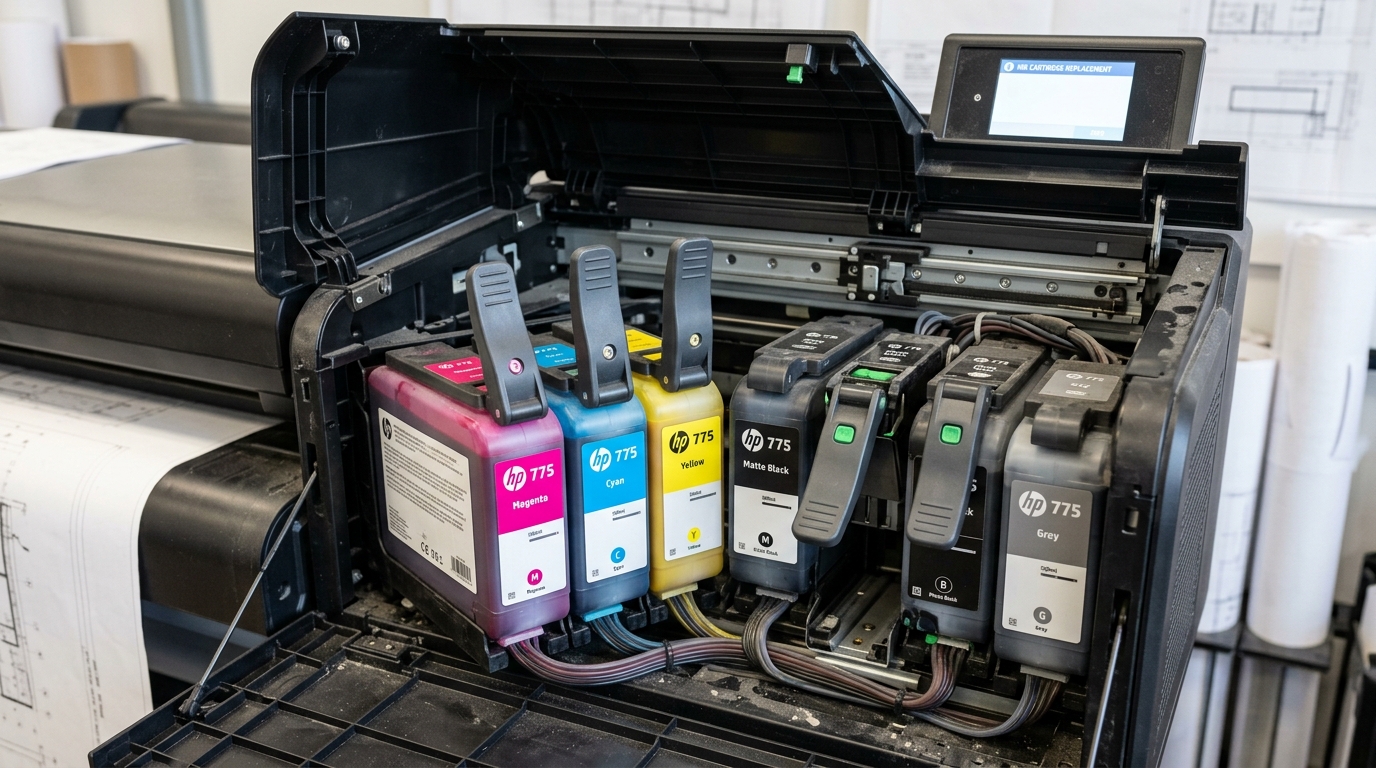
Canon imagePROGRAF plotters feature an internal Sub-Tank ink reservoir system between the main cartridges and the printhead.
This sub-tank system allows users to replace empty ink tanks while the printer is actively plotting without interrupting jobs. When a tank is not recognized, the printer displays "No ink tank" or refuses to latch.
Step 1: Check Tank Model Number and Slot Color Code
imagePROGRAF slots have mechanical key guides preventing wrong color insertion:
- Verify the PFI code: Ensure the ink tank code matches your exact model (e.g., PFI-1000 for PRO-1000, PFI-120 for TM-300, PFI-1100 for PRO-2100).
- Match slot color label: Look at the color label above the lever. Do not attempt to force a tank into the wrong color bay.
- Check tank capacity: On models supporting multiple capacities (130ml, 300ml, 700ml), ensure the tank size is compatible with your slot bay.
Step 2: Clean the EEPROM Chip Contacts
Ink mist or paper lint on the cartridge contact pad interrupts electrical communication:
- Open the ink tank door: Pull the release lever and remove the unrecognized ink tank.
- Locate the gold chip: Find the small rectangular printed circuit board on the rear corner of the ink tank.
- Wipe with isopropyl alcohol: Moisten a microfiber cloth with 99% isopropyl alcohol and gently wipe the gold contact pads.
- Inspect internal spring pins: Look inside the empty printer slot with a flashlight. Ensure none of the gold contact pins are bent or broken.
Step 3: Reseat the Tank with the Lever Lock Mechanism
Proper seating requires a full stroke of the colored locking latch:
- Slide tank horizontally: Push the ink tank straight into the slot guide rails until it stops.
- Engage the lock lever: Pull down the colored locking lever firmly until it clicks into the closed horizontal position.
- Watch the status LED: The indicator lamp next to the tank slot should illuminate solid white or blue. If it flashes rapidly or remains unlit, the chip is not connecting.
Step 4: Check Sub-Tank Buffer Status
If you recently installed a new tank and the level still reads empty, the sub-tank buffer is recharging:
- Allow 3 minutes for valve priming: The printer runs internal valves to draw ink from the main cartridge into the secondary sub-tank.
- Do not open the door: Keep the ink door closed while the screen displays "Processing... Please wait."
- Reboot if the status hangs: If the screen does not update after 5 minutes, turn the plotter off and on to force a re-read of all EEPROM chips.
Frequently Asked Questions
Can I use refilled or non-OEM ink tanks in imagePROGRAF plotters?
Non-OEM chips frequently fail to report accurate ink levels. If using third-party tanks, you must disable the ink level detection prompt on the panel, voiding printhead warranty.
Why is the ink tank lock lever stuck and won't release?
The printer electronically locks the release lever if the printhead is currently drawing ink or if the sub-tank valve is open. Wait for the job to finish before pulling the lever.
Can I print when an ink tank is completely removed?
Yes. Thanks to the sub-tank buffer, you can print several square feet of full-color graphics while swapping out an empty ink tank.
