


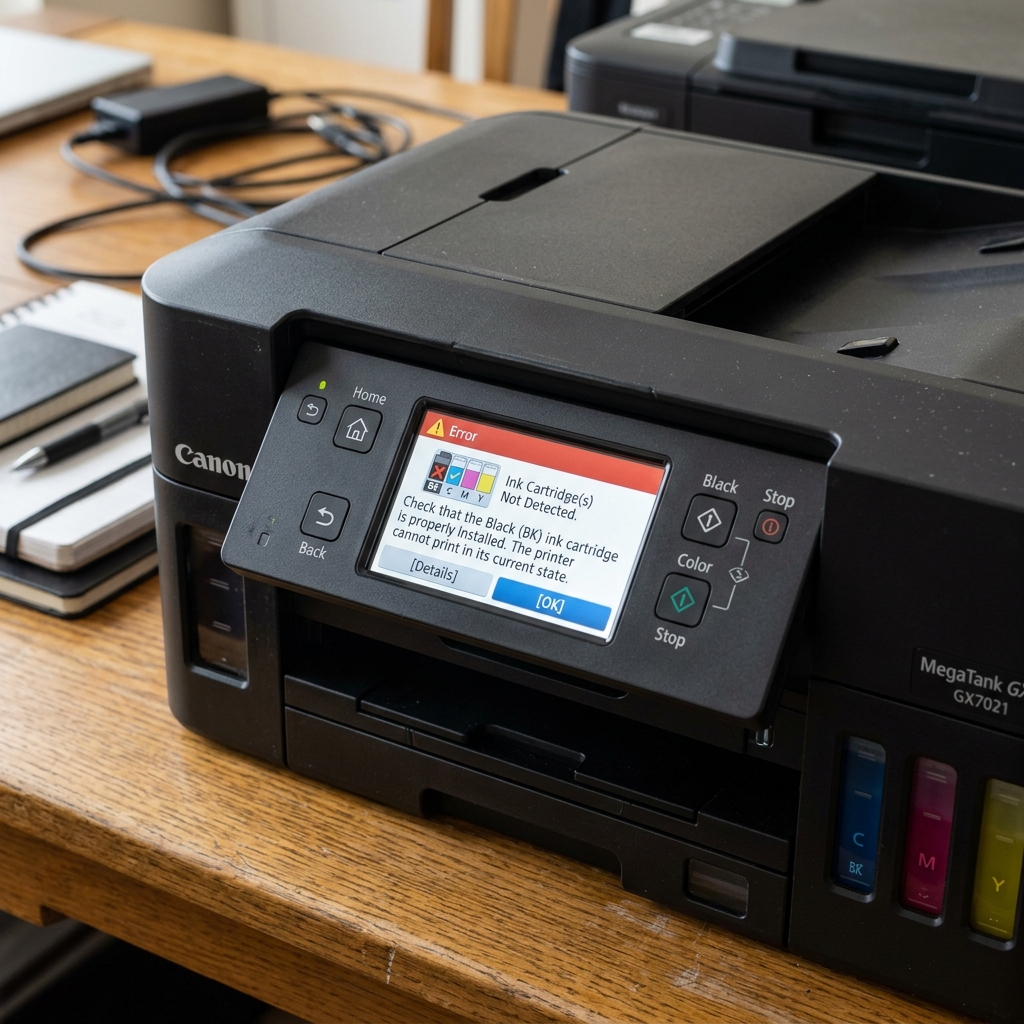
How MAXIFY GX Ink Sensors Work
Standard PIXMA MegaTanks don't actually know how much ink is in them; they just count the pages you print and guess. The MAXIFY GX series (GX6020, GX7020, etc.) is different. Because these are business printers, Canon installed actual hardware sensors inside the ink tanks.
These are optical prism sensors. They shine an infrared beam through the bottom of the tank.
If the tank is full of ink, the light is absorbed. If the tank is empty, the light reflects off the clear plastic prism back to a detector, triggering the "Ink Not Detected" or "Refill Ink" error.
Fix 1: The Leveling Issue
Because these sensors rely on the physical fluid level of the ink, the printer must be perfectly level. If your printer is sitting on a desk that leans slightly backward, the ink pools at the back of the tank, exposing the sensor prism at the front.
Move the printer to a flat, hard surface.
Fix 2: Forcing a Sensor Re-Check
Sometimes the printer's software gets out of sync with the hardware sensor.
- Open the printer's front cover to expose the ink tanks.
- Pop open the blue rubber cap for the color that is reporting empty.
- Wait 3 seconds, then press the cap firmly back down.
- Close the front cover.
There is a micro-switch on the hinge of the blue cap. Opening and closing it tells the motherboard, "The user just refilled the ink; run a fresh optical scan."
Fix 3: The Third-Party Ink Trap
If you refilled your MAXIFY GX with cheap, third-party dye ink, you will almost certainly trigger this error.
MAXIFY printers use high-density pigment ink for all four colors to ensure text is waterproof and highlighter-resistant. Pigment ink is highly opaque.
Cheap dye ink is translucent. If you put dye ink in a MAXIFY tank, the infrared sensor beam shines right through it as if it were water, reflects off the prism, and falsely tells the printer the tank is empty.
If you did this, you must drain the dye ink and refill the tanks with proper high-opacity pigment ink formulated specifically for the GX series.
Understanding "Ink Not Detected" Errors on Canon MAXIFY GX MegaTank Series
The Canon MAXIFY GX series (GX5020, GX6020, GX7020) are high-volume commercial MegaTank printers utilizing 4-color pigment ink tanks (GI-26). When the printer displays "Ink Level Not Detected", Support Code 1688, or an orange tank alert, the optical fluid level prism or mechanical keying float inside the reservoir has failed to register.
Step-by-Step Resolution for MAXIFY GX Ink Detection
- Visually Inspect Physical Ink Levels:
Look at the clear windows on the front of the GX chassis. Verify all four tanks (Black, Cyan, Magenta, Yellow) are filled above the lower limit line. Fill with genuine Canon GI-26 pigment ink bottles.
- Confirm Ink Refill on the Touchscreen:
When you refill a tank on MAXIFY GX printers, you MUST confirm the refill on the screen: Navigate to Setup (Gear) > Maintenance > Remaining ink level notification > Reset remaining ink level count. Select the refilled color to reset the software gauge to 100%.
- Bypass Code 1688 (Ink Level Unknown Override):
If you refilled the tank but the printer locks with Support Code 1688: Press and hold the physical Stop (Triangle) button on the control panel for at least 5 seconds. This commands the printer to disable automated ink level detection, allowing printing to proceed uninterrupted.
- Check the MC-G01 Maintenance Cartridge:
If the printer reports a general ink delivery error, check the user-replaceable MC-G01 maintenance box on the rear. If full, replace the cartridge.
Frequently Asked Questions
Does disabling ink level detection void my Canon warranty?
Disabling ink level tracking allows you to continue printing, but Canon is not responsible for printhead damage caused by running tanks completely dry without ink coolant.
What ink bottles do MAXIFY GX printers use?
MAXIFY GX models use Canon GI-26 pigment ink bottles (GI-26 BK, GI-26 C, GI-26 M, GI-26 Y). Never use dye-based G-series inks (GI-20/GI-290) in MAXIFY GX models.
