


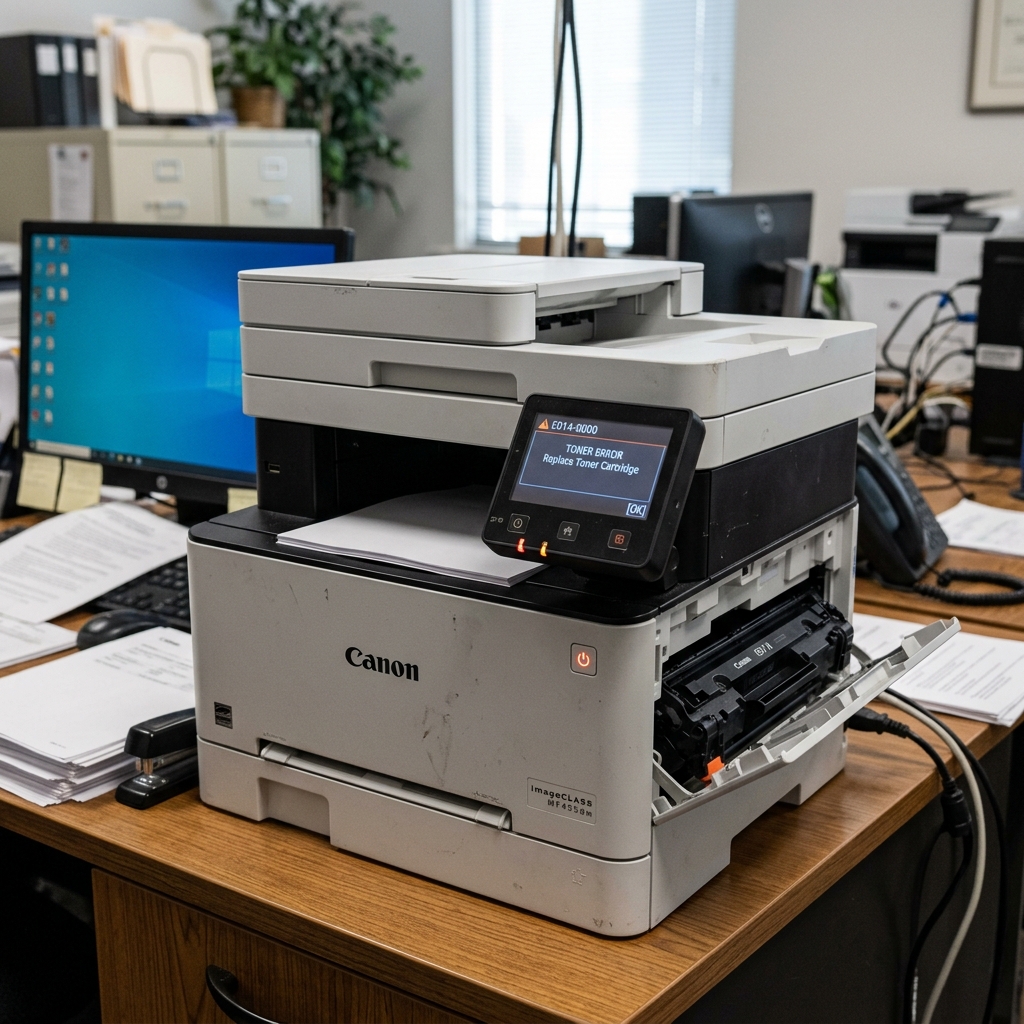
The imageCLASS "Check Toner" Error
Canon imageCLASS printers (such as the MF242dw, MF644Cdw, or MF445dw) are laser printers. Instead of liquid ink, they use dry toner powder."Check Toner Cartridge" or "Cartridge Communication Error," the printer cannot read the security microchip on the toner.
Fix 1: The Third-Party Chip Issue
The number one cause of toner communication errors on imageCLASS printers is the use of cheap, third-party toner cartridges.
Canon updates the firmware (internal software) on their printers over Wi-Fi. These updates frequently include new security protocols that block the microchips used on aftermarket toners. If your third-party toner was working fine yesterday. Throws an error today, Canon likely updated your firmware (internal software) overnight.
- The Bypass: On many color imageCLASS models (like the MF644), you can Tap "Close" or "I Agree" on the touchscreen warning. The printer will scold you for using non-genuine toner. Disable the toner level gauge, but it will still allow you to print.
- If the printer hard-locks. Refuses to print, you must purchase a genuine Canon toner cartridge, or buy a newer third-party cartridge with an updated chip.
Fix 2: Cleaning the Contacts
If you are using genuine Canon toner (like the 054 or 057 series). Still getting the error, the physical connection is dirty.
- Turn the printer off. Open the front door and pull out the toner tray.
- Remove the offending toner cartridge.
- Look at the right side of the cartridge for a small green circuit board with gold contacts.
- Wipe these contacts with a dry microfiber cloth. Do not use water, as water ruins toner powder.
- Take a can of compressed air and blow out the inside of the printer where the cartridge sits. A pile of spilled toner dust can act as an insulator, blocking the electrical pins.
Fix 3: Seating the Drum Unit
Some imageCLASS models (like the LBP series) have a two-part system: a toner cartridge that. Snaps into a separate drum unit.
If the toner is not clicked all the way down into the drum, the printer's lid will close,. The electrical pins won't align.
Remove the entire assembly, separate the toner from the drum, and snap them back together with firm pressure.
Diagnosing Toner Cartridge and Communication Errors on Canon imageCLASS MF Series
Canon imageCLASS laser multifunction printers (MF445dw, MF644Cdw, MF743Cdw, MF267dw) utilize all-in-one toner cartridges containing the toner hopper, developer roller,. OPC drum. When the printer reports "Toner Error". "Cartridge Communication Error", or "Non-Canon Cartridge Detected", the RF smart chip or high-voltage bias contacts have failed.
Step-by-Step Recovery Workflow
- Remove the Protective Orange Shipping Shield & Pull-Tape:
Brand new Canon toner cartridges feature a long plastic pull-seal and protective orange drum shields. Pull the orange sealing tape straight out horizontally until the entire 18-inch clear plastic strip. Is removed from the cartridge hopper.
- Clean the Gold CRG Microchip Contacts:
Remove the toner cartridge. On the side of the plastic casing sits a small green circuit board with gold contact pins. Wipe these contacts with 99% isopropyl alcohol to remove toner dust and skin oils.
- Rock the Cartridge to Distribute Toner:
During shipping, toner powder settles into a compacted block. Hold the cartridge horizontally with both hands. Gently rock it forward and backward 5 to 6 times to loosen the powder across the internal agitator bar.
- Bypass "Non-Genuine Cartridge" Warning:
If using third-party cartridges, the imageCLASS screen will prompt "Non-Canon cartridge detected. Continue? "."I Agree" or press OK to allow printing.
Frequently Asked Questions
Why does the imageCLASS printer display "Toner Low" on a brand new cartridge?
Third-party cartridges with recycled microchips can report 0% ink to the driver. You can continue printing by pressing OK to dismiss the prompt.
Can a leaking toner cartridge cause electrical shorts?
Yes. Loose toner powder dusting the high-voltage charging bias springs inside the printer cavity causes voltage drops and cartridge communication errors.
