


The CMYK Color Triangle
Your Canon printer creates millions of colors using only four basic inks: Cyan (Blue), Magenta (Red/Pink), Yellow, and blacK.
If just one of those colors stops flowing, every color on the page shifts violently. For example, green grass is made by mixing Cyan and Yellow.
If your Cyan nozzle is clogged, the printer still sprays the Yellow. Suddenly, your lush green lawn prints out bright, sickly yellow.
If your yellow is clogged, skin tones (which rely heavily on yellow and magenta) will look ghostly or violently pink.
Step 1: The Nozzle Check Test
You cannot fix color issues blindly. You must print a diagnostic map.
- Go to your printer's Maintenance menu and select Print Nozzle Check Pattern.
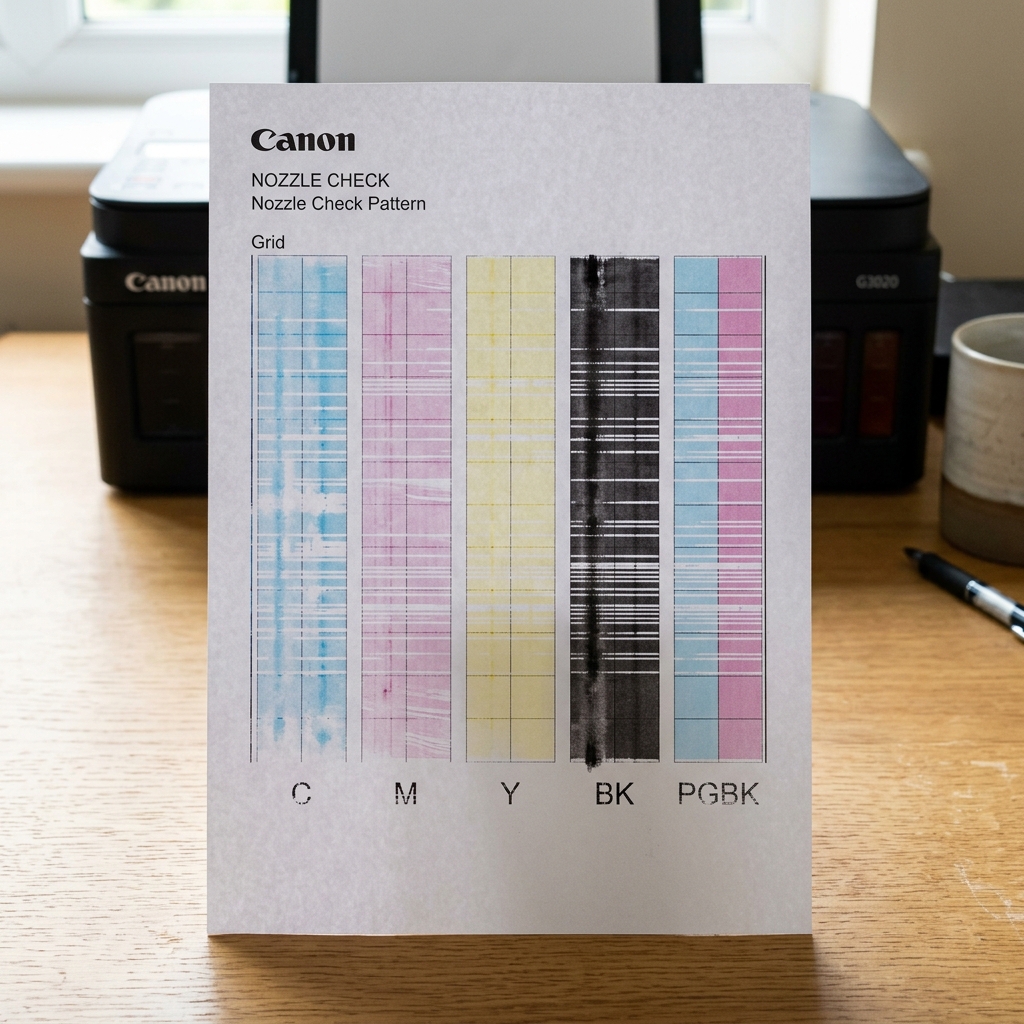
- Look closely at the printed page. You should see a black grid, and solid horizontal bars of Cyan, Magenta, and Yellow.
Diagnosis A: The Missing Color
If one of the color bars is completely invisible or severely broken up, that specific color is clogged or empty. The printer is trying to mix colors without it, resulting in the strange hues you see on your photos.
- Remove that specific ink cartridge and check if it feels empty. Replace if necessary.
- If the cartridge is full, run a Cleaning cycle to force ink through the clogged nozzles of that specific color.
Diagnosis B: Cross-Contamination (Muddy Colors)
Look at the Yellow bar on your nozzle check. Does it look green? Does the Magenta bar look dark purple?
This is called cross-contamination. If a tiny hair or piece of dust gets stuck on the bottom of the printhead, it acts like a bridge.
Black or Cyan ink will bleed across the bottom of the printhead and get sucked up into the Yellow nozzles. When you try to print yellow, it sprays out a dirty green mix.
To fix cross-contamination, remove the printhead, turn it upside down, and gently wipe the bottom nozzle plate with a lint-free cloth dampened with rubbing alcohol to remove the debris bridge. Then run a deep clean to flush the contaminated ink out of the yellow chamber.
Diagnosis C: Refill Mistakes
If you own a MegaTank printer or if you refill your own cartridges, verify that you didn't accidentally pour Cyan ink into the Magenta tank. It sounds silly, but it happens thousands of times a day.
If you mixed the inks in the tank, you must use a syringe to drain the tank completely, flush it with distilled water, and refill it with the correct color.
Why Canon Printers Print Wrong Colors (e.g., Pink Instead of Orange, Yellow Missing)
When printed colors look completely distorted — such as photos having a heavy magenta/pink cast, green turning brown, or blue printing as purple — the issue is never a digital software color profile bug. It is a physical ink delivery failure: one or more color nozzle channels (Cyan, Magenta, or Yellow) are either completely blocked by dried ink or cross-contaminated.
Exhaustive 4-Step Color Diagnostic & Restoration Guide
- Print and Analyze the Nozzle Check Pattern:
- Load plain white paper.
- On the printer menu: Select Maintenance > Nozzle Check Pattern (or from Windows Printer Properties > Maintenance tab).
- Examine the printed pattern:
- PGBK (Pigment Black): Must show a solid, clean grid with zero missing horizontal lines.
- C (Cyan) / M (Magenta) / Y (Yellow): Must show continuous, even horizontal color bars without horizontal white stripes or gaps.
- If the Cyan bar is completely missing, all blue tones will print as magenta/pink. If the Yellow bar is missing, greens will print as blue and reds will print as pink.
- Execute Targeted Printhead Cleaning:
From the Maintenance menu, select Cleaning. After the 2-minute cycle, print another nozzle check. If bars remain broken, select Deep Cleaning. Deep cleaning uses high-pressure pump suction to dislodge hardened pigment.
- Check for Ink Cross-Contamination in Sponge Chambers:
If you refilled individual ink tanks with bottled ink, verify that you didn't accidentally inject yellow ink into the magenta port or vice versa. If color cross-contamination occurred, the entire cartridge must be replaced or flushed with distilled water.
- Inspect Ink Tank Air Vents:
Ensure the orange tape was cleanly removed from the top air breather hole on each cartridge. A vacuum inside the tank will starve the color channels after the first 2 inches of printing.
Frequently Asked Questions
Why does my Canon printer print green when I try to print yellow?
Cyan ink has back-siphoned into the yellow nozzle chamber due to a damaged rubber seal on the capping station. Running two standard cleaning cycles will flush the contaminated ink out of the nozzle bank.
How much ink does Canon Deep Cleaning use?
Deep Cleaning consumes approximately 20% to 25% of a standard cartridge's ink volume. Never run Deep Cleaning more than twice in 24 hours.
