


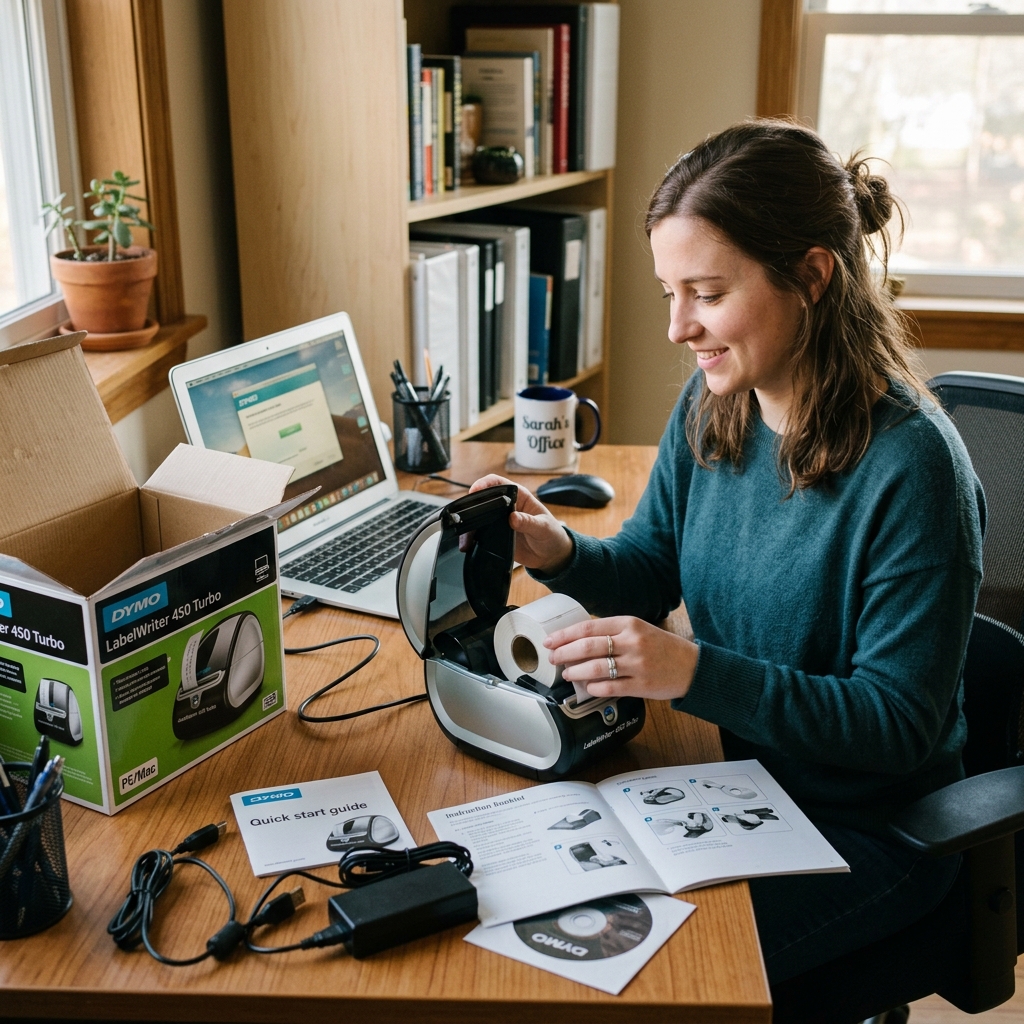
Introduction to Troubleshooting the DYMO LabelWriter 450 Turbo
The DYMO LabelWriter 450 Turbo is a long-standing workhorse in the realm of direct thermal label printing, celebrated for its rapid print speeds and lack of required ink or toner cartridges. However, setting up this device or troubleshooting it when it stubbornly refuses to print can be an incredibly frustrating experience for business owners and home office users alike.
Despite its hardware reliability, the software ecosystem surrounding the DYMO 450 Turbo is notoriously sensitive to operating system updates, driver conflicts, and USB communication errors. When you click "Print" and absolutely nothing happens—no motor whirring, no error beeps, just an endless queue of stuck documents—it brings shipping and organizational tasks to a grinding halt.
This comprehensive guide will dissect the underlying software and hardware architecture of the DYMO LabelWriter series, explaining exactly why these communication breakdowns occur. More importantly, we will walk you through a rigorous, step-by-step diagnostic process to clear out corrupted software states, reset the Windows Print Spooler, eliminate driver conflicts, and get your LabelWriter 450 Turbo back to producing crisp, perfectly aligned labels without further delay.
Why This Happens: Understanding Print Spoolers and Driver Conflicts
When your DYMO LabelWriter 450 Turbo is plugged in, powered on with a solid blue light, but refuses to print, the root cause almost always lies within the intricate dance between the computer's operating system, the printer driver, and the Print Spooler service. The Print Spooler is a vital background service in Windows (and CUPS in macOS) responsible for managing all print jobs.
It takes the document you want to print, translates it into a language the specific printer understands via the driver, and feeds it to the printer via the USB port. If a single print job becomes corrupted—perhaps due to a malformed label template, an incorrect paper size specification, or a momentary USB disconnect—the spooler can freeze.
When the spooler freezes, the corrupted job gets stuck at the front of the queue, acting as a dam that prevents all subsequent print jobs from reaching the printer. This results in the classic "Printer Offline" or "Error Printing" status.
Furthermore, DYMO has transitioned its software suite over the years from the older DYMO Label Software v8 (DLS v8) to the newer DYMO Connect application. Installing both of these programs simultaneously, or allowing Windows Update to overwrite the official DYMO drivers with generic Microsoft USB printing class drivers, creates severe software conflicts.
The operating system becomes confused about which driver architecture to utilize, resulting in silent failures where the print command is issued but never executed by the hardware. Lastly, physical USB port power management settings in modern laptops can sometimes aggressively cut power to the USB hub to save battery, putting the printer's data connection to sleep and causing it to ignore incoming commands.
Step-by-Step Fix: Clearing the Queue and Rebuilding the Connection
- Purge the Print Spooler Queue: The first mandatory step is to remove the blockage. In Windows, press the Windows Key + R to open the Run dialog. Type
services.mscand press Enter. Scroll down the list of services until you find "Print Spooler". Right-click it and select "Stop". Leave this window open. Now, press Windows Key + R again, typeC:\Windows\System32\spool\PRINTERS, and press Enter. You may need to click "Continue" to grant administrator access. Delete every single file inside this folder (do not delete the folder itself). These files are the corrupted print jobs. Go back to the Services window, right-click "Print Spooler", and select "Start". - Disconnect the Hardware: Unplug the USB cable connecting the DYMO printer to your computer. Then, unplug the power cable from the back of the printer itself. It is crucial to physically sever the connection to force a fresh hardware handshake later in the process.
- Remove Corrupted Devices: Navigate to your computer's "Printers & Scanners" settings menu. Find the DYMO LabelWriter 450 Turbo in the list. Click on it and select "Remove device" or "Delete". If there are multiple copies (e.g., DYMO 450 Turbo Copy 1), delete all of them. We want a completely clean slate.
- Uninstall Conflicting Software: Go to the "Add or Remove Programs" menu in Windows. Search for "DYMO". If you see both "DYMO Label Software" (v8) and "DYMO Connect", you have a conflict. Choose one to keep based on your needs (DYMO Connect is modern but sometimes buggy; DLS v8 is older but highly stable for the 450 series). Uninstall the software completely. Restart your computer to clear the registry.
- Download the Correct Drivers: Visit the official DYMO support website. Download the latest version of the software you chose in the previous step. Run the installer as an Administrator. Crucially: Do not plug the printer's USB cable into the computer yet. Wait until the software installation is completely finished.
- Reconnect and Initialize: Plug the power cable back into the DYMO printer and ensure it has a solid blue light. Now, plug the USB cable directly into the back of your computer. Avoid using external USB hubs, docking stations, or monitor USB ports, as these often lack the bandwidth or consistent power delivery required by direct thermal printers. Windows should chime and automatically detect the device, finalizing the driver installation.
- Perform a Test Print: Open your newly installed DYMO software. Create a simple text label. Ensure the correct label size matching your physical roll is selected in the software. Click Print. The printer should immediately engage and output the label.
Advanced Troubleshooting: Deep Cleaning and Registry Edits
If the printer still refuses to function, you must examine the hardware sensors and deep system configurations. The DYMO 450 Turbo relies on an optical sensor to detect the small black index marks or gaps between labels.
If label dust, adhesive residue, or debris obscures this sensor, the printer will refuse to print because it cannot index the paper, often flashing the blue light. Unplug the printer, remove the label roll, and use a can of compressed air to thoroughly blow out the interior feed path.
Follow up with a lint-free swab lightly dampened with 90% isopropyl alcohol to gently clean the optical sensor located near the feed rollers. Allow it to dry completely before reloading the labels.
On the software side, advanced Windows users may need to perform a manual driver cleanup if the standard uninstall fails. This involves opening the Device Manager, enabling "Show hidden devices" under the View menu, and manually uninstalling any ghosted instances of USB Printing Support or DYMO devices.
Furthermore, navigating to Print Management within Windows Administrative Tools allows you to forcefully delete the DYMO driver packages from the driver repository, ensuring that upon the next installation, Windows is forced to build the driver stack entirely from scratch rather than relying on cached, potentially corrupted system files. Finally, ensure that your BIOS/UEFI settings have "Legacy USB Support" enabled and check your Windows Power Options to disable "USB selective suspend setting," preventing the OS from putting the printer to sleep.
FAQ: Frequently Asked Questions
Why is the blue light on the front of my DYMO 450 Turbo flashing?
A flashing blue light indicates a hardware-level error. This usually means the printer is out of labels, the labels are loaded upside down (the labels must feed from the bottom of the roll, facing upward), or the optical sensor cannot detect the gap between the labels due to dust or a jam.
Should I use DYMO Connect or DYMO Label Software v8?
The DYMO LabelWriter 450 Turbo is an older generation printer that was originally designed for DYMO Label Software v8 (DLS v8). While DYMO Connect is the newer software, many users find that DLS v8 is significantly more stable, faster, and reliable for the 450 series.
Why is my printer feeding out multiple blank labels when I try to print one?
This is almost always a mismatch between the label size defined in your software and the physical label roll inside the printer. If the software thinks you are printing on a long shipping label, but you have small address labels installed, the printer will keep feeding paper until it satisfies the software's length requirement.
Can I plug the DYMO printer into a USB hub?
It is strongly advised against. USB hubs, especially unpowered ones, split data bandwidth and electrical current among all connected devices.
Does the DYMO 450 Turbo work with Windows 11 and macOS Sonoma?
Yes, but it requires the absolute latest drivers from the DYMO website. Operating system updates frequently overhaul security protocols and printing architectures.
