


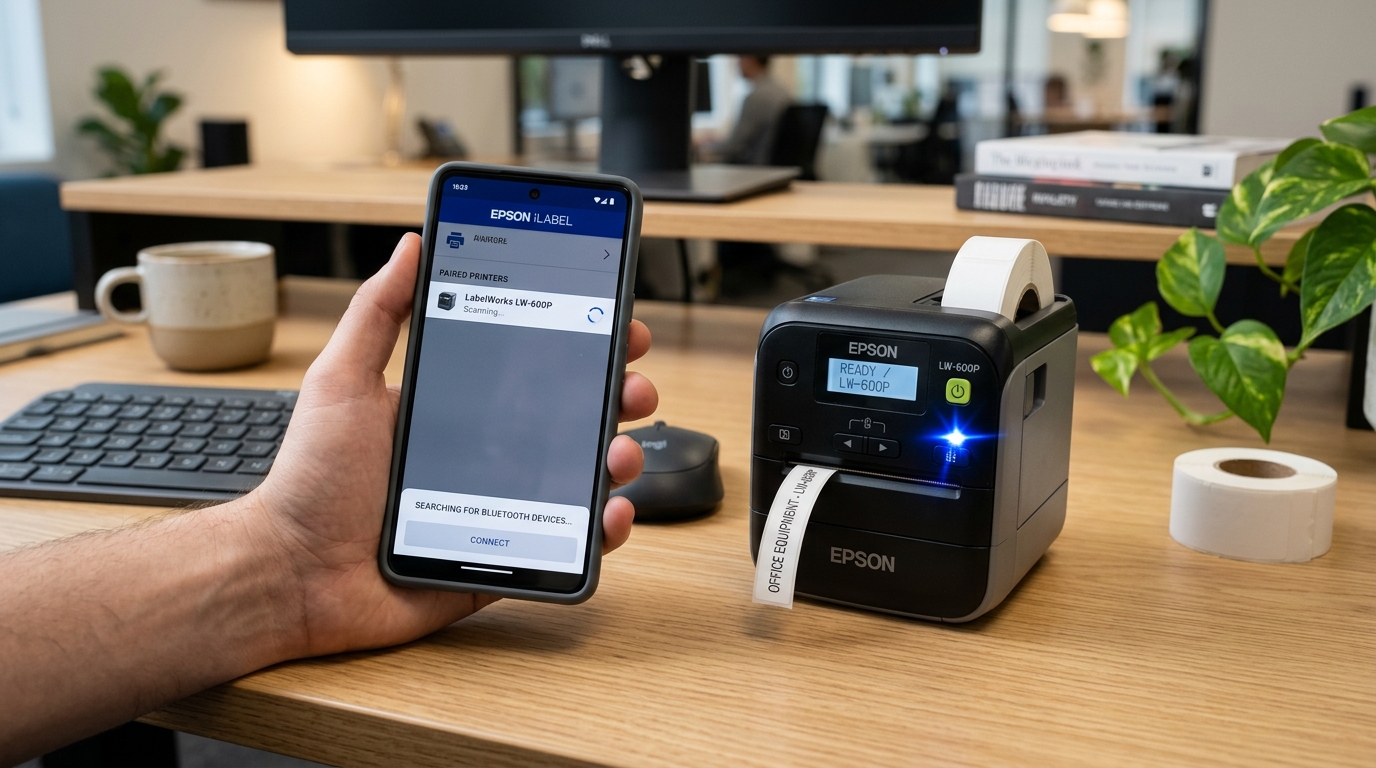
Troubleshooting LabelWorks Bluetooth Connection Drops
Wireless models like the Epson LabelWorks LW-600P and LW-PX400 pair via Bluetooth with mobile phones, tablets, and laptops running the Epson iLabel, Epson Datacom, or Label Editor software.
When the printer fails to pair or drops out during label transmission, the issue is typically caused by Bluetooth cache corruption, app permission restrictions, or low battery voltage.
Step 1: Check Bluetooth Status LED and Reset Discovery
The LabelWorks printer must be in an active discoverable pairing state:
- Turn on the printer: Press the power button and inspect the blue Bluetooth indicator LED.
- Verify pairing indicator: A slow flashing blue LED indicates pairing standby; a solid blue LED indicates an active connection to another device.
- Reset the Bluetooth connection: Press and hold the Bluetooth button on the printer chassis for 5 seconds until the LED flashes rapidly.
- Disconnect existing hosts: Ensure a previously paired phone or tablet nearby is not holding the active wireless connection.
Step 2: Grant Nearby Devices & Location Permissions
Modern iOS and Android operating systems require strict app permissions to discover Bluetooth Low Energy (BLE) peripherals:
- Open device settings: Navigate to your phone or tablet's Settings menu and select Apps > Epson iLabel.
- Enable Bluetooth permissions: Ensure Bluetooth access is switched to Allow.
- Enable Location permissions (Android): Android requires Location services enabled for BLE beacon discovery. Select "Allow while using app".
- Enable Nearby Devices (Android 12+): Ensure the "Nearby Devices" permission toggle is granted.
Step 3: Pair Directly Inside the Epson iLabel App
Pairing BLE printers through the native system Bluetooth menu often triggers invalid PIN errors:
- Do not pair in phone settings: Unpair or forget the printer if listed in your general Bluetooth device menu.
- Launch Epson iLabel: Open the official Epson iLabel or Epson Datacom app on your device.
- Tap printer selection: In the top banner of the app, tap Select Printer or the printer search icon.
- Choose your LabelWorks model: Select your LW-600P or LW-PX400 from the discovered list to bind the connection directly.
- Enter default PIN if prompted: If a pairing PIN is requested, enter
0000or1234.
Step 4: Troubleshoot Windows PC Bluetooth Pairing
Connecting Epson LabelWorks via Bluetooth to a Windows laptop requires proper driver port assignment:
- Open Windows Settings: Navigate to Bluetooth & devices > Add device > Bluetooth.
- Select LabelWorks: Click your Epson printer model when it appears and complete the pairing handshake.
- Check COM port in Device Manager: Open Device Manager and expand Ports (COM & LPT) to verify standard serial over Bluetooth.
- Assign port in Label Editor: In Epson Label Editor, open Printer Setup and select the assigned virtual Bluetooth COM port.
Step 5: Verify Battery Power Levels
Weak batteries cause the Bluetooth transmitter module to shut down unexpectedly during print transmission:
- Inspect power level: Low battery charge allows the power LED to light up but drops Bluetooth transmission power.
- Switch to AC adapter: Plug in the AC wall adapter and retest Bluetooth pairing to confirm stable radio power.
- Power cycle both devices: Restart both your phone/PC and the LabelWorks printer before sending a test print.
Frequently Asked Questions
Why does the Epson iLabel app say "Printer Not Found"?
The printer is likely connected to another nearby paired phone, or the app lacks "Nearby Devices" permission in your phone settings.
What is the default Bluetooth pairing PIN for Epson LabelWorks?
The standard pairing PIN for Epson Bluetooth label printers is 0000.
Can multiple devices print to the LabelWorks printer via Bluetooth at once?
No, Bluetooth establishes a point-to-point connection; the first device must disconnect before another device can pair.
