


The Quick Answer
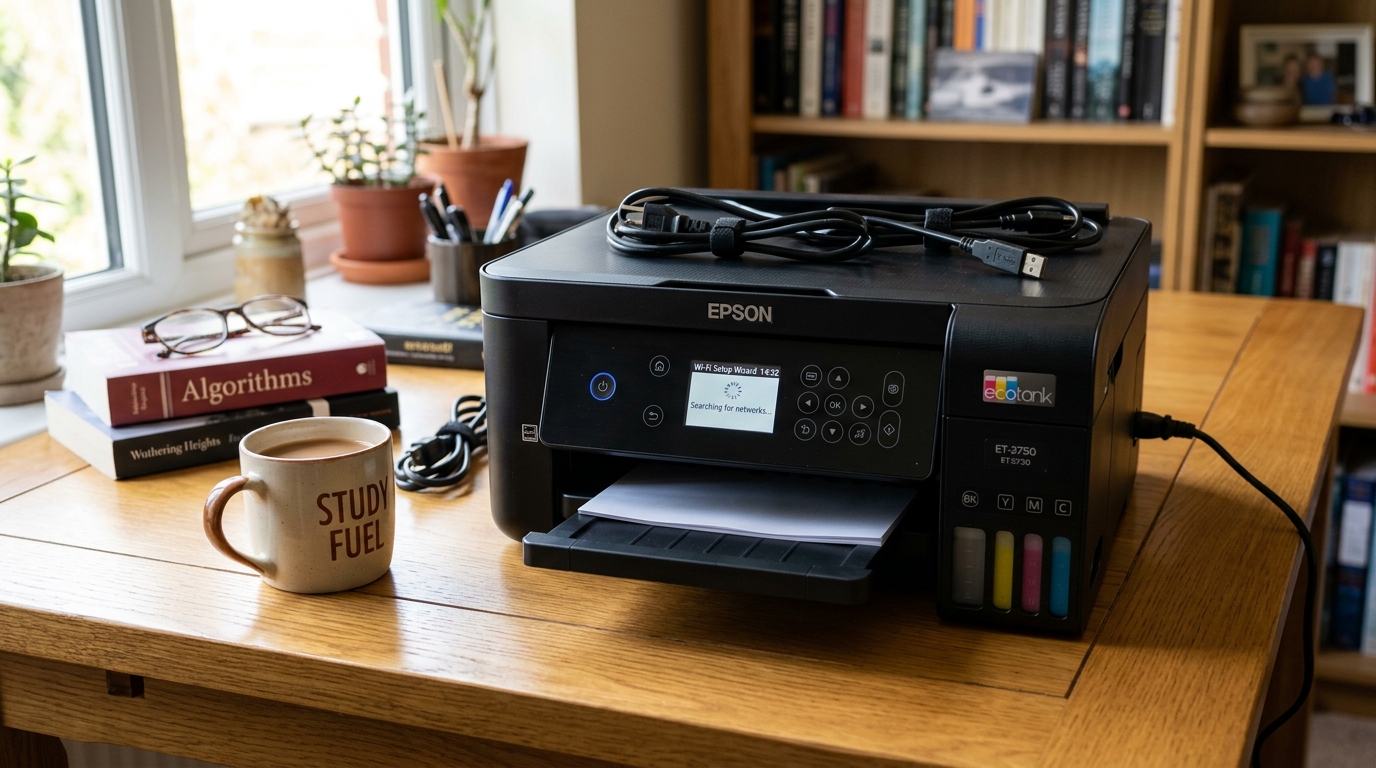
When the Epson EcoTank ET-2750 cannot connect to Wi-Fi, the root cause is usually incorrect character set selection during password entry or router band steering conflicts. You can resolve this by running the Wi-Fi Setup Wizard using the physical control buttons and utilizing the Start button shortcut to quickly toggle character sets.
Epson ET-2750 Control Panel: Button Navigation Protocol
The ET-2750 features a 1.44-inch color non-touch LCD flanked by physical navigation keys. It also features integrated automatic 2-sided duplex printing and a front SD memory card slot. Follow these exact button commands to configure Wi-Fi:
- Press the physical Home button to return to the root menu.
- Use the ▲ or ▼ arrow buttons to select Wi-Fi Setup, then press OK.
- Select Wi-Fi (Recommended) and press OK.
- Select Wi-Fi Setup Wizard and press OK. The printer will search for available wireless access points.
- Select your wireless network name (SSID) from the list and press OK.
- On the password entry screen, use ▲ and ▼ to select characters. Press ► to advance to the next character position. Uncommon Tip: Press the physical Start button to cycle immediately between Uppercase, Lowercase, Numbers, and Symbols, saving significant setup time.
- Highlight the checkmark icon and press OK to connect.
Configuring Wi-Fi Direct for Peer-to-Peer Printing
If you do not have an active wireless router or need guest devices to print without joining your local network, the ET-2750 supports Wi-Fi Direct:
- Press Home, select Wi-Fi Setup, and press OK.
- Select Wi-Fi Direct and press OK.
- Select Start Setup > Other OS Devices.
- The LCD screen will display the printer's direct network name (starting with DIRECT-) and an 8-digit password.
- Connect your smartphone or laptop to this Wi-Fi network name, enter the displayed password, and send print jobs directly.
Running an ET-2750 Network Connection Check
The ET-2750 includes an integrated diagnostic test that analyzes your wireless link and prints specific error codes:
- Load plain paper into the rear paper feed.
- Press Home > select Settings > press OK.
- Select Network Settings > Connection Check.
- Press the physical Start button. The printer tests network negotiation and outputs a diagnostic sheet. Look for "Connection: OK"; if an error code (such as E-1 or E-2) is reported, it indicates a security key mismatch or weak signal.
2.4 GHz Network Band Constraints
Like other desktop EcoTank models, the ET-2750 hardware contains an 802.11b/g/n wireless card limited to 2.4 GHz. It will not communicate across 5 GHz bands. Ensure your wireless access point does not block local device-to-device communication (disable Client Isolation in router settings).
Resetting ET-2750 Network Defaults
To clear all Wi-Fi and Wi-Fi Direct configurations:
- Press Home > Settings > Restore Default Settings.
- Select Network Settings and press OK.
- Confirm with Yes to wipe existing credentials and re-initialize the wireless radio.
For mechanical maintenance and print quality restoration, review our guide to Epson power cleaning vs head cleaning, or see how to address an Epson printer blinking red light condition.