


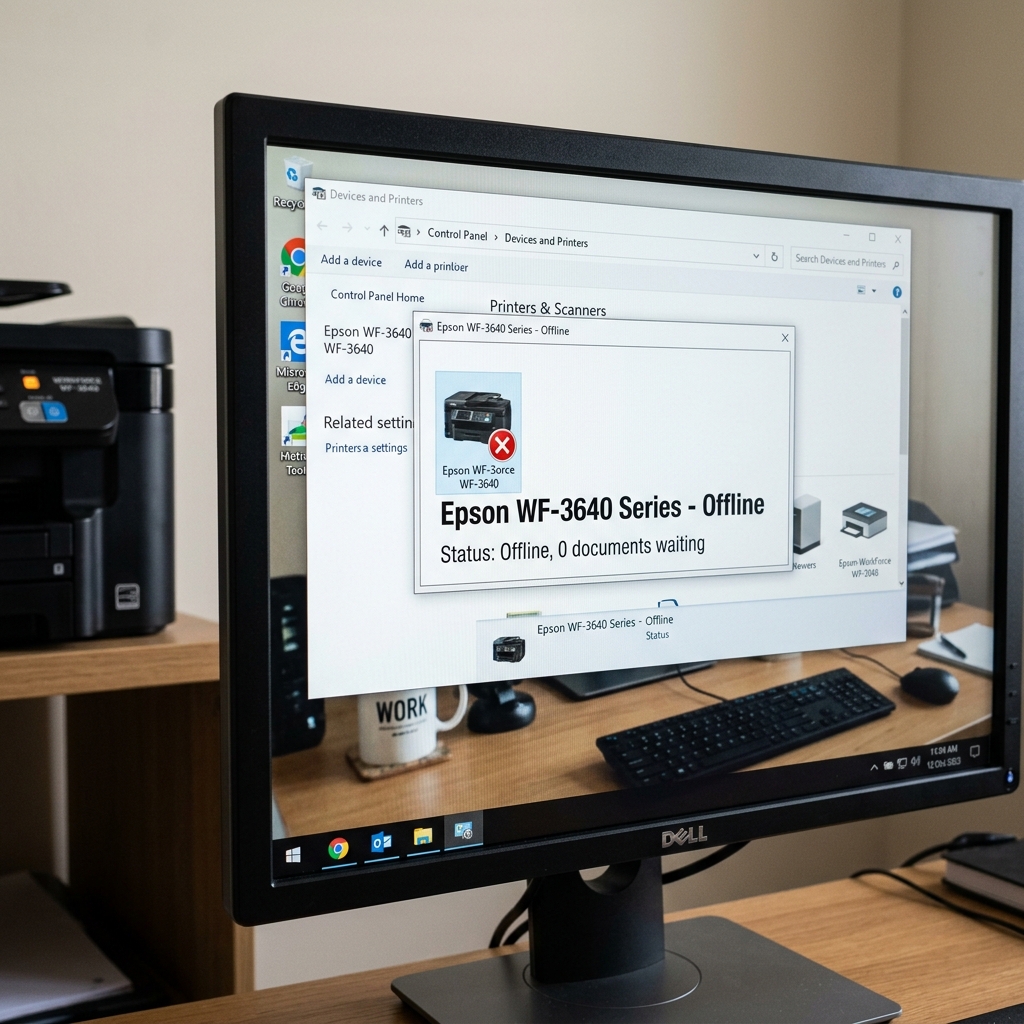
The WSD Port Curse
If you own an Epson WorkForce WF-3640, you are likely familiar with the following scenario: You print a document on Monday perfectly. On Wednesday, you try to print, and Windows tells you the printer is "Offline." The printer is turned on, the Wi-Fi light is green, but the computer simply refuses to see it until you reboot everything.
This is almost always caused by how Windows automatically configures networked printers using WSD (Web Services for Devices).
WSD is designed to automatically detect printers, but it is notoriously terrible at "waking up" Epson printers from deep sleep mode. When the WF-3640 goes to sleep to save power, the WSD port loses the handshake, assumes the printer is dead, and sets the status to Offline.
The Permanent Fix: Switch to a TCP/IP Port
To fix this permanently, you must bypass WSD and force Windows to communicate directly with the printer's IP address.
Step 1: Find the Printer's IP Address
- Go to the WF-3640's touchscreen.
- Tap the Wi-Fi icon at the top right of the screen.
- Tap Wi-Fi Setup > Wi-Fi Status.
- Write down the IP Address (it will look something like
192.168.1.15).
Step 2: Create the TCP/IP Port in Windows
- On your Windows PC, open the Start Menu and type Control Panel.
- Click View Devices and Printers.
- Right-click the Epson WF-3640 icon and select Printer Properties (not just 'Properties').
- Click the Ports tab at the rong> tab at the top. You will likely see a checkmark next to a long, messy port name starting with
WSD-. - Click the Add Port ... button.
- Select Standard TCP /IP Port and click New Port....
- In the "Printer Name or IP Address" box, type the IP address you wrote down earlier (e.g., 192.168.1.15). The Port Name will auto-fill. Click Next.
- Windows will detect the printer. Click Finish, then Close.
- Ensure the checkmark is now next to your new TCP/IP port, and click Apply.
Your printer will immediately come online and will no longer drop off the network when it goes to sleep.
Fix 2: Set a Static IP on Your Router
The TCP/IP fix works perfectly, with one caveat: If your home router restarts (due to a power outage), it might assign a brand new IP address to your printer. If it does, your newly created TCP/IP port will point to the wrong address, and the printer will go offline again.
To make the fix bulletproof, log into your home Wi-Fi router's admin panel (usually by typing 192.168.1.1 into your browser). Find the DHCP or LAN settings, locate the Epson printer in the device list, and assign it a Static IP Address (or "Reserved IP").
This forces the router to always give the printer the exact same IP address until the end of time, ensuring Windows never loses track of it.
Why the Epson WorkForce WF-3640 Drops Offline in Windows 10 & 11
The Epson WorkForce WF-3640 is a high-volume workgroup multifunction printer equipped with PrecisionCore printhead technology, dual paper trays, and duplex scanning. The most common cause of the WF-3640 appearing "Offline" on Windows 10/11 PCs is Windows defaulting to a Web Services for Devices (WSD) port, coupled with dynamic IP lease renewals from your router.
Step-by-Step Port Reconfiguration (Switching to Standard TCP/IP)
- Print the Network Status Sheet:
On the WF-3640 touchscreen, navigate to Setup > Network Status > Print Status Sheet. Note the printer's active IP address (e.g.,
192.168.1.180). - Create a Permanent TCP/IP Port in Windows:
- Press Windows Key + R, type
control printers, and press Enter. - Right-click the Epson WF-3640 icon and select Printer Properties.
- Go to the Ports tab. Click Add Port....
- Select Standard TCP/IP Port and click New Port....
- Enter the printer's exact IP address into the Printer Name or IP Address field.
- Complete the wizard, verify the new TCP/IP port is checked with a checkmark, and click Apply.
- Press Windows Key + R, type
- Disable SNMP Status Checking:
While in the Ports tab, highlight your new TCP/IP port and click Configure Port.... At the bottom of the window, UNCHECK "SNMP Status Enabled". When SNMP polling fails across network routers, Windows falsely marks the printer as offline. Disabling SNMP keeps the printer permanently available.
- Uncheck "Use Printer Offline":
Double-click the printer in Control Panel to open the print queue. Click the Printer menu at the top left and ensure there is no checkmark next to "Use Printer Offline".
Frequently Asked Questions
Why does the WF-3640 drop offline only when entering Sleep Mode?
In the WF-3640 Embedded Web Server (access via typing its IP into a browser), go to Network Settings > Energy Save > Sleep Timer. Adjust the Wi-Fi power-saving mode from "Low Power" to "Standard" to keep the wireless antenna awake.
Does the WF-3640 support both 2.4GHz and 5GHz Wi-Fi?
No. 11b/g/n wireless card.
