


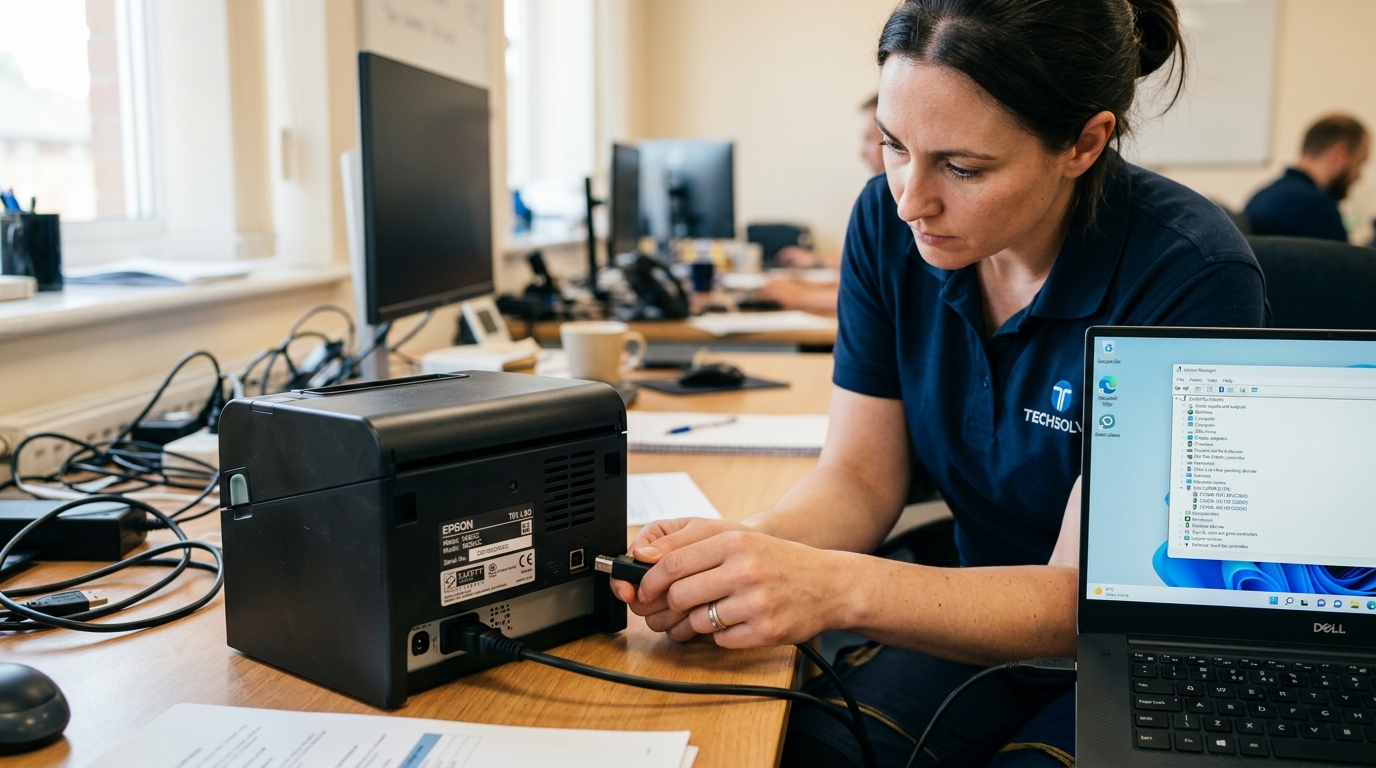
Troubleshooting LabelWorks USB Recognition Failures
Connecting desktop or hybrid label printers (such as the LW-600P, LW-PX400, and LW-PX900) to a Windows or Mac PC allows high-volume batch printing from databases and spreadsheets.
When the computer reports "USB Device Not Recognized", shows a yellow exclamation mark in Device Manager, or Epson Label Editor says "Printer Offline", driver binding has failed.
Step 1: Check Physical USB Interface and Cable Quality
Thermal printers require reliable, uninterrupted 5V USB bus communication:
- Avoid front panel and unpowered hubs: Connect directly to a rear motherboard USB 2.0 or 3.0 port on desktop towers.
- Use high-quality shielded USB cable: Replace cables longer than 6 feet with a shielded USB-A to USB-B cable with a ferrite bead choke.
- Inspect printer USB port: Ensure the USB-B jack on the label maker is not physically loose or damaged from cable strain.
- Verify printer is powered on: Ensure the printer power LED is illuminated before plugging in the USB cable.
Step 2: Update Driver Manually via Windows Device Manager
Windows often misclassifies LabelWorks hardware as a generic serial port or unspecified device:
- Open Device Manager: Press Win + X and select Device Manager.
- Locate flagged device: Look under Other devices or Universal Serial Bus controllers for "Unknown Device" or "Epson LabelWorks".
- Right-click and Update driver: Select Update driver > Browse my computer for drivers.
- Point to extracted driver INF folder: Browse to the folder where the official Epson driver package was extracted (typically
C:\Epson\LabelWorks\Driver). - Complete installation: Click Next to bind the cryptographically signed Epson printer driver.
Step 3: Assign Correct Virtual USB / COM Port
Software suites require direct binding to the virtual USB printer port:
- Open Control Panel: Navigate to Control Panel > Devices and Printers.
- Right-click LabelWorks: Select Printer properties and open the Ports tab.
- Check port binding: Ensure the printer is assigned to an active
USB001orUSB002Virtual Printer Port, not a stale COM port. - Print test label: Click Print Test Page from the General tab to verify communications.
Frequently Asked Questions
Why does Device Manager report "Error Code 43" for my LabelWorks printer?
Error Code 43 indicates a USB hardware handshake failure; replace the USB cable or connect to a different USB controller root hub.
Can I connect my LabelWorks printer through a USB-C hub on a modern laptop?
Yes, but ensure the USB-C adapter or hub is powered by an external AC power supply to prevent bus power dropouts.
Does macOS require a separate driver for Epson LabelWorks?
Yes, install the official Epson LabelWorks Mac Driver package before connecting the USB cable on macOS.
