


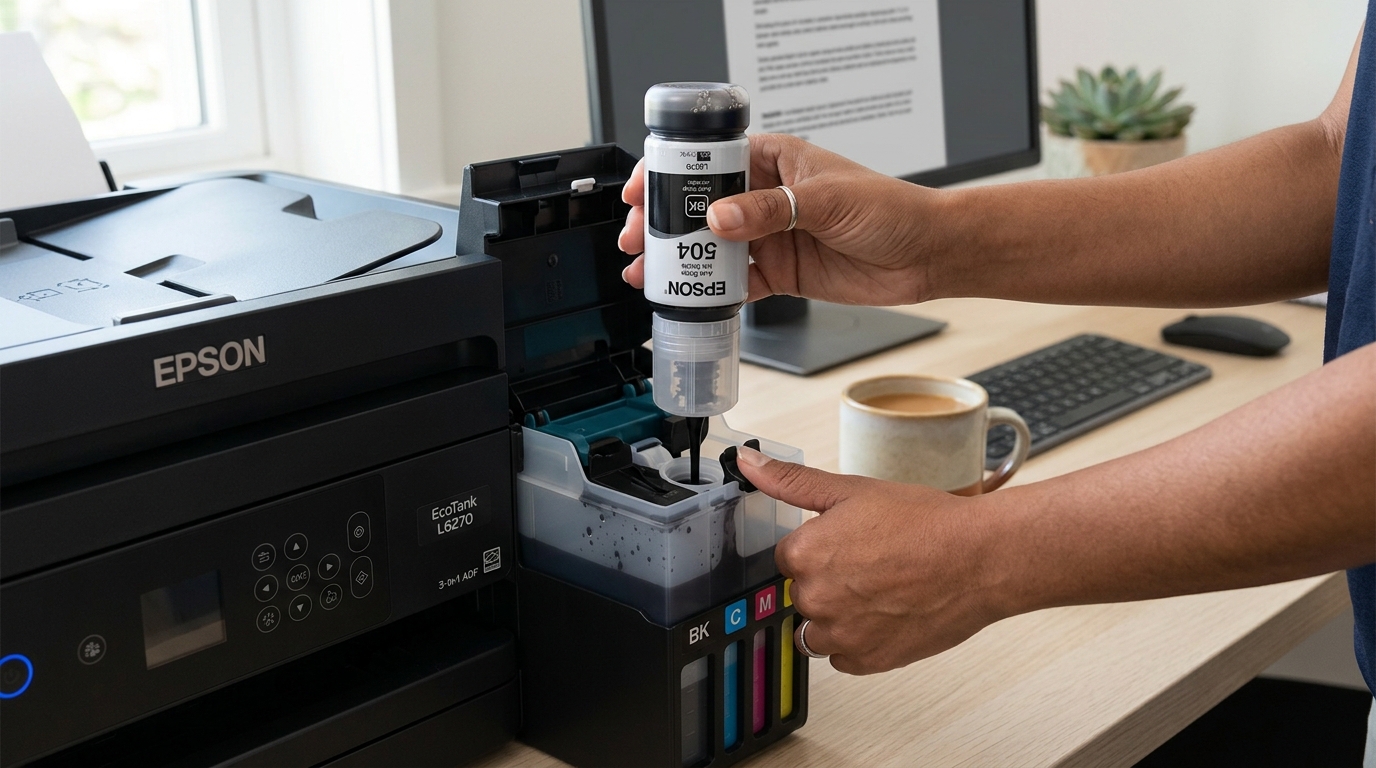
Getting Started with the Epson EcoTank L6270
The Epson EcoTank L6270 is a high-volume duplex all-in-one printer powered by PrecisionCore Heat-Free technology. It features a 30-sheet Automatic Document Feeder (ADF), high-capacity 001 pigment black and dye color ink tanks, and Ethernet networking.
Following proper initial setup ensures air-free ink line priming, correct printhead calibration, and seamless network connectivity across all office computers.
Step 1: Unboxing and Removing Shipping Restraints
Shipping tape and internal spacers must be completely removed before applying AC power:
- Remove exterior blue tape: Peel away all blue packing tape from the exterior housing, paper cassettes, and ADF lid.
- Open the scanner unit: Lift the scanner bed assembly and remove the protective cardboard block and internal carriage tape.
- Check the rear duplexer: Ensure the rear duplex cover is locked securely into position.
- Connect power cord: Plug the power cord directly into the printer and a wall outlet. Turn on the printer and select your language and country on the LCD screen.
Step 2: Fill the Ink Tanks with 001 Ink Bottles
The L6270 uses keyed, spill-free 001 ink bottles that automatically stop filling when each reservoir reaches capacity:
- Open the ink tank cover: Unlatch the ink compartment cover on the front right of the chassis.
- Open the blue tank cap: Lift the cap for the specific color you are filling (Black, Cyan, Magenta, or Yellow).
- Insert the bottle vertically: Position the bottle straight onto the keyed filling port without squeezing. Ink flows automatically into the tank.
- Wait for auto-stop: When ink reaches the top fill line, remove the bottle and snap the blue cap closed.
- Repeat for all colors: Fill the remaining color tanks until all four reservoirs are completely filled.
Step 3: Perform Initial Ink Charging (10 Minutes)
Initial ink charging draws liquid ink through internal damper tubes into the PrecisionCore printhead:
- Initiate ink charge on screen: When prompted on the LCD display, press and hold the OK button for 3 seconds.
- Confirm ink tanks are filled: Select Yes to confirm all tanks contain ink.
- Wait for priming cycle: The printer initiates a mechanical pumping cycle lasting approximately 10 minutes. Do not turn off power or open covers.
- Print alignment pattern: Once charging completes, follow the on-screen prompts to print and evaluate printhead alignment sheets.
Step 4: Connect to Wi-Fi, Ethernet, or USB
Connect the L6270 to your local office subnet for multi-device printing:
- Connect via Wi-Fi Wizard: On the control panel, go to Settings > Network Settings > Wi-Fi Setup > Wi-Fi Setup Wizard.
- Select your SSID: Choose your 2.4 GHz wireless network and enter your WPA/WPA2 password using the screen keypad.
- Connect via Gigabit Ethernet: Alternatively, plug a Cat6 Ethernet cable into the rear RJ-45 port for instant wired network discovery.
- Install Epson Smart Panel: Download the Epson Smart Panel app on your mobile device for direct phone scanning and remote diagnostics.
Step 5: Load Paper and Configure the ADF Scanner
Prepare the front paper cassette and top feeder for daily office workflow:
- Load front paper cassette: Pull out the lower 250-sheet cassette, adjust the side paper guides to Letter or A4, and insert plain paper print-side down.
- Load the ADF feeder: Place up to 30 sheets of multi-page documents face-up into the top automatic document feeder.
- Install Epson ScanSmart: Install Epson ScanSmart on Windows or Mac to enable single-click scan-to-PDF, OCR text search, and scan-to-cloud workflows.
Frequently Asked Questions
Why does the ink level drop slightly right after initial setup?
The initial charging cycle pumps ink into internal tubing, dampers, and the printhead, consuming a small portion of the first tank fill.
Does the Epson L6270 support automatic two-sided ADF scanning?
No, the ADF is single-pass simplex; automatic two-sided scanning requires manually reinserting the stack, though printing supports full auto-duplex.
What ink bottles does the Epson L6270 use?
The L6270 uses Epson 001 pigment black ink and 001 dye-based color ink bottles.
