


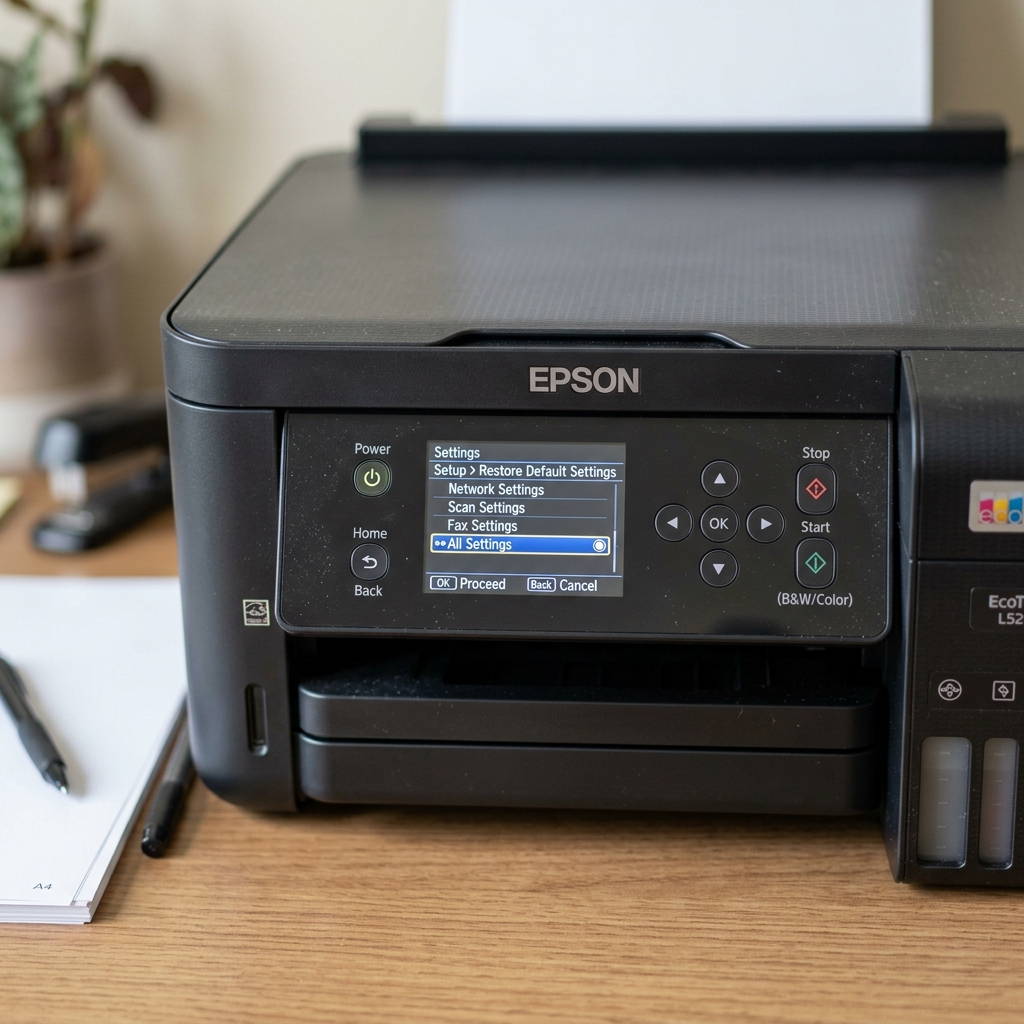
When to Reset the L5290
The Epson L5290 is a feature-rich EcoTank with an Automatic Document Feeder, Fax capabilities, and complex networking. Because it runs a fairly complex internal operating system, it can occasionally suffer from software glitches. You might encounter phantom paper jams, scanner connection timeouts, or an inability to find your Wi-Fi network.
Before assuming the hardware is broken, performing a software reset is the best troubleshooting step.
Type 1: The Network Reset (Fixing Wi-Fi Drops)
If the printer prints perfectly over USB, but constantly drops off the Wi-Fi or refuses to accept your new router password, you just need to clear the network cache.
- Press the Home button on theng> button on the control panel.
- Use the arrow keys to navigate to Settings and press OK.
- Scroll down to Restore Default Settings and press OK.
- Select Network Settings .
- The printer will ask for confirmation. Press the button indicated on the screen (usually OK or 1) to proceed.
- The printer will restart. You will now need to go back into the Wi-Fi Setup Wizard and re-enter your router password as if the printer was brand new.
Type 2: The Full Factory Reset (Clearing Fatal Glitches)
If the printer is behaving erratically—such as the ADF refusing to scan, the screen freezing on the Epson logo, or strange characters printing on the page—you need to wipe the entire EEPROM memory.
- Navigate to Settings > Restore Default Settings.
- Select Clear All Data and Settings .
- Confirm the prompt. This will delete your Wi-Fi passwords, your fax headers, your custom paper size settings, and any stored address books.
- The printer will reboot. Note: A factory reset does NOT reset the Waste Ink Pad counter. That requires a third-party WIC Reset Utility.
Type 3: The Hard Power Reset (Static Drain)
If the L5290's screen is completely frozen and unresponsive to button presses, you cannot navigate to the settings menu.
Unplug the power cord directly from the back of the printer. Press and hold the physical power button for 60 seconds to drain the capacitors on the motherboard.
Wait 5 minutes, plug the cord back in, and turn the printer on. This forces a cold boot, which usually bypasses frozen RAM states and allows the printer to function normally again.
When to Perform a Full Reset on the Epson EcoTank L5290
The Epson EcoTank L5290 is a wireless multifunction all-in-one printer with fax and ADF capabilities. Performing a factory reset restores all network routing tables, clears corrupted fax memory buffers, resets administrator passwords, and re-initializes scan-to-cloud profiles.
Method 1: Control Panel LCD Soft Reset
- On the L5290 home screen, scroll to Settings (Gear Icon) and press OK.
- Navigate to Restore Default Settings .
- Choose your desired reset level:
- Network Settings: Resets Wi-Fi, IP configuration, and Wi-Fi Direct passwords to factory defaults without erasing fax contacts.
- Clear All Data and Settings: Wipes all user data, address book contacts, fax logs, and restores out-of-the-box factory defaults.
- Confirm by pressing OKtrong>OK / Yes. The printer will reboot automatically.
Method 2: Hard Button Power-On NVRAM Reset
- Turn the printer completely OFF.
- Press and hold the physical Cancel (Stop / Triangle) button and the Power button simultaneously.
- Hold both buttons until the status LED flashes, then release. The printer will re-flash default NVRAM tables.
Frequently Asked Questions
Does a factory reset clear the Waste Ink Pad Counter on the L5290?
No. The waste ink pad counter is stored in protected flash memory and cannot be reset through standard menu resets.
What is the default administrator password after a factory reset?
On modern Epson L-series printers, the default administrator password is the printer's unique Serial Number (printed on the barcode sticker on the back of the machine).
