


The Quick Answer
HP Wireless Direct not showing up on your phone's Wi-Fi list? A repair tech explains the phone setting that auto-hides networks without internet.
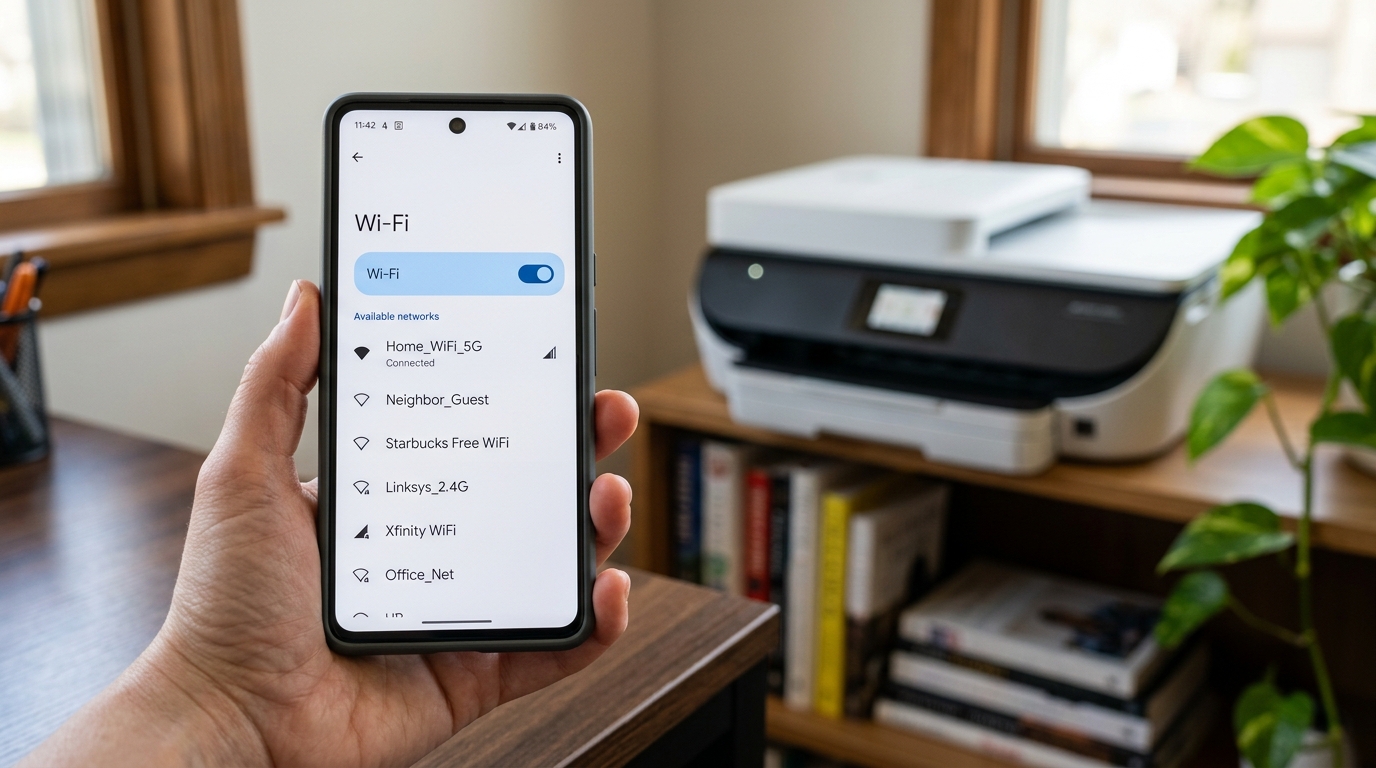
Wireless Direct is supposed to be the simple fallback option — no router required, your phone connects straight to the printer's own signal.So when that signal doesn't even show up in your phone's Wi-Fi list at all. Or appears briefly and then disconnects on its own, it defeats the entire point of a feature designed specifically to be the easy, no-fuss option.
Quick-Fix Summary
Fast version:
- Confirm Wireless Direct is actually enabled on the printer itself.
- Move closer — this signal is genuinely short-range by design.
- Refresh your phone's Wi-Fi scan rather than assuming the list is current.
- Disable your phone's smart network switching feature — my uncommon tip, and a common but invisible cause.
- Restart both devices if the network appears but won't connect reliably.
Fix 1: Confirm Wireless Direct Is Enabled
Through your printer's control panel, check its network or wireless settings menu specifically for a Wireless Direct or Wi-Fi Direct option, and confirm it's turned on. Some printers disable this by default, or it can get turned off during a factory reset or firmware (internal software) update.
Why this works: if this feature isn't active on the printer's side, your phone will never see any signal to connect to at all, regardless of anything correct happening on the phone itself — this is worth confirming directly rather than assuming it's simply always available.
Fix 2: Move Closer to the Printer
Bring your phone within a few feet of the printer and try scanning for networks again.
Why this works: Wireless Direct creates a direct, printer-generated Wi-Fi signal that's typically much shorter range than your home router's broadcast, specifically because it's designed for close-proximity, occasional use rather than whole-house coverage. A signal that seems to not exist at all from across a room can appear immediately once you're standing near the printer.
Fix 3: Refresh Your Phone's Wi-Fi Scan
Toggle your phone's Wi-Fi off and back on, or navigate away from the Wi-Fi settings screen. And back into it, to force a fresh scan rather than relying on a list that may not have updated recently.
Why this works: phones don't necessarily continuously re-scan for available networks in real time while you're looking at the settings screen. And a list that was accurate a minute ago may not reflect a network that just became available, particularly if you just turned Wireless Direct on within the last few moments.
Fix 4: Disable Smart Network Switching (My Uncommon Tip)
Here's the fix for the specific, maddening pattern where Wireless Direct briefly appears, or even connects successfully for a moment, and then your phone seems to abandon it or it vanishes from the active connection shortly after — and it has nothing to do with the printer at all.
Both Android and iPhone include smart networking features designed to automatically avoid Wi-Fi networks that don't provide a working internet connection, switching your phone back to cellular data or a different, internet-connected Wi-Fi network instead — a genuinely sensible feature for everyday use, since nobody wants their phone silently stuck on a dead Wi-Fi network unable to load anything.
The problem is that Wireless Direct, by design, has no internet connection at all — it's a direct connection specifically for communicating with your printer, nothing more — which means your phone's smart switching feature can identify it as exactly the kind of "bad" network it's designed to actively avoid or abandon, sometimes before you've even had a chance to use it for printing.
On iPhone: go to Settings → Cellular (or Mobile Data), scroll down, and turn off Wi-Fi Assist. On Android: the exact setting name varies by manufacturer, but look in Settings → Network & internet → Wi-Fi → Wi-Fi preferences (or similar) for something called Smart Network Switch, Avoid poor connections, or Auto-switch network, and disable it.
Why this works: disabling this feature tells your phone to trust your manual network selection. And stay connected to Wireless Direct even though it correctly recognizes there's no internet access available through it — which is exactly the behavior you want in this specific situation, since you're intentionally connecting for local printing, not general internet browsing.
This is precisely the kind of background phone feature that never occurs to people troubleshooting a printer connection problem, because it operates silently and its entire purpose is usually genuinely helpful — right up until it actively works against a legitimate no-internet connection you're trying to use on purpose.
Fix 5: Restart Both Devices
If Wireless Direct appears in your phone's list but connection attempts fail or drop repeatedly even after checking the above, restart both your phone. And the printer completely, then attempt the connection fresh.
Why this works: both devices can accumulate a stale network connection state over time that a simple reconnection attempt doesn't fully clear. And a full restart on both ends forces each to establish the connection from a genuinely clean starting point.
When to Call a Professional
If Wireless Direct is confirmed enabled on the printer, you're standing close enough that range isn't a factor, your phone's Wi-Fi list has been freshly refreshed, smart network switching is disabled, and both devices have been restarted — and the signal still never appears — try checking whether a second phone or tablet can see it.
If another device sees the signal fine, the issue is specific to your original phone's Wi-Fi hardware or settings, worth checking with your phone's manufacturer.If no device can find the signal at all, contact HP support with your printer's model.
And serial number, since a failing wireless radio inside the printer becomes the more likely explanation at that point.
FAQ
Why does Wireless Direct disconnect right after I connect to it?
Your phone's smart network switching feature — Wi-Fi Assist on iPhone, Smart Network Switch or similar on Android — may be detecting that Wireless Direct has no internet access and automatically abandoning it in favor of a connection that does. Disable this feature to stay connected reliably.
How close do I need to be to the printer for Wireless Direct to work?
Considerably closer than a typical home Wi-Fi router's range — this feature is designed for close-proximity use. If you're across a room or on a different floor, try standing directly next to the printer instead.
Is Wireless Direct supposed to have internet access?
No, by design — it's a direct connection specifically for communicating with the printer for printing purposes, not a general internet connection. This is exactly why phone features designed to avoid internet-less networks can interfere with it.
Do I need to turn smart network switching back on afterward?
You can, once you're done using Wireless Direct specifically — it's a generally useful feature for everyday Wi-Fi use. Just remember to disable it again if you plan to use Wireless Direct regularly, or leave it off if you use this connection method often enough that the inconvenience of re-enabling it repeatedly isn't worth it.
If HP Wireless Direct isn't showing up on your phone. Or vanishes moments after you connect, check whether the feature is genuinely enabled on the printer and whether you're close enough — but don't overlook your phone's own smart network switching feature.
It's designed to protect you from dead Wi-Fi connections, and Wireless Direct, having no internet access by design, looks exactly like the kind of network it's built to abandon.
Additional Resources
If you are still experiencing issues after trying the steps above, you may need to consult the official documentation or download the latest firmware (internal software) for your specific printer model. We recommend checking the following official resources:
