


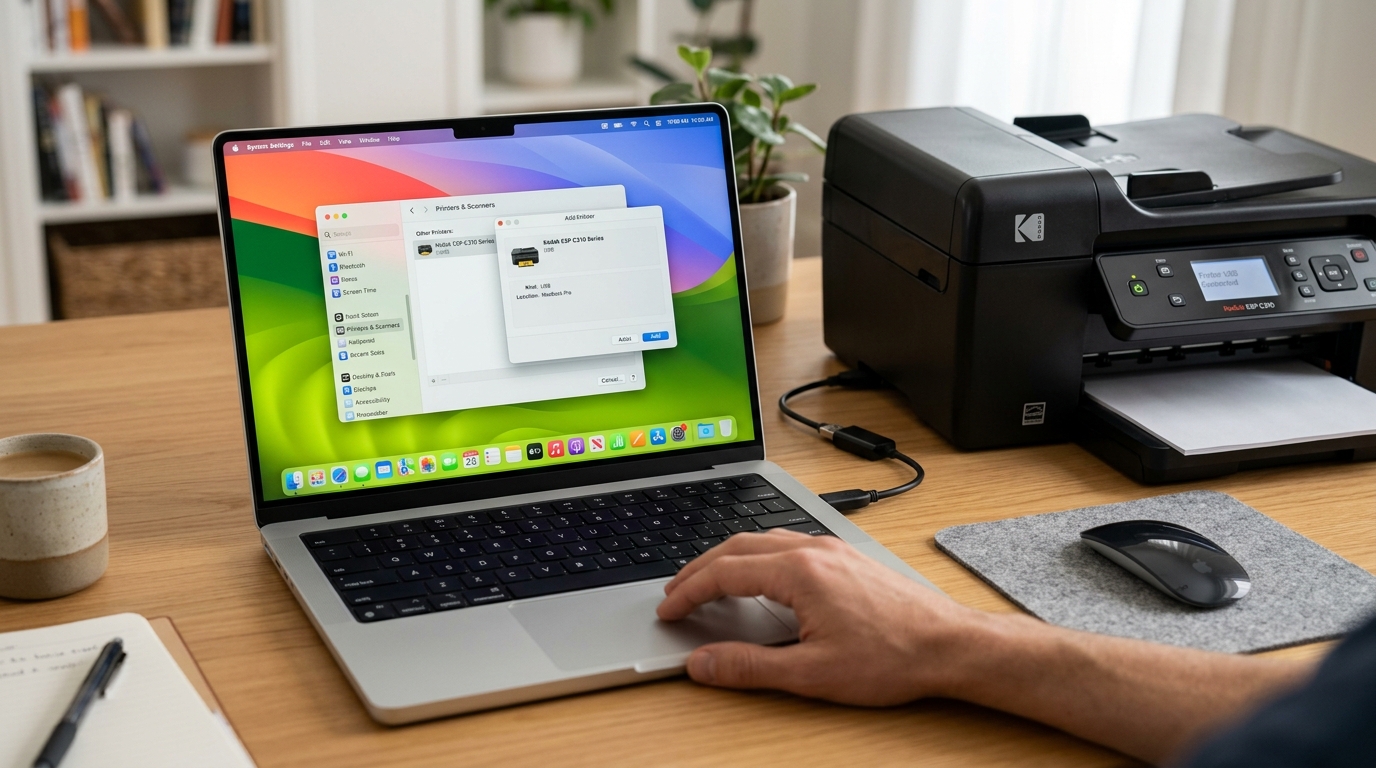
If you own a legacy Kodak ESP or Hero printer. Recently upgraded your Mac, you likely noticed that the printer has stopped responding, or the official KODAK All-in-One Home Center software crashes on launch.
This happens because Apple dropped support for all 32-bit applications and legacy kernel extensions starting with macOS Catalina (10.15). Since Kodak officially exited the printer market in 2012, no 64-bit drivers were ever compiled.
However, you can still print from modern macOS versions (including Sonoma, Sequoia. Ventura) using the open-source **Gutenprint** printer driver daemon.
Let's walk through the setup process.
Understanding Gutenprint (Gimp-Print)
Gutenprint is a community-developed suite of high-quality printer drivers for Unix-based operating systems, including macOS. It replaces the built-in printer languages of legacy hardware manufacturers with generic raster image processing.
This allows modern macOS print managers to translate document pages into print commands that Kodak ESP. Hero print engines can interpret natively.
Phase 1: Download and Bypass macOS Installer Gatekeeper
Because the Gutenprint installer is compiled by independent developers, macOS's Gatekeeper security system will block the installation by default, flagging it as an unidentified developer package.
- Navigate to the official Gutenprint SourceForge project page. Download the latest installer package for macOS (version 5.3.3 or newer is recommended for compatibility).
- Double-click the downloaded
.dmgfile to mount it. - **Do not double-click the .pkg file directly.** If you do, you will receive a warning saying "macOS cannot verify the developer".
- Instead, **right-click (or Control-click)** the installer package file and select **Open** from the context menu.
- A new dialog box will appear with an option to override Gatekeeper. Click **Open** to run the installation wizard, and follow the onboard prompts to copy the driver files to your system.
Phase 2: Manual Printer settings
With the driver files added to the macOS driver library, you must manually bind your Kodak printer to the Gutenprint driver:
- Connect your Kodak printer to your Mac using a USB cable, and turn the printer on.
- Click the Apple logo in the top-left corner of the screen and select **System Settings** (or System Preferences).
- Scroll down and select **Printers & Scanners**.
- Click the **Add Printer, Scanner, or Fax...** button (or the "+" icon).
- Select your Kodak printer from the list of detected USB devices.
- Navigate to the **Use** dropdown menu at the bottom. **Do not leave it on "Auto Select"**, as macOS will fail to locate a driver.
- Click the dropdown and select **Select Software...**.
- In the search box of the Printer Software window, type **Kodak** or **Gutenprint**.
- Select the Gutenprint driver that matches your printer model series (for example, **Kodak ESP 5250 - Gutenprint v5.3**). If your exact model is not listed, select the **Kodak ESP 3 - Gutenprint** driver. This shares the same base raster engine and works as a universal fallback. Click OK.
- Click **Add** to finalize the printer installation.
Phase 3: Network Printing via Cups Web Interface
If your Kodak printer is connected to your wireless network. Fails to appear in the standard Add Printer menu, you can configure it via the low-level CUPS (Common UNIX Printing System) portal:
- Open **Terminal** (Applications > Utilities > Terminal).
- Type the command:
cupsctl WebInterface=yesand press Enter. This enables the hidden macOS web print administrator console. - Open Safari or Chrome and navigate to:
http://localhost:631/. - Click the **Administration** tab at the top, then click **Add Printer**. (You may be prompted for your Mac system username and password).
- Select **Internet Printing Protocol (ipp)** or **AppSocket/HP JetDirect** for network printers.
- In the Connection field, enter:
socket://[Your-Printer-IP-Address]:9100. - Click Continue, name the printer, and on the next screen, select **Kodak** under Manufacturer and assign the Gutenprint driver.
Related Kodak Troubleshooting Guides
How to Connect & Print to Legacy Kodak Printers on Modern macOS (Sonoma, Ventura, Monterey)
Apple completely removed legacy 32-bit driver architecture and deprecated classic CUPS driver plugins starting with macOS Catalina (10.15). Because Kodak discontinued Mac driver updates years prior, modern Mac computers running Apple Silicon (M1, M2, M3, M4) or recent Intel macOS builds will display "Driver is unavailable" or "Printer software not found" when connecting a Kodak printer via USB or Wi-Fi.
3 Working Methods to Print on Modern macOS
- Method 1: Generic PCL / PostScript / IPP Driver Setup (Recommended):
- Ensure the Kodak printer is connected to your Wi-Fi network and has a valid local IP address (e.g.,
192.168.1.50). - On your Mac, open System Settings > Printers & Scanners.
- Click Add Printer, Scanner, or Fax... (the
+button). - Click the IP tab (globe icon) at the top.
- In the Address field, enter the printer's IP address.
- Set Protocol to
Line Printer Daemon - LPDorAirPrint / Generic IPP. - In the Use dropdown, select "Generic PCL Printer" or "Generic PostScript Printer".
- Click Add. This allows standard document printing directly from macOS without any built-in Kodak software.
- Ensure the Kodak printer is connected to your Wi-Fi network and has a valid local IP address (e.g.,
- Method 2: Using the Open-Source Gutenberg / CUPS Driver Stack:
Install the community-maintained Gutenprint for macOS package. Gutenprint contains open-source CUPS raster drivers supporting numerous legacy inkjet and dye-sublimation printer command sets.
- Method 3: Virtual Machine Printing (For Scanning & Maintenance):
If you need full Kodak Home Center access (printhead alignment, nozzle cleans, scan utilities), run a free Windows 10/7 virtual machine using UTM or VMware Fusion on your Mac. Pass the USB connection through to the VM.
Frequently Asked Questions
Does Apple Silicon (M1/M2/M3) support Kodak printer drivers natively?
Native built-in Kodak drivers were 32-bit x86 and will not run on ARM64 Apple Silicon. Using the Generic IPP/PCL protocol or Gutenprint is required on modern Mac hardware.
How can I scan documents from a Kodak all-in-one to Mac?
If the printer is networked, type its IP into Safari to open the Embedded Web Server (EWS). Many Kodak models support WebScan directly through the browser without needing any Mac scanning software.
