


Portable Kodak printers rely on firmware updates transmitted via Bluetooth from the **Kodak Photo Printer** or **Kodak Instant Printer** app. These updates resolve app compatibility issues and optimize thermal printing colors.
However, because Bluetooth is prone to interference, firmware updates frequently freeze (typically at 50% or 99%) or fail mid-transfer. This can leave the printer stuck in a blinking red loop or completely unresponsive (bricked).
Let's look at the troubleshooting flow to recover your printer's firmware.
Why Firmware Updates Freeze
Unlike USB updates, wireless firmware updates are sent in small data packets over a Bluetooth RFCOMM channel. If your phone moves too far away, receives a phone call, or switches Wi-Fi networks mid-transfer, the data stream drops.
If the printer receives an incomplete firmware block, its bootloader program locks to prevent a corrupt boot, leaving the status LED blinking rapidly.
Phase 1: The Pinhole Bootloader Force-Reset
If the printer's status light is blinking continuously and it refuses to turn off using the power button, you must force-clear the cached update block:
- Ensure the printer is connected to its USB charging cable (plugged into a wall adapter, not a computer port, to ensure stable current).
- Locate the tiny **Reset Pinhole** next to the power button or charging port.
- Insert a straightened paperclip into the pinhole and **hold the switch down for a full 10 seconds**.
- Release the paperclip. The LED light should turn off.
- Press the power button for 3 seconds to turn the printer back on. If the LED turns solid white, the printer has successfully reverted to its last stable firmware version. If it continues to flash red, proceed to Phase 2.
Phase 2: Clear the Phone's Bluetooth Cache
A failed update often leaves a corrupt pairing profile in your phone's Bluetooth transceiver cache, blocking any new firmware transfers:
For Android Devices:
- Open **Settings** > **Apps** > **See all apps**.
- Tap the three dots in the top-right corner and select **Show system apps**.
- Scroll down and select **Bluetooth** (or Bluetooth Legacy Link).
- Tap **Storage & Cache**, then tap **Clear Cache** and **Clear Data**.
- Restart your phone.
For iOS Devices (iPhone/iPad):
- Go to **Settings** > **Bluetooth**.
- Find your Kodak printer in the list of My Devices.
- Tap the **"i" info icon** next to it and select **Forget This Device**.
- Toggle the main Bluetooth switch **Off**, wait 10 seconds, and turn it back **On**.
Phase 3: Re-establish the Firmware Link
With the caches cleared, rerun the firmware write process under optimal conditions:
- Move the printer and your phone to a room away from other active Bluetooth devices, microwave ovens, or baby monitors to reduce network noise.
- Launch the **Kodak Instant Printer** app.
- Connect the printer via the app connection menu.
- If the app prompts you that a firmware update is available, tap **OK**.
- **Do not lock your phone screen or switch to another app** during the update process. Keep the app open in the foreground and place the phone directly next to the printer until the progress bar reaches 100% and the printer automatically reboots.
Related Kodak Troubleshooting Guides
Recovering a Kodak Printer Stuck in a Firmware Boot Loop
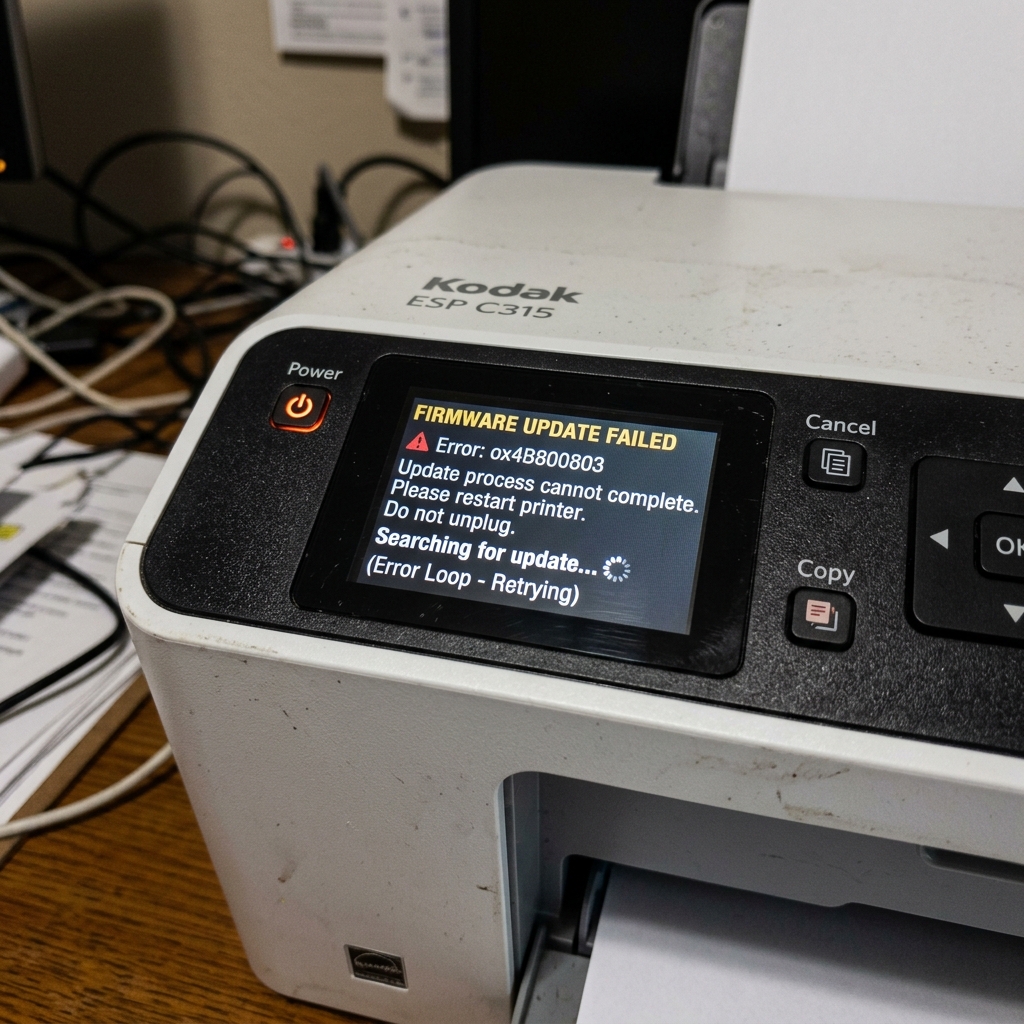
When a Kodak printer experiences a power interruption, Wi-Fi disconnect, or host computer crash during a firmware flashing routine, the flash EEPROM can be left with corrupted or incomplete boot code. The printer often becomes stuck in an endless reboot cycle, displays a flashing power light, or shows an error screen reading "Firmware Update Failed - Connect USB".
Step-by-Step Firmware Recovery Protocol
- Direct USB Recovery Connection:
Never attempt firmware recovery over Wi-Fi. Connect the Kodak printer directly to a Windows PC using a high-quality USB 2.0 cable (under 6 feet in length). Disconnect all other USB devices from the computer to prevent port bus conflicts.
- Download the Standalone Firmware Utility:
Obtain the official Kodak Firmware Update utility for your specific ESP or HERO model. Right-click the utility and select "Run as administrator" .
- Force Hardware Bootloader Mode:
- Unplug the power cable from the back of the printer.
- Press and hold the physical Power and Cancel (or Color Start) buttons simultaneously.
- While holding the buttons, plug the AC power cable back into the printer.
- Continue holding for 10 seconds until the display flashes or the LED enters a steady recovery blink pattern.
- Execute the Firmware Flash:
Run the Kodak Firmware Update tool on your PC. It will detect the printer in Emergency Recovery / Bootloader Mode and re-flash the complete firmware binary image to the ROM. Do not touch or unplug the machine until the printer fully reboots to its home screen.
Frequently Asked Questions
Can a bricked Kodak printer be recovered on macOS?
The low-level firmware recovery tools for Kodak printers were developed for Windows (XP through Windows 10). Performing the firmware recovery on a Windows PC is significantly more reliable than macOS virtual machines.
What should I do if the update halts at 99%?
If the updater stalls at 99%, wait at least 15 minutes before touching anything, as the printer may be verifying checksum blocks. If it remains completely frozen, restart the PC and repeat the force bootloader recovery steps above.
