


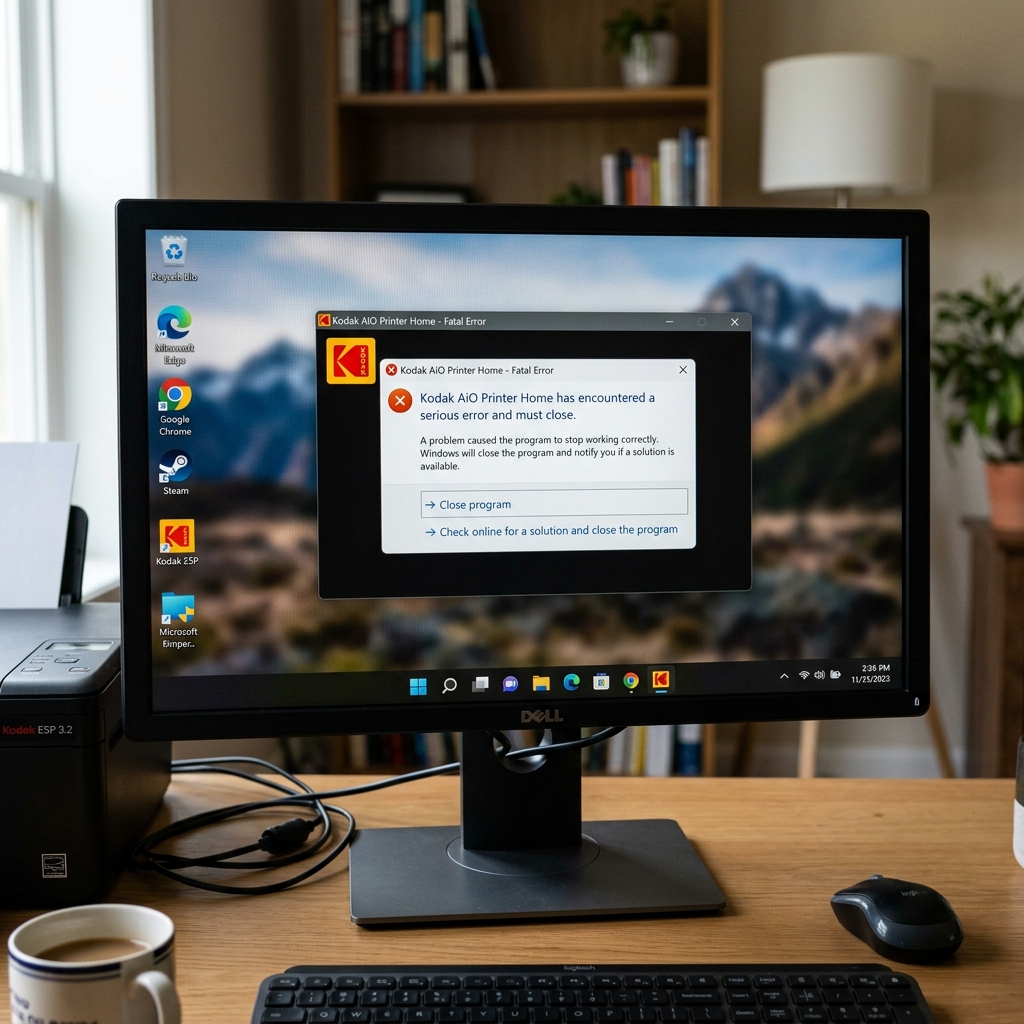
The KODAK All-in-One Printer Home Center software was originally developed during the Windows XP, Vista, and Windows 7 eras. When you try to run this legacy suite on modern Windows 10 or Windows 11 operating systems, it often crashes immediately on startup, prints database errors, or fails to detect connected ESP/Hero printers.
This compatibility block occurs because modern Windows platforms deprecate legacy **.NET Framework 3.5** runtimes by default and use stricter **User Account Control (UAC)** settings. Let's walk through how to configure Windows 11 to support this software package.
Why the Software Crashes on Boot
The Home Center application relies on local database structures and XML tables to store scanned files and manage print templates. Modern Windows 11 security policies block write access to the default program folders (C:\Program Files (x86)) unless specifically run with administrator privileges.
Furthermore, the software calls legacy graphic libraries that fail to initialize under newer graphics runtimes without compatibility emulation.
Phase 1: Enable .NET Framework 3.5 (Includes .NET 2.0 and 3.0)
Because the Kodak Home Center was compiled using .NET 3.0, it will crash on launch if these legacy libraries are missing from your Windows assembly folder:
- Press the **Windows Key + R** to open the Run dialog box.
- Type optionalfeatures and press Enter. The **Windows Features** control panel will open.
- Locate the option labeled **.NET Framework 3.5 (includes .NET 2.0 and 3.0)** at the top of the list.
- Click the checkbox next to it to fill the box.
- Click **OK**. Windows Update will download the necessary system files. Select **Let Windows Update download the files for you**.
- Wait for the confirmation message saying "Windows completed the requested changes", then restart your computer.
Phase 2: Compatibility and Administrator Configuration
To bypass security folder blocks and emulate a legacy operating system sandbox:
- Locate the **KODAK AiO Home Center** icon on your desktop. (If it is not there, navigate to
C:\Program Files (x86)\Kodak\KODAK AiO Home Centerand findAiOHomeCenter.exe). - Right-click the icon and select **Properties**.
- Click the **Compatibility** tab at the top of the Properties window.
- Check the box labeled **Run this program in compatibility mode for:**.
- Select **Windows 7** from the dropdown menu list.
- Under the Settings header, check the box for **Run this program as an administrator**. This grants the software database engine write privileges to saving scan folders.
- Click **Apply** and then **OK**.
Phase 3: Clean the Legacy Print Spooler Database
If the software opens but crashes as soon as you click "Print" or "Scan", there is likely a corrupted print job stuck in the spooler cache that the old software cannot parse:
- Press the Windows Key, type **Services**, and press Enter.
- Scroll down to find **Print Spooler**. Right-click it and select **Stop**.
- Open File Explorer and navigate to:
C:\Windows\System32\spool\PRINTERS. - Delete all files inside this folder (do not delete the folder itself).
- Go back to the Services window, right-click **Print Spooler**, and select **Start**.
Phase 4: Run the Software Installer in Compatibility Mode
If you cannot even install the software because the installer package itself crashes:
- Download the last available offline installer for the Home Center software (v8.3 or similar).
- Right-click the downloaded setup file (e.g.,
Setup.exe) and select **Properties**. - Go to the **Compatibility** tab, select **Windows 7**, check **Run as administrator**, and click OK.
- Launch the installer setup file.
Related Kodak Troubleshooting Guides
Resolving Kodak All-in-One Software & Driver Crashes on Windows 11
The official Kodak Home Center software suite and legacy driver installers (versions 7.1 through 8.3) were originally compiled for Windows XP, Vista, Windows 7, and Windows 8. When running on modern 64-bit Windows 11 (builds 22H2, 23H2, and beyond), strict driver signature enforcement, DEP (Data Execution Prevention), and legacy .NET Framework incompatibilities frequently cause the software to crash upon launch.
Step-by-Step Windows 11 Driver Installation & Compatibility Fix
- Enable Legacy .NET Framework 3.5 in Windows 11:
- Press Windows Key + R, type
optionalfeatures, and press Enter. - In the Windows Features dialog, check the box next to .NET Framework 3.5 (includes .NET 2.0 and 3.0).
- Click OK and allow Windows Update to download the required legacy files. Kodak Home Center requires .NET 2.0/3.0 runtimes to launch its interface.
- Press Windows Key + R, type
- Run Installer in Windows 7 Compatibility Mode with Admin Privileges:
- Locate the downloaded Kodak Home Center installer (e.g.,
AiO_PrinterSoftware_v8_3.exe). - Right-click the
.exefile > Properties > Compatibility tab. - Check "Run this program in compatibility mode for:" and select Windows 7 from the dropdown.
- Check "Run this program as an administrator".
- Click Apply and run the installer.
- Locate the downloaded Kodak Home Center installer (e.g.,
- Use Native Windows 11 IPP / WIA Drivers as an Alternative:
You do not actually need Kodak Home Center to print and scan on Windows 11:
- Connect the printer via Wi-Fi or USB.
- Go to Windows Settings > Bluetooth & devices > Printers & scanners > Add device.
- Windows 11 will automatically download and install the basic Microsoft WIA/IPP driver class.
- Use the free Windows Scan app (downloadable from Microsoft Store) to scan documents without relying on legacy Kodak software.
Frequently Asked Questions
Why does the scanner function fail even when printing works on Windows 11?
Scanning relies on the Windows Image Acquisition (WIA) service. If Kodak Home Center is crashing, launch the native Windows "Fax and Scan" utility (wfs.exe) or "Windows Scan" app, which communicates directly with the scanner hardware via WIA.
Is there an official 64-bit Kodak driver for Windows 11?
Kodak discontinued official driver updates prior to Windows 11 release. However, the Windows 7/8 64-bit driver package runs stably on Windows 11 64-bit when installed with compatibility mode flags.
