


Understanding PTStatus and Hardware Handshakes
The PTStatus (Primera Technology Status) monitor is the software bridge between your computer and your Primera LX-series color label printer (like the LX900 or LX2000). Every time you turn the printer on, the logic board performs a hardware handshake with the copper contacts on the printhead and reads the RFID tags embedded in the ink cartridges.
Fix 1: The 'Missing Printhead' Error
If PTStatus reports the printhead is missing, but it is physically installed in the machine, the logic board cannot detect electrical continuity.
- Open the top cover. Wait for the carriage to center.
- Remove all individual ink cartridges and set them aside on a paper towel.
- Unlatch and remove the primary printhead assembly.
- Clean the Contacts: Inspect the gold/copper pogo pins inside the printer carriage, and the flat copper pads on the back of the printhead. Dried ink acts as an insulator. Wipe both sets of contacts with a lint-free swab dipped in rubbing alcohol.
- Reinstall the printhead , ensuring the latch locks down completely.
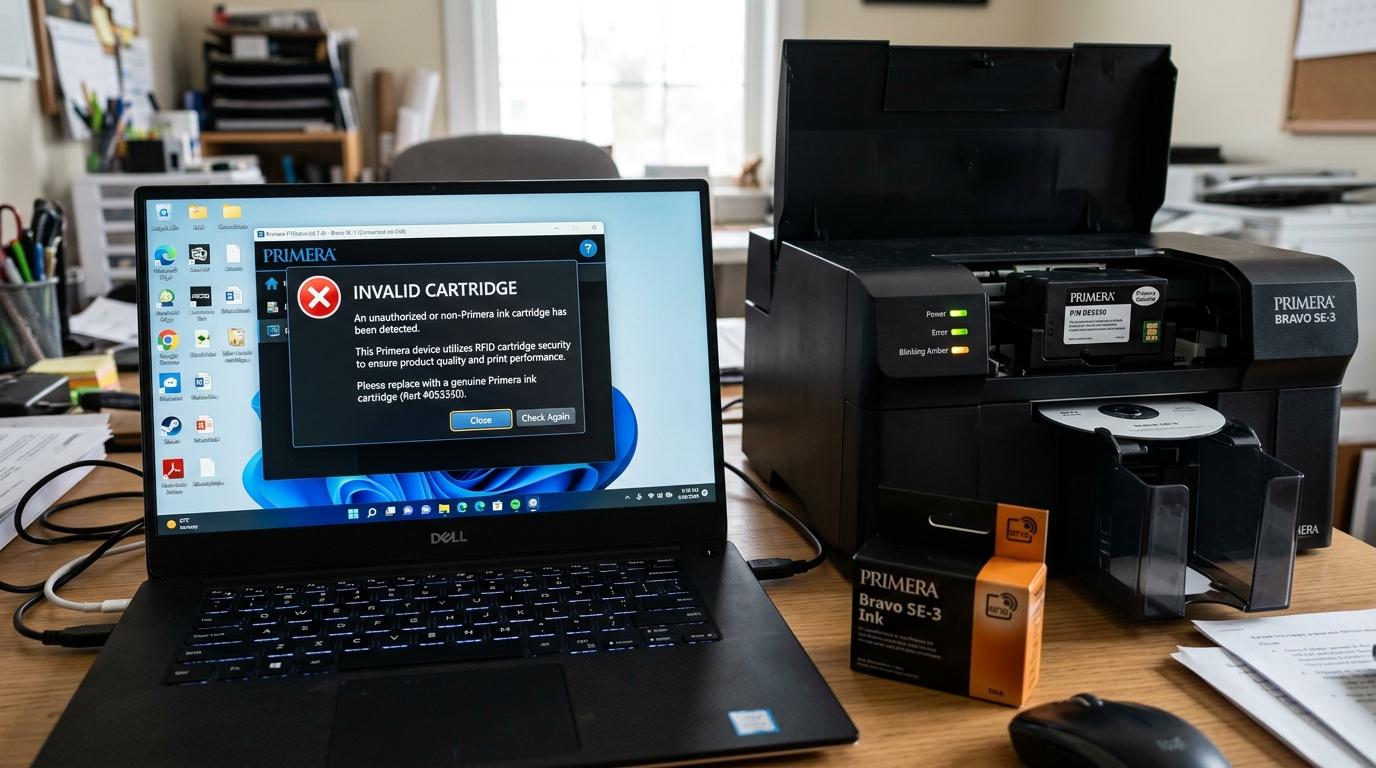
Fix 2: 'Invalid Cartridge' & RFID Sensor Errors
Unlike basic desktop printers, Primera LX-series printers use RFID (Radio Frequency Identification) tags on the bottom of the ink tanks to track ink levels and prevent counterfeit cartridges.
- The Genuine Ink Requirement: If you recently purchased cheap third-party remanufactured ink, the RFID chip is likely a cloned serial number. If your printer's firmware recently updated, it will permanently blacklist that cloned RFID tag, resulting in an "Invalid Cartridge" or "RFID Sensor Error". You must replace it with a genuine Primera OEM cartridge.
- Physical Misalignment: Sometimes the cartridge isn't seated deeply enough for the RFID reader to detect the tag. Press down firmly on the top of the offending cartridge until you feel a distinct mechanical click.
Diagnosing RFID and Smart Chip Recognition Errors in Primera PTStatus
Primera disc publishers and label printers (LX500, LX900, LX2000, Bravo 4200) communicate real-time hardware telemetry to the host computer via the PTStatus Monitor background service. When PTStatus reports "Invalid Cartridge", "Missing Printhead", or "RFID Read Error", the high-frequency near-field communication reader in the carriage has failed to validate the cartridge's authentic cryptographic identity.
Step-by-Step Resolution for PTStatus RFID & Chip Errors
- Inspect and Clean the Cartridge RFID Microchip:
Remove the faulted ink cartridge. On the base or rear of the plastic casing sits a miniature smart microchip. Wipe the chip with a clean microfiber cloth moistened with 99% isopropyl alcohol to remove dried ink residue or skin oils.
- Check the Carriage Reader Antenna Alignment:
Inside the print carriage, miniature RFID loop antennas detect each cartridge. If an ink cartridge is not pushed 100% down into its locked position, the physical air gap between the chip and antenna exceeds the 2mm induction threshold, causing instant invalid cartridge alarms.
- Restart the Primera Print Services & PTStatus:
- Press Windows Key + R, type
services.msc, and press Enter. - Find PTStatus Service or PTPublisher Service.
- Right-click and select Restart.
- Close and reopen PTStatus from the Windows System Tray.
- Press Windows Key + R, type
- Disable Conflicting Third-Party Security Software:
Some aggressive endpoint antivirus suites block local bidirectional USB pipe communication between PTStatus and the Primera printer driver. Add PTStatus.exe to your firewall whitelist.
Frequently Asked Questions
Why does PTStatus reject third-party refilled cartridges?
Primera cartridges feature one-time programmable (OTP) crypto chips. Once the chip registers 0% remaining ink, refilling the physical ink tank without replacing the microchip will cause PTStatus to permanently report "Invalid / Depleted Cartridge".
Can I run PTStatus on macOS?
Yes. The Primera Mac driver package includes the Primera Print Monitor utility, which provides identical real-time ink and printhead telemetry inside the macOS menu bar.
