


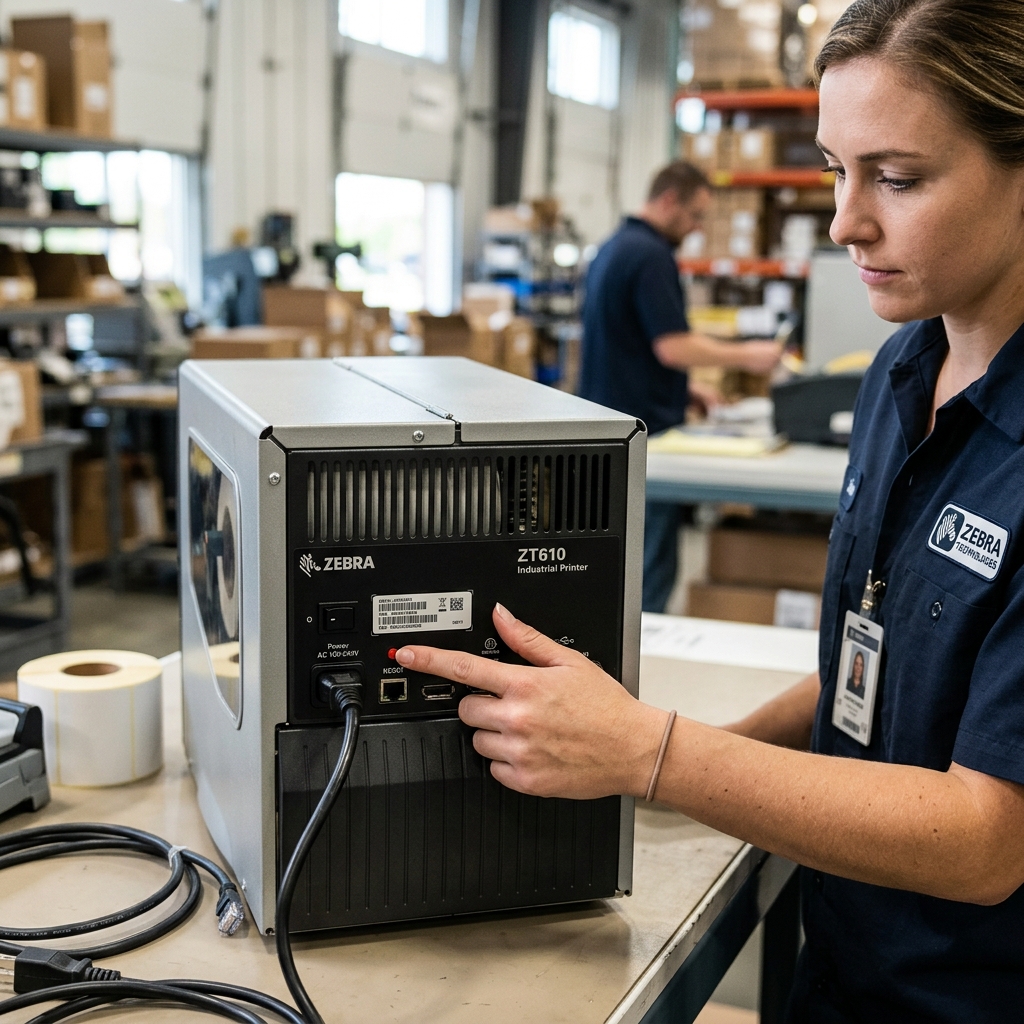
Zebra network printers are the backbone of countless industrial, retail, and healthcare operations, renowned for their ruggedness and reliability. However, managing network connectivity on these devices can sometimes become complex, leading to IP address conflicts, connection drops,.
Unrecognized network settings. When standard troubleshooting fails, performing a network factory reset, executing diagnostics tests,.
Understanding specialized configurations like UPS mode become essential skills for system administrators and technicians. This comprehensive guide delves deep into the procedures required to completely reset a Zebra printer's print server, run vital self-tests to verify network hardware integrity,.
Configure the printer for specialized shipping environments, ensuring your critical labeling infrastructure remains online and fully functional.
Why This Happens
Network connectivity issues on Zebra printers rarely occur spontaneously; they are usually the result of settings changes, network infrastructure updates,. Underlying hardware glitches. Understanding why a network reset or diagnostic test is necessary is the first step in effective troubleshooting.
The most frequent reason for requiring a network factory reset is a change in the network environment. If a printer is moved from one facility to another,.
If the company upgrades its routers and changes the subnet structure, the printer's statically assigned IP address or old DHCP lease will render it unreachable. While settings can be changed via the web interface, if the printer is completely inaccessible over the network, a physical factory reset is the only way to return it to a default state (usually DHCP).
It can acquire a valid IP address on the new network.
Another common scenario involves corrupted internal print server settings. Zebra printers use internal print servers (like the ZebraNet Print Server family).
Over time, due to power fluctuations. Improper settings attempts via Telnet or specialized software, the NVRAM storing the network parameters can become corrupted.
The printer might display a link light but refuse to accept connections or print jobs. A hard network reset flushes this corrupted data and forces a clean setup.
Diagnostics tests are necessary when hardware failure is suspected. If a network reset fails to resolve connectivity, the issue might lie in the physical Ethernet port, the internal cabling,.
The print server module itself. Diagnostic tests bypass the higher-level software settings.
Interrogate the hardware directly, printing out settings labels that reveal the MAC address, link status, and internal memory integrity, allowing technicians to pinpoint the exact point of failure.
Specialized modes, such as "UPS Mode" (or ZPL emulation modes tailored for specific shipping carriers), are required. Different organizations use built-in label formats and communication protocols.
A standard Zebra printer might not correctly interpret the datastream coming from a UPS shipping terminal unless it is explicitly configured. Flashed with firmware (internal software) (internal software) designed to emulate the required legacy protocols and label dimensions expected by the carrier's software.
Step-by-Step Fix
- Preparation: Ensure the Zebra printer is powered on and loaded with media (labels) and ribbon (if thermal transfer). You will need the printer to generate physical settings labels to verify the results of the resets and tests.
- Perform a Standard Printer Factory Reset (Optional. Recommended): Before resetting the network, it's often wise to reset the printer's mechanical and media settings. On most modern Zebra printers (like the ZT series). Navigate the front panel LCD: Menu > Tools > Load Defaults > Factory. This resets darkness, speed, and media calibration.
- Locate the Network Reset Button/Menu: The method varies by model. For older models with a physical ZebraNet card installed in the back. Look for a tiny recessed button on the network card itself. For modern models with integrated networking and an LCD, navigate to Menu > Network > Print Server > Reset Network.
- Execute the Network Factory Reset (Physical Button Method): If using a physical button on the print server card. Power off the printer. Press and hold the recessed button using a paperclip. While holding the button, power the printer back on. Continue holding the button for approximately 10-15 seconds until the network status LED flashes rapidly. Changes color, indicating the reset is complete. Release the button.
- Execute the Network Factory Reset (LCD Method): If using the LCD menu. Navigate to Menu > Network > Print Server > Reset Network. Select 'Yes' or 'Confirm' to execute. The printer will typically reboot its internal print server. This process returns the network settings to factory defaults, which usually means enabling DHCP.
- Print a Network Settings Label: Wait a minute for the printer to reboot. Acquire an IP address (if connected to a DHCP network). Navigate to Menu > Network > Print Information > Network Config. The printer will print a label detailing its current IP address, subnet mask, gateway, and MAC address. Verify it has acquired a valid IP on your network.
- Run Diagnostic Tests: If the printer still fails to connect, run a diagnostic test. On many models, this is done by holding the PAUSE button while powering on the printer. Continue holding PAUSE until the printer begins printing a series of test labels, which include the standard settings, network settings,. Sensor profiles. Analyze these labels for any hardware fault codes or missing MAC addresses, which indicate a hardware failure.
- Understanding UPS Mode (ZPL/EPL Emulation): If you are setting up the printer for a UPS shipping station. Standard factory settings might not work. UPS systems often require specific EPL (Eltron Programming Language) or older ZPL formatting.
- Enable Emulation or UPS Mode: Depending on the printer model, you may need to switch the command language. Navigate to Menu > Language > Command Character and ensure it matches the host system's expectations. Some printers require a specific firmware (internal software) (internal software) flash (often provided by the shipping carrier. Zebra support) to fully enter a dedicated "UPS Mode" that hardcodes specific label sizes and communication protocols.
- Verify Connectivity via Ping. Web Interface: Once the reset is complete and the settings label shows a valid IP, go to a computer on the same network. Open a command prompt and type 'ping [Printer IP Address]'. You should receive replies. Then. Type the IP address into a web browser to access the ZebraNet Print Server web interface to make further, persistent settings changes securely.
Advanced Troubleshooting
When factory resets. Basic diagnostics do not resolve network issues on Zebra printers, the problem often lies deeper within the network infrastructure or requires advanced command-line intervention. Here are the advanced troubleshooting protocols.
Telnet. FTP Settings: If the web interface is inaccessible but the printer responds to a ping, you can often configure it via Telnet or FTP.
Open a Telnet session to the printer's IP address. This grants access to the raw ZebraNet print server command prompt, allowing you to manually set IP parameters, change passwords,.
Diagnose port issues using specific text commands. This requires familiarity with Zebra's built-in print server command syntax.
Firmware (internal software) (internal software) Corruption. Flashing: If the diagnostic labels print out garbled text, or if the print server simply refuses to boot (indicated by a solid red network LED), the firmware (internal software) (internal software) may be corrupted.
You will need to download the latest firmware (internal software) (internal software) from the Zebra support site. Flash it to the printer.
This is usually done via a direct USB connection. A parallel/serial cable using the Zebra Setup Utilities software, bypassing the faulty network interface entirely during the update process.
Port Security. MAC Filtering: A printer might acquire an IP address but fail to receive print jobs if network security protocols are blocking it.
Check with your network administrator to ensure that MAC address filtering is not active on the switch port,. That port security features (like IEEE 802.1X) are either configured correctly on the printer (which Zebra supports) or disabled for that specific port.
Physical Layer Diagnostics: Never underestimate physical hardware failures. If the link light on the printer's ethernet port remains dark despite being plugged into a known good switch with a known good cable.
The internal NIC (Network Interface Card) is likely dead. On modular Zebra printers, this means replacing the ZebraNet card.
On models with integrated motherboards, it requires a complete mainboard replacement.
ZPL Debugging (Communications Diagnostics Mode): If the printer is on the network. Receiving data, but printing blank labels or raw code instead of formatted labels, the issue is data interpretation, not connectivity.
Enable 'Communications Diagnostics Mode' (usually via the LCD menu under Tools). In this mode, the printer will print out the raw ASCII data stream it receives over the network.
This allows programmers to see exactly what commands the host system is sending. Identify syntax errors in the ZPL or EPL code.
FAQ
Will a network factory reset erase my custom label formats?
Generally, no. A 'Reset Network' command only affects the parameters of the print server (IP address, subnet, gateway, network passwords).
What is the default IP address of a Zebra printer after a reset?
Modern Zebra printers default to DHCP after a network reset. They will attempt to acquire an IP address automatically from your network's DHCP server.
How do I find the MAC address without printing a label?
If you cannot print a settings label, you can usually find the MAC address printed on a physical sticker located on the back of the printer near the ethernet port,. Underneath the printer.
Can I configure a Zebra printer for Wi-Fi if it only has an Ethernet port?
No, the physical hardware is required. If your printer only has a standard Ethernet port, it does not have a Wi-Fi radio.
Why does UPS software require a specific 'mode' for Zebra printers?
Legacy shipping software often relies on older programming languages like EPL (Eltron Programming Language). , 4x6 or 4x8 inches).
