


Introduction
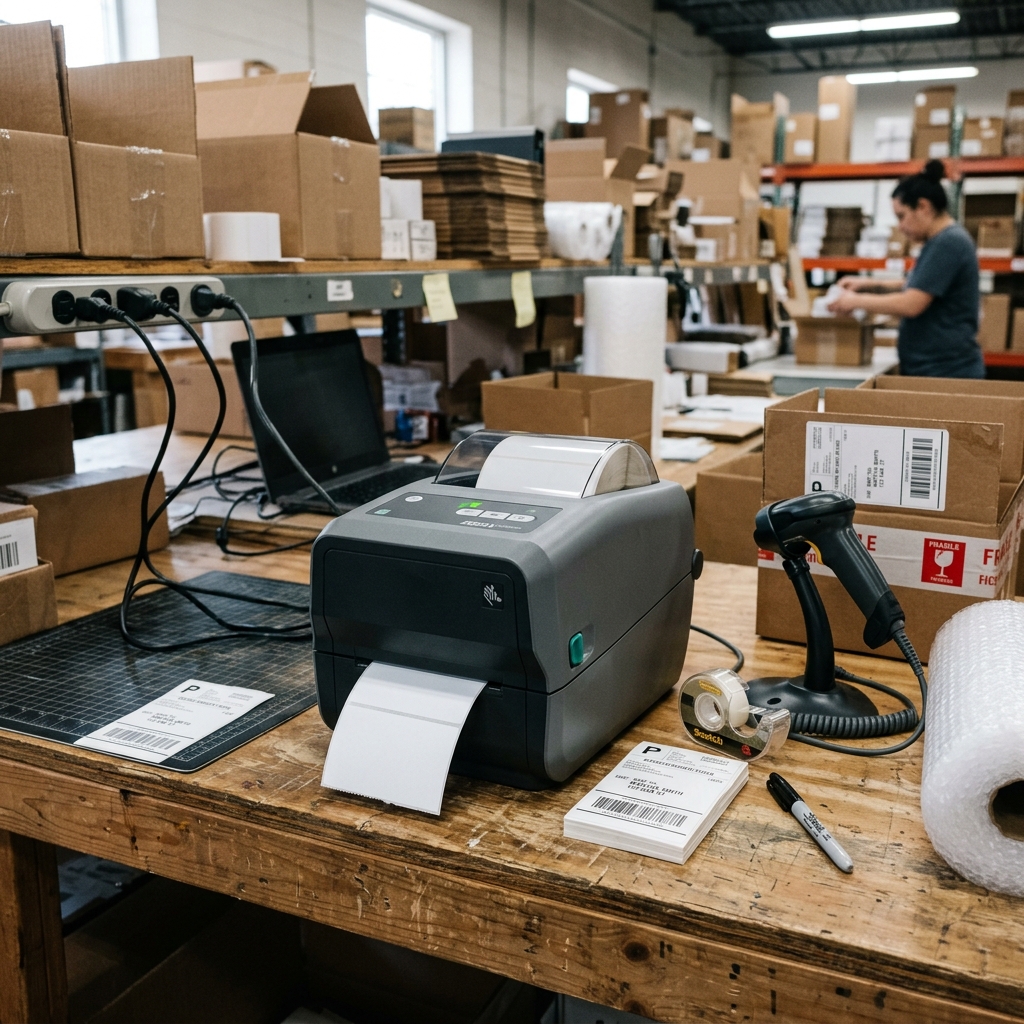
The Zebra ZD220 and ZD888 are entry-level desktop printers designed for basic, reliable label printing in logistics, retail. And manufacturing environments.
These models prioritize simplicity and cost-effectiveness, offering a straightforward out-of-the-box experience. However, when these dependable machines suddenly stop printing, the lack of an advanced LCD screen can make troubleshooting feel like a daunting task.
Users are often left staring at a single status indicator light, trying to decipher whether the issue is a simple paper jam, a network communication failure, or a complex driver conflict. When your Zebra ZD220 or ZD888 refuses to print, it disrupts shipping workflows, delays inventory management, and causes widespread frustration.
This comprehensive guide is designed to explain the troubleshooting process for these specific models, providing clear, actionable steps to identify and resolve the root cause of printing failures.
To effectively troubleshoot the ZD220 and ZD888, one must understand the distinct pathways that a print job takes, from the host computer to the physical application of ink onto the label. The process involves the operating system's print spooler, the Zebra printer drivers (specifically the ZDesigner driver), the communication cable (USB, Ethernet, or Wi-Fi), the printer's internal memory processing the ZPL or EPL commands.
And finally, the mechanical feeding and thermal printing mechanisms. A breakdown at any of these stages will result in the printer remaining silent or producing blank labels.
Because these printers are value-tier models, they rely heavily on the host software for settings, making software and driver diagnostics just as critical as physical hardware checks.
This article will guide you systematically through the troubleshooting methodology. We will start by interpreting the single LED status light, which serves as the primary diagnostic tool on these machines.
From there, we will tackle mechanical issues such as media loading errors and sensor misalignment. We will then move into software solutions, covering driver reinstallation, port settings, and print spooler management.
Finally, we will explore advanced solutions for persistent problems, ensuring that you have all the necessary knowledge to bring your Zebra ZD220 or ZD888 back to full operational status and maintain an uninterrupted workflow.
Why This Happens
When a Zebra ZD220 or ZD888 stops printing, the most frequent culprits are incorrect media loading, misconfigured drivers. And communication interface drops.
These printers support both direct thermal (no ribbon required) and thermal transfer (requires a ribbon) printing, depending on the specific sub-model. A massive percentage of "not printing" errors occur because a user loads direct thermal labels into a thermal transfer printer without changing the software settings, or vice versa.
If the printer expects a ribbon and doesn't detect one, it will halt operations and display a red error light. Similarly, if the media guides are not snug against the label roll, the labels can drift, causing the gap sensor to miss the space between labels, resulting in feeding errors and aborted print jobs.
On the software side, Windows updates frequently disrupt the communication ports assigned to USB printers. A printer might be physically connected to 'USB001'.
But the driver could silently shift to 'USB002', causing all print jobs to stack up endlessly in the queue without ever reaching the printer. Additionally, the ZDesigner driver must be precisely configured to match the exact dimensions of the label stock being used.
If the software sends a print command for a 4x6 label but the printer is calibrated for a 2x1 label, the printer may flash an error or print across the gaps, eventually jamming. Lastly, corrupted print jobs stuck in the Windows print spooler can act as a dam, preventing any new jobs from passing through to the printer, rendering it seemingly unresponsive even when perfectly healthy mechanically.
Step-by-Step Fix
- Decode the Status Light: The single LED button on the ZD220/ZD888 is your first clue. A solid green light indicates the printer is ready. A solid red light usually means the printer is out of media, out of ribbon (if applicable), or the cover is open. A flashing red light indicates a more severe error, often related to firmware (internal software) (internal software) or memory. A flashing green light means the printer is receiving data or paused. If the light is solid red, immediately check your supplies and ensure the lid is firmly clicked shut on both sides.
- Verify Media and Ribbon Loading: Open the printer. Ensure the label roll is resting securely on the media hangers and the labels feed from the top of the roll. Pass the labels under the plastic media guides and adjust the guides so they gently touch the edges of the liner without pinching it. If you are using a thermal transfer model, verify the ribbon is routed correctly under the print head and is taken up by the empty core. Incorrect routing is the leading cause of blank prints.
- Perform a Smart Calibration: If the printer feeds continuous blank labels or stops randomly, the media sensors need calibration. With the printer turned on and media loaded, press and hold the feed button. The light will flash once, then twice, then three times, and so on. Release the button after the two-flash sequence. The printer will feed several labels, measure the distance between the gaps or black marks, and recalibrate its internal sensors.
- Clear the Print Spooler and Reassign Ports: If the printer light is solid green but nothing prints, the issue is on the computer. Go to Windows Services (type 'services.msc' in the start menu), locate the 'Print Spooler' service, right-click, and select Restart. Next, go to 'Printers & Scanners', select your Zebra printer, click 'Manage', then 'Printer Properties'. Navigate to the 'Ports' tab and ensure the correct USB or Network port is checked. If multiple USB ports are listed, try checking a different one and printing a test page.
- Reinstall the ZDesigner Driver: Corrupted drivers cause silent failures. Completely uninstall the Zebra printer from your Windows settings. Download the latest 'Zebra Setup Utilities' from the official website. Run the utility, connect the printer via USB when prompted. And allow the software to install a fresh copy of the ZDesigner driver. Use the utility to configure the exact label width, height, and print mode (Direct Thermal vs. Thermal Transfer) before sending a new print job.
Advanced Troubleshooting
If basic calibration and driver reinstalls do not resolve the issue, you must investigate deeper settings conflicts and hardware integrity. Sometimes, the printer's internal programming language settings get changed accidentally.
The ZD220 and ZD888 can understand both ZPL (Zebra Programming Language) and EPL (Eltron Programming Language). If your shipping software sends EPL commands but the printer is expecting ZPL, the printer will simply ignore the data or print raw code.
You can force the printer to accept a specific language or auto-detect by sending specific settings commands via the Zebra Setup Utilities 'Open Communication with Printer' window. Sending the command U1 setvar "device.languages" "zpl" forces ZPL mode.
For persistent physical issues where the printer refuses to calibrate and constantly shows a red light despite proper loading, the media sensor itself may be dirty or damaged. The gap sensor is a small optical component located beneath the media path.
Unplug the printer and use a swab dipped in high-purity isopropyl alcohol to gently clean the sensor lens. Furthermore, if you are using labels with black marks on the back instead of gaps, you must ensure the driver is set to 'Mark' sensing rather than 'Web/Gap' sensing.
If all software and sensor cleaning efforts fail. And the printer remains unresponsive with a flashing red light immediately upon powering on, the main logic board may have suffered a power surge or firmware (internal software) (internal software) corruption, requiring an RMA or replacement.
FAQ
Why is my Zebra ZD220 printing blank labels?
Printing blank labels is almost always caused by one of three things: 1) The label roll is loaded upside down. The heat-sensitive side must face the print head.
How do I reset my ZD888 to factory defaults?
To perform a factory reset, turn the printer on and wait for the solid green light. Press and hold the feed button.
Can I print to the ZD220/ZD888 from a Mac?
Yes, but Zebra does not provide a native macOS driver with the full feature set of ZDesigner. You must install the printer using the built-in CUPS (Common UNIX Printing System) drivers, often selecting a generic ZPL compatible driver or a third-party option like Peninsula.
The printer feeds one label perfectly, then flashes a red error. What is wrong?
This behavior indicates a failure to detect the end of the label. , a PDF you are printing) do not match the physical dimensions of the label, or the gap sensor is failing to see the space between labels.
