


The Quick Answer
Is your Bixolon printer not showing up when plugged into USB? Find out how to isolate the issue to the cable, the port, or the driver with these quick steps.
When a Bixolon printer connects via USB but doesn't show up on your computer, the source of the problem is one of four things — the printer, the cable, the port, or the driver.
What makes this frustrating is that all four often look identical from the surface: no printer appears, no error message shows, nothing works. The right fix depends entirely on which layer is actually failing.
Here's how to isolate it fast.
The Fastest Isolation: Try Another Computer
If you have access to a second computer, plug the Bixolon printer into it before doing anything else. This single test tells you where the problem is:
- Printer detected on the second computer — the printer, cable, and USB port are all fine. The issue is on the first computer's driver or configuration.
- Printer not detected on the second computer either — the issue is the printer, the cable, or the specific USB port you tried.
If you don't have another computer to test with, work through the steps below in order.
Layer 1: The Physical Layer
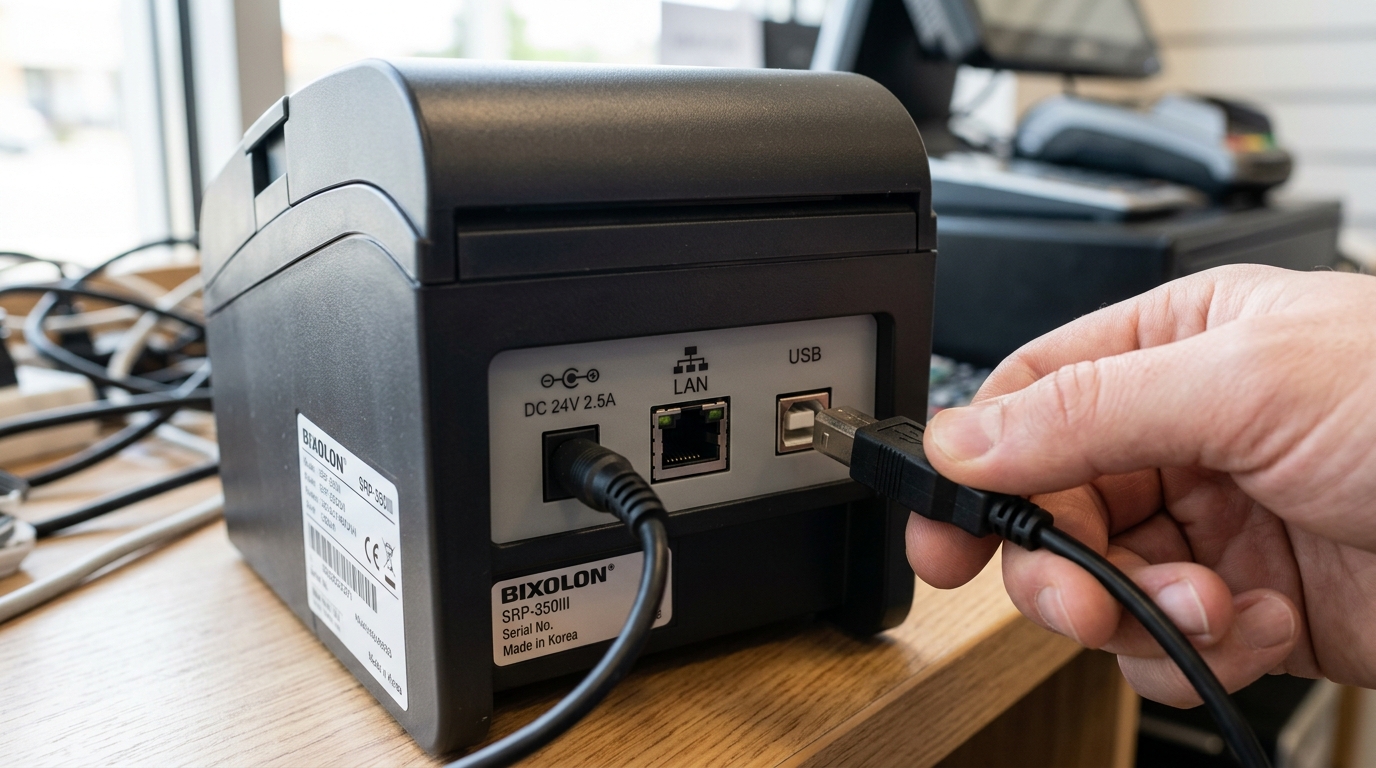
Check the cable at both ends. USB cables fail more often than most people expect, especially ones that get bent, crushed, or repeatedly plugged and unplugged. Swap to a different USB cable entirely — not just a different port — as your first physical check.
If your printer suddenly appears when you use a different cable, the original cable was the problem.
Try a different USB port. Some USB ports on a computer route through internal hubs or have different power characteristics. If the printer isn't detected on one port, try:
- A different physical port on the same computer
- A port directly on the motherboard (back of a desktop) rather than a front-panel port
- A port that's not on a USB hub
Don't use unpowered USB hubs. Bixolon printers can draw enough power that an unpowered hub causes intermittent detection failures. If your setup relies on a USB hub, temporarily bypass it — plug the printer straight into the computer to test.
Check the printer's own USB port. Look at the port on the back of the printer. Any bent pins, debris, or visible damage inside the port can prevent detection.
Layer 2: Windows Device Manager
On Windows, Device Manager tells you whether the operating system is seeing anything at all at the hardware level, before drivers even come into play.
- Right-click the Start menu and select Device Manager.
- Watch the list as you plug and unplug the printer.
- If any entry appears or disappears when you plug/unplug — even if it appears under "Other devices" or shows a yellow warning triangle — Windows is detecting the hardware. The issue is driver-related.
- If nothing changes in Devicef="/rollo/connectivity-issues/rollo-printer-usb-not-detected-disconnecting-port-fix" title="Fix Rollo Printer USB Not Detected & Keeps Disconnecting">Device Manager when you plug/unplug the printer, Windows isn't seeing it at all. The issue is physical (cable, port, or printer USB port).
If a yellow warning triangle appears: right-click that device, select Uninstall device, then unplug and replug the printer. Windows will attempt to reinstall drivers. If it fails, you'll need to install the correct Bixolon driver manually.
Layer 3: The Driver
Once you've confirmed Windows sees the printer at the hardware level, the next question is whether the correct driver is available and installed.
Clean Reinstall (the reliable fix)
- Unplug the printer.
- Open Settings → Apps and uninstall any existing Bixolon driver package.
- Open Devices and Printers and remove any stale Bixolon entries.
- Restart the computer.
- Download the driver matched ation/dymo-labelwriter-4xl-5xl-setup-driver-guide" title="DYMO LabelWriter 4XL & 5XL Driver Download & Setup">Download the driver matched to your exact printer model and exact Windows version from Bixolon's official support site.
- Install as Administrator.
- Plug the printer in only after installation completes.
Wrong Driver Version
Bixolon's Windows drivers are model-specific. A driver for the SRP-350 won't fully work with an SRP-350III. A driver for Windows 10 may install on Windows 11 but exhibit erratic behavior. Match the model and OS version exactly — this precision matters more with Bixolon than with many other printer brands.
Generic Windows Driver Substitution
Sometimes Windows automatically substitutes a generic printer driver during device recognition, blocking the correct Bixolon driver from being used. In Devices and Printers, right-click the printer, open Printer properties → Advanced, and check which driver is listed.
If it says "Generic," "Text Only," or something other than your Bixolon model, change it manually via Have Disk pointing at the Bixolon driver files.
Layer 4: The Printer
If the printer isn't detected on any computer, with a known-good cable, and known-good ports, focus on the printer itself:
Run a self-test. Hold the Feed button while powering on. The self-test doesn't require any computer connection — if it prints, the printer's own hardware is working. If it doesn't print, there's a printer-side issue that will manifest as USB detection problems as well.
Check power. A printer with an inadequate power supply may power on partially — LEDs light but internal circuitry that handles USB doesn't fully initialize. Confirm you're using the correct Bixolon adapter and it's providing full power (check the adapter's own LED).
Try USB after fully rebooting the printer. A cold boot (fully off for 30 seconds, then on) sometimes resolves USB stack initialization issues.
Mac-Specific Notes
On macOS, USB detection follows different logic than Windows. If the printer is plugged in but doesn't appear in System Settings → Printers & Scanners:
- macOS may not have a built-in driver for your Bixolon model — you'll need to install the Bixolon macOS driver package from their support site before macOS can identify the device as a printer
- Even after installation, you may need to manually add the printer via the + button in Printers & Scanners
- The USB serial number Bixolon assigns to each printer can sometimes cause macOS to see a "new" device even when it's the same physical printer, requiring you to re-add it after driver reinstallation
USB Detection Works But Print Jobs Fail
If your printer is detected fine but nothing actually prints, that's a different problem — driver, port assignment, or print queue rather than USB detection. Work through the not-printing troubleshooting guide instead of continuing here.
What USB Detection Isn't Usually About
A few things people assume cause USB detection issues, but rarely do:
- USB 2.0 vs USB 3.0 ports — Bixolon printers work in either; the color of the port doesn't matter
- USB cable length — up to 5 meters is fine; shorter is only marginally more reliable
- Cable brand — as long as it's not a damaged or non-USB-standard cable, brand doesn't affect detection
Save those variables for after you've ruled out the actual common causes.
Quick Isolation Table
| Symptom | Most Likely Layer |
|---|---|
| No response at all in Device Manager | Physical (cable/port/printer USB port) |
| Yellow warning triangle in Device Manager | Driver |
| Device appears then disappears | Cable damage or unpowered USB hub |
| Detected on one computer, not another | Driver on the failing computer |
| Not detected on any computer | Printer or cable |
| Detected but shows as "Unspecified" | Driver assignment (Windows chose wrong driver) |
