


The Quick Answer
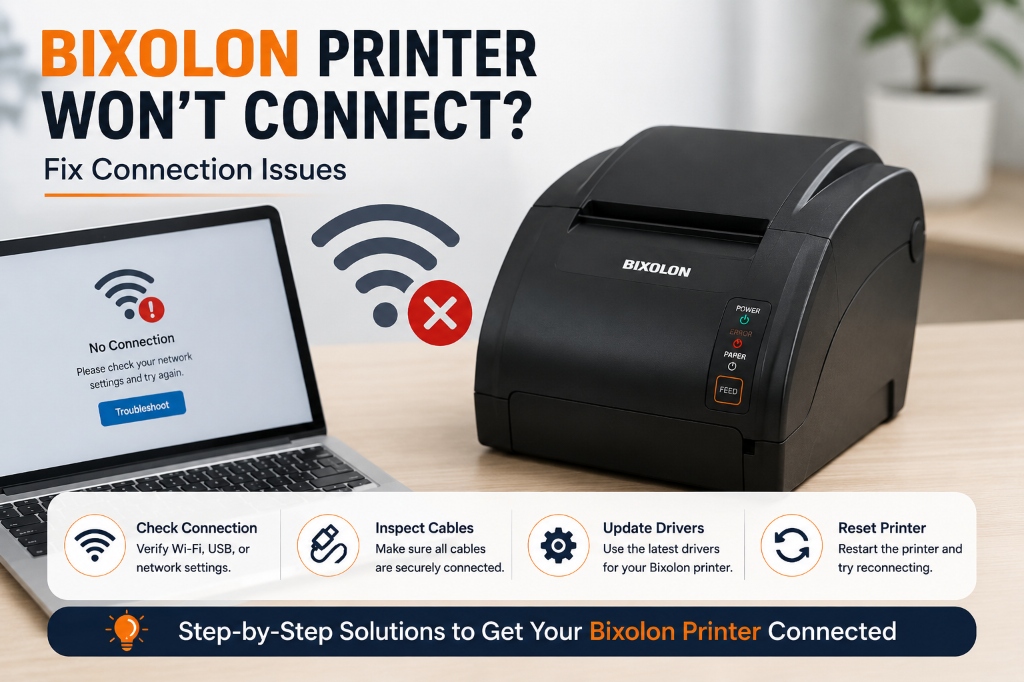
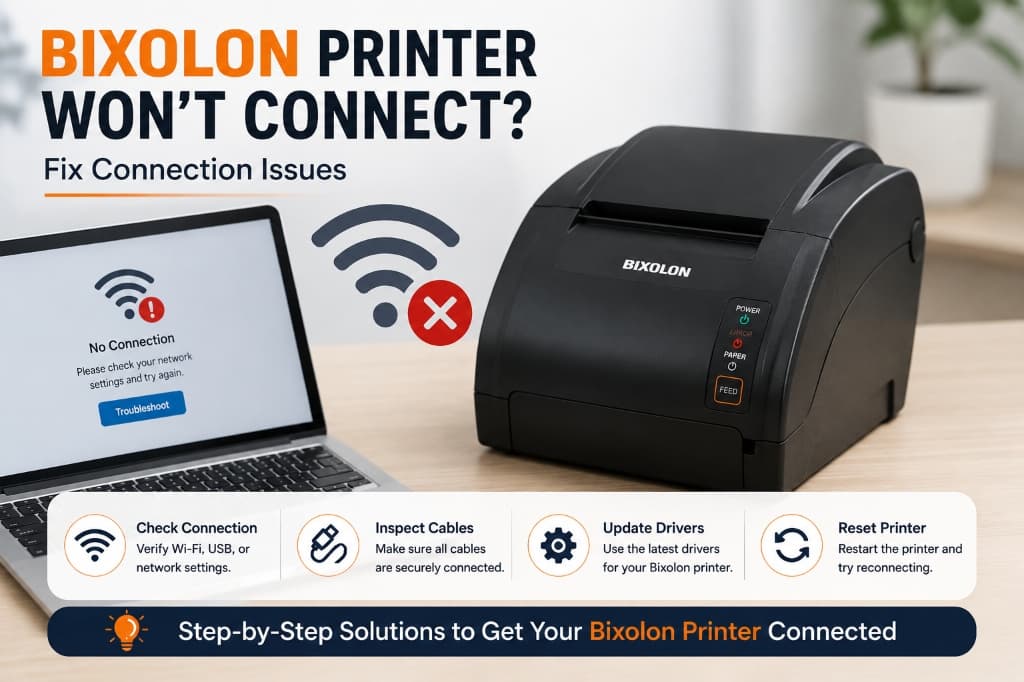
Bixolon printer won't connect over USB, Wi-Fi, or Bluetooth? Step-by-step fixes for each connection type, plus how to tell which one is actually the problem.
A Bixolon printer that won't connect is one of the most common —. Most frustrating — issues to troubleshoot, mainly because the fix depends entirely on how it's supposed to be connecting.
A USB connection problem and a Bluetooth pairing problem have almost nothing in common, even though both show up as "the printer just won't connect."
This guide is split into three sections — USB, Wi-Fi/network. Bluetooth — so you can jump straight to the one that matches your setup. If you're not sure which is actually failing, start with the quick diagnostic below before picking a section.
Quick Diagnostic: Confirm the Printer Itself Is Fine First
Before troubleshooting any connection type, rule out the printer itself as the cause:
- Run a self-test. Hold the feed button while powering the printer on (button combination varies slightly by model). This prints directly from the printer's internal memory, with no computer, network, or Bluetooth involved at all.
- Self-test prints fine → the printer hardware is confirmed working. Your issue is 100% connection-related — proceed to the relevant section below.
- Self-test fails → this isn't a connection issue at all. Check paper loading and the printer's error light before going any further.
Once you've confirmed the hardware is fine, jump to whichever section matches your setup.
USB Connection Issues
USB is usually the simplest connection type, which also makes failures easier to isolate — there are only a handful of things that can actually go wrong.
Step 1: Try a Different Cable and Port
Cables fail more often than people expect, especially ones that get bent or crushed under a counter repeatedly. Swap to a different USB cable entirely, not just a different port, and avoid plugging into a USB hub — especially an unpowered one — since hubs are a common source of intermittent dropouts under load.
Step 2: Check Device Manager (Windows)
- Right-click the Start menu and open Device Manager.
- Look under Printers or **Universal Serial Bus controllers** for your Bixolon model.
- A yellow warning triangle next to the device means a driver conflict — right-click it, select Uninstall device, unplug and replug the printer. Let Windows attempt to reinstall it, or better, install the correct driver manually from Bixolon's support site afterward.
- If the printer doesn't appear in Device Manager at all, Windows isn't detecting it at the hardware level — this usually points to the cable or port rather than software.
Step 3: Reinstall the Driver Cleanly
- Uninstall the existing Bixolon driver completely through Settings → Apps, not just by removing the printer from the printers list.
- Restart the computer.
- Download the driver matched ation/dymo-labelwriter-4xl-5xl-setup-driver-guide" title="DYMO LabelWriter 4XL & 5XL Driver Download & Setup">Download the driver matched to your exact model and exact Windows version from Bixolon's official support site.
- Install fresh, then reconnect the USB cable.
Step 4: Check USB Power Settings
Windows sometimes puts USB ports into a low-power sleep state to save energy. This can cause a connected printer to silently drop.
Open Control Panel → Power Options → Change plan settings → Change advanced power settings, find USB settings → USB selective suspend setting. Set it to Disabled for ports used by receipt or label printers that need to stay active.
Mac-Specific USB Notes
macOS doesn't include Bixolon drivers natively. If the printer isn't appearing in System Settings → Printers & Scanners at all, install the correct Bixolon driver package for your model first — without it, macOS may detect that something is plugged in but won't be able to communicate with it properly.
Wi-Fi / Network Connection Issues
Network-connected printers fail differently than USB ones — usually not because anything is physically wrong. However, because the printer's address on the network has changed without anyone noticing.
Step 1: Print the Network settings Page
Most Bixolon network-capable printers can print a settings page showing their current IP address (the exact button combination to trigger this varies by model — check your manual). This single page tells you almost everything you need to know.
Step 2: Confirm the Printer Is Actually Reachable
From a computer on the same network, open a command prompt or terminal and ping the printer's IP address:
ping 192.168.1.XX- Replies come back → the printer is reachable on the network; the issue is likely in how your POS software or computer has it configured.
- No reply / request timed out → the printer either isn't actually connected to Wi-Fi, or it's on a different network/VLAN than the device trying to reach it.
Step 3: Check for an IP Address Change
This is, by far, the most common cause of a network printer "disconnecting" with no warning. If your router was restarted, lost power, or simply reassigned leases (which can happen automatically on a schedule), the printer may now have a different IP address than the one your POS software is still trying to use.
The permanent fix: assign the printer a static IP address through its network settings utility, rather than relying on automatically assigned (DHCP) addresses. This single change prevents the vast majority of recurring network printer disconnections.
Step 4: Confirm Network/VLAN Match
If your business uses separate networks (for example, a guest Wi-Fi network and a main operations network), the printer and the device sending print jobs need to be on the same network. A printer connected to a guest network will never be visible to a POS terminal on the main network, no matter how many times you re-enter the IP address.
Step 5: Check the Router and Firewall
- Confirm the router hasn't blocked the printer's MAC address (some routers have device-blocking or parental-control features that can inadvertently catch printers).
- If using a business firewall, confirm the ports required for printer communication (varies by setup, often defined in your POS integration documentation) aren't being blocked.
Bluetooth Connection Issues
Bluetooth issues are usually about pairing state rather than range or hardware — the printer. Device think they're connected to each other (or to something else) when they're not.
Step 1: Fully Forget the Pairing — Don't Just Reconnect
The most common mistake is trying to reconnect to an existing, stale pairing. Instead:
- On your phone, tablet, or computer, go into Bluetooth settings and forget/remove the Bixolon printer entirely.
- Put the printer into pairing="/fujifilm/setup-installation/instax-link-wide-bluetooth-setup-connection-guide" title="Instax Link WIDE Bluetooth Setup Guide (iOS, Android & Cameras)">pairing mode (button combination varies by model — check your manual).
- Search for and pair it again from scratch, as if connecting for the first time.
Step 2: Check for a Conflicting Active Connection
Most Bixolon mobile and Bluetooth-enabled printers can only maintain one active connection at a time. If the printer is still actively connected to a different phone, tablet, or POS terminal from earlier, it won't accept a new pairing request until that connection is cleared — power cycling the printer is the fastest way to force this.
Step 3: Rule Out Interference
Bluetooth can struggle in environments with a lot of other wireless devices nearby — busy retail floors with multiple POS terminals, card readers. Other Bluetooth peripherals all competing for the same frequency range.
If pairing is consistently unreliable in one specific spot but works fine elsewhere, this is likely the cause; moving the printer a few feet or reducing nearby wireless clutter often helps.
Step 4: Confirm Bluetooth Is Actually Enabled and Discoverable
This sounds basic, but it's worth a direct check — confirm Bluetooth is turned on on the connecting device, that the printer is in discoverable/pairing mode (not just powered on). That airplane mode isn't silently disabling Bluetooth on a phone or tablet.
When the Connection Type Doesn't Seem to Matter
If you've tried switching connection types (for example, USB instead of Bluetooth). The printer still won't connect to anything, the issue likely isn't connection-specific at all — it's more likely:
- A driver installed for the wrong connection type entirely (e.g., a USB driver installed while trying to use network printing)
- The printer's firmware (internal software) needing an update to support a newer OS or POS software version
- A genuine hardware fault in the printer's communication module, which is less common but does happen
Frequently Asked Questions
Why did my Bixolon printer disconnect from Wi-Fi with no changes made on my end?
This is almost always an IP address change after a router restart or DHCP lease renewal — assigning the printer a static IP prevents this from recurring.
My Bixolon printer connects but then drops randomly — is that a connection issue or a printer issue?
Run a self-test first; if it passes consistently, the printer hardware is fine and the dropouts are connection-related — check USB power settings, network stability, or Bluetooth interference depending on your setup.
Can I use USB and Bluetooth at the same time on the same printer?
Most models support multiple connection types but only one active connection per type at a time — having a stale Bluetooth pairing active won't block a simultaneous USB connection, but it can cause confusion about which connection is actually being used.
Do I need a different driver for USB vs. network vs. Bluetooth?
Often yes — many Bixolon driver packages let you select the connection type during installation. Choosing the wrong one is a common cause of "installed but not working" connections.
Quick Checklist by Connection Type
USB:
- Different cable and port tried
- Device Manager checked for driver conflicts
- Driver reinstalled for exact model/OS
- USB selective suspend disabled
Wi-Fi/Network:
- Network settings page printed
- IP address pinged successfully
- Static IP assigned
- Same network/VLAN confirmed
- Old pairing fully forgotten, not just reconnected
- No conflicting active connection from another device
- Interference ruled out
- Discoverable/pairing mode confirmed active
Connection issues feel intimidating because they involve more moving parts than a simple paper jam, but they break down into a short, predictable list once you know which connection type you're dealing with. Run the self-test first to rule the printer itself out, then work through the matching section above.
