


The Quick Answer
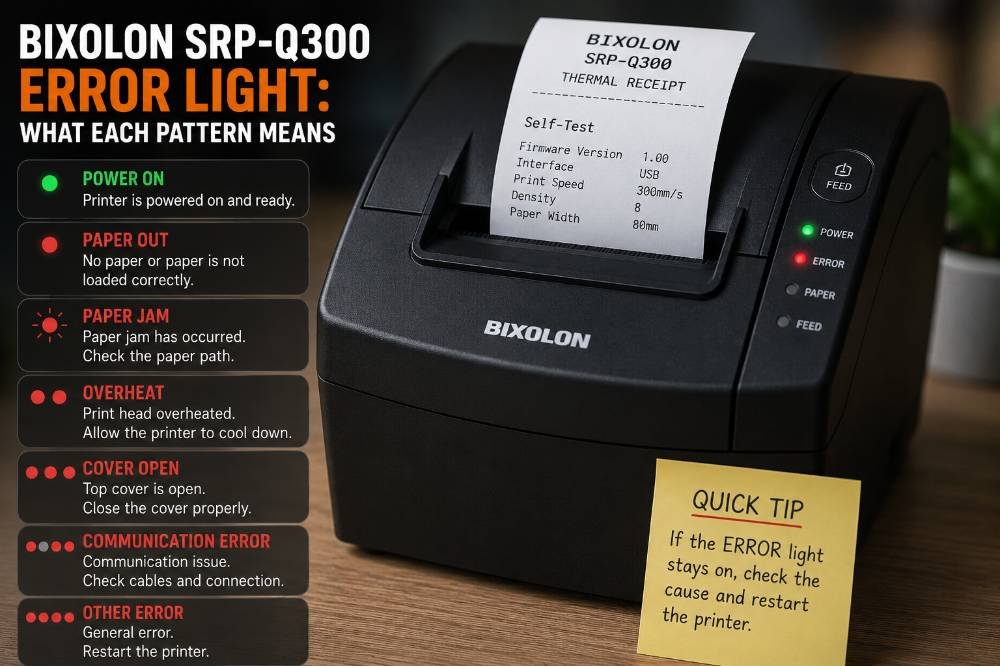
Unlike other Bixolon models, the SRP-Q300 has two red indicator LEDs (Error and Paper). Here is how to decode their flashing and solid status patterns.
Most Bixolon troubleshooting advice assumes a single error LED that changes color or blink speed. The SRP-Q300 (and its dual-station sibling, the Q302) does it differently — it has two distinct red indicator lamps, labeled Error and Paper, each reporting something separate.
Reading them as one combined signal is the most common reason people misdiagnose what's actually wrong.

Here's what each one actually means, and one warning worth taking seriously that's buried in Bixolon's own manual.
The Two-Lamp System
- Error lamp — lights up red for general fault conditions: paper out, cover open, and similar mechanical issues.
- Paper lamp — lights up red specifically when paper is out or running low. If this lamp is blinking rather than solid, it means something different entirely: the printer is sitting in self-test standby, or it's waiting for a macro command to execute — not an error at all.
That last point trips people up constantly. A blinking Paper lamp looks identical to an error at a glance, but it can simply mean the printer is paused mid-diagnostic, waiting for your next input.
Quick Reference: Q300 LED Patterns
| Lamp | State | Meaning |
|---|---|---|
| Error | Off | No fault condition |
| Error | Solid red | Paper out, cover open, or another general fault |
| Error | Stays on and won't clear | Stop — see the safety note below |
| Paper | Off | Paper loaded and sufficient |
| Paper | Solid red | Out of paper, or paper running low |
| Paper | Blinking | Self-test standby, or waiting for a macro command |
| Power (adapter) | On | Adapter is supplying power correctly |
| Power (adapter) | Off | Adapter not connected or not receiving power |
Important: When the Error Light Won't Turn Off
This is worth pulling out on its own rather than burying it in a troubleshooting list. Bixolon's own documentation for this model includes a specific warning: if the Error light stays on and the condition persists, continuing to operate the printer can pose an overheating risk.
The manufacturer's instruction in this case is direct — power off the printer and contact a service center rather than continuing to troubleshoot it yourself.
In practice, this means: if you've closed the cover, reloaded paper, and power-cycled the printer, and the Error light is still solid, stop trying to force it back into service. This isn't the same category of issue as a slow-blinking cover sensor or an empty roll — treat it as a hardware escalation, not a settings fix.
A Different Boot Sequence on Q300H/Q302H Models
If you have the H-variant (the B-gate/battery-integrated model), powering on works differently than the standard Q300/Q302:
- Press the Power button.
- Wait until the Error and Paper indicators both stop blinking — this blinking during boot is normal on the H-variant and isn't a fault.
- Once both lamps settle, the printer is ready.
If you're troubleshooting what looks like an error immediately after powering on an H-variant, give it a few seconds first — what looks like a problem may just be the normal boot sequence completing.
No DIP Switches on This Model
Unlike Bixolon's SRP-330-series printers, the SRP-Q300/Q302 doesn't support DIP switches at all. If you're used to troubleshooting other Bixolon models by checking physical DIP switch positions, that step doesn't apply here.
Instead, configuration changes (print density, print speed, and similar settings) are made through the Virtual Memory Switch (VMSM) utility, either via software or directly through the printer's self-test menu.
Running Self-Test and Accessing VMSM Settings
- Confirm the paper roll is installed correctly.
- Turn the printer on while holding down the FEED button — this begins the self-test.
- From the VMSM Selection menu that appears, you can choose from several options by pressing FEED the corresponding number of times, including:
- Exit and reboot the printer
- Print current settings
- Set print density
- Set print speed
This is useful beyond basic diagnostics — if print quality looks off, adjusting density directly through this menu is faster than reinstalling software just to change one setting.
Battery Indicator Lights (B-gate / Battery-Equipped Models)
On models with battery capability, there's a separate charging indicator behavior worth knowing:
- Red LED — battery is currently charging.
- Blue LED — battery is fully charged.
- Unusual behavior during charging (LED not progressing as expected) can indicate a charging circuit or battery fault rather than a printer error — this is a hardware/battery issue distinct from the Error/Paper lamp system entirely.
Resetting Network Settings to Factory Defaults
If your Q300's network configuration has gotten into a bad state, there's a dedicated reset specifically for LAN/WLAN settings, separate from a full printer reset:
- Let the printer fully finish booting.
- Open the printer cover.
- Press and hold the FEED button for 5 seconds.
- The internal buzzer will sound 5 times, and the printer enters interface setting confirmation mode.
- Add paper and close the cover.
- Check the confirmation message that prints to verify the reset completed.
Why This Model Behaves Differently Than Other Bixolon Printers
The Q300/Q302 line is built as a compact mPOS (mobile point-of-sale) printer family, with options for Bluetooth, wireless LAN, NFC-based Android pairing, and the B-gate battery/communication module. That flexibility is exactly why its error-reporting setup is more layered than a simple countertop receipt printer — there's simply more going on (battery state, wireless connection state, B-gate communication mode) that needs its own indicator logic.
Frequently Asked Questions
Why are there two red lights on my SRP-Q300 instead of one? The Error lamp and Paper lamp report different things — Error covers general fault conditions, while Paper specifically tracks paper level. Treating them as the same signal is the most common cause of misdiagnosis on this model.
My Paper lamp is blinking but I have plenty of paper loaded — what's wrong? Nothing's necessarily wrong — a blinking (not solid) Paper lamp typically means the printer is in self-test standby or waiting for a macro command, not reporting a paper issue.
Can I adjust print settings without installing software, since this model has no DIP switches? Yes — hold the FEED button while powering on to enter the self-test, then use the VMSM Selection menu to adjust settings like print density and speed directly.
Is it actually dangerous if the Error light won't turn off? Per Bixolon's own documentation, yes — a persistent Error light that won't clear is flagged as a potential overheating risk, and the recommended action is to power off and contact a service center rather than continuing to use the printer.
Quick Checklist
- Identified which lamp is lit — Error or Paper — rather than assuming they mean the same thing
- Checked if Paper lamp is blinking (standby/macro wait) vs. solid (actual paper issue)
- Confirmed adapter LED is on if the printer won't power up at all
- Given H-variant models a few extra seconds during boot before assuming an error
- Used VMSM self-test menu instead of looking for DIP switches
- Powered off and contacted service if the Error light persists and won't clear
The SRP-Q300's two-lamp system is more informative than a single combined light once you know how to read it — the main thing is not collapsing Error and Paper into one signal, and taking a persistent Error light seriously rather than troubleshooting around it indefinitely.
