


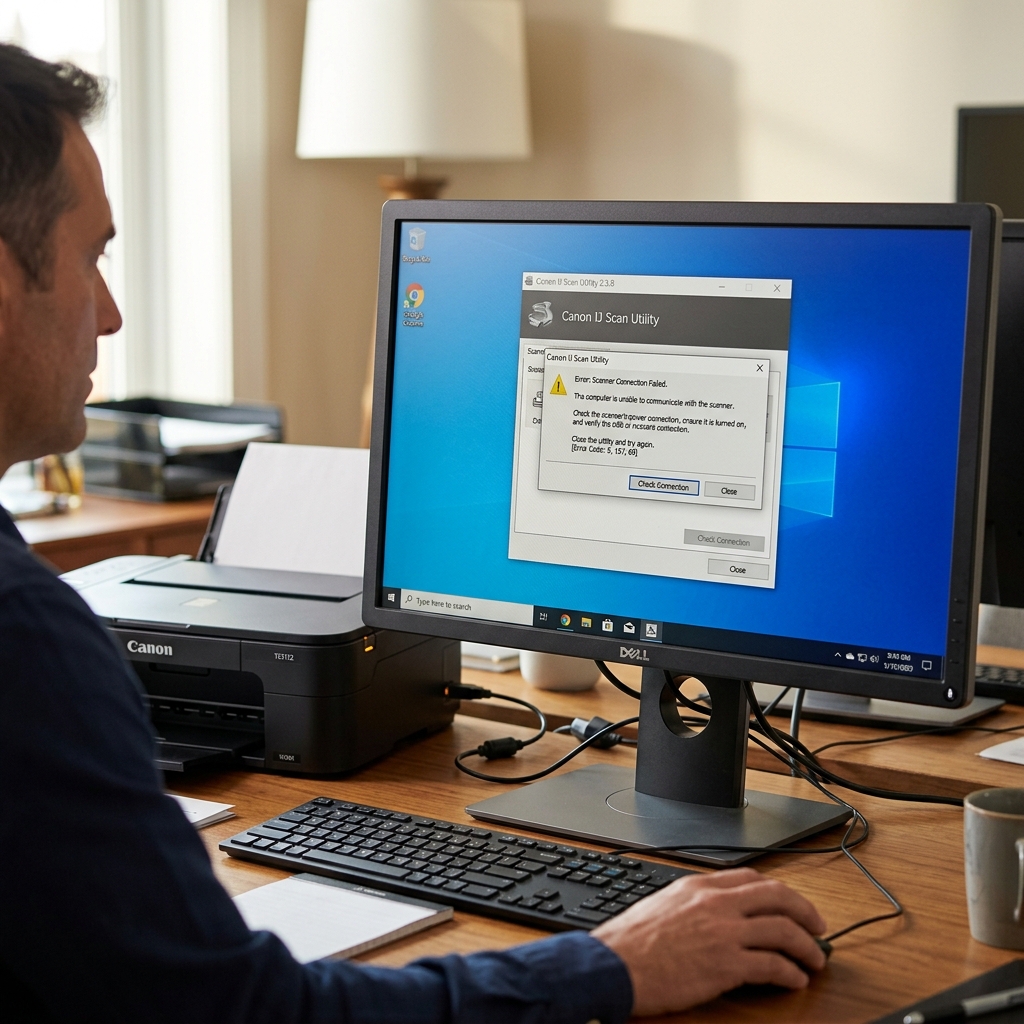
Why the IJ Scan Utility Fails
The Canon IJ Scan Utility is the central hub for scanning documents. It also scans photos to your computer. When it fails, you might see an error. The error may say "Cannot communicate with scanner." You might click the application icon and nothing happens.
This is usually caused by a breakdown in the TWAIN driver. Windows might also re-assign the printer network IP address.
Fix 1: The "Network" Dropdown Mistake
This is the most common scanning mistake for Wi-Fi users.
Open the IJ Scan Utility. Look at the very top of the small window. There is a dropdown menu labeled Product Name. You might have plugged your printer in via USB before. If you now use Wi-Fi, your printer is listed twice.
- Example: Canon MG3600 series (This is the USB driver).
- Example: Canon MG3600 series Network (This is the Wi-Fi driver).
You might connect via Wi-Fi but select the USB driver. If so, the scanner will fail to respond. Select the "Network" version from the dropdown. Try again.
Fix 2: Restarting the WIA Service
Windows relies on a background service called Windows Image Acquisition (WIA). This service processes your scans. If this service crashes, the Canon software cannot access the hardware.
- Press Windows Key + R.
- Type services .msc and hit Enter.
- Scroll down to Windows Image Acquisition (WIA).
- Right-click it and select Restart. (If it says "Start," click Start).
- Try opening the IJ Scan Utility again.
Fix 3: Complete Driver Wipe and Reinstall
If the utility refuses to open, the core DLL files are corrupted.
Do not install the software over the old one. Uninstall it completely first. Go to Windows Settings > Apps. Uninstall the Canon MP Drivers and the Canon IJ Scan Utility. Restart your computer.
Go to the official Canon Support website. Type your exact printer model. Download the full Driver and Software Package. Reinstall this fresh package. It will rebuild the necessary TWAIN drivers. This links the utility back to the scanner hardware.
Fixing Canon IJ Scan Utility Crashes, Freezes, and Scanner Driver Errors
The Canon IJ Scan Utility is the official scanning suite. It comes with Canon PIXMA and MAXIFY all-in-ones. The software might report "Cannot communicate with scanner" (Code 2,156,50 / 5,156,69). It might crash upon launch. Local WIA service stalls or USB communication drops cause this.
Step-by-Step Scan Utility Diagnostic Protocol
- Restart the Windows Image Acquisition (WIA) Service:
- Press Windows Key + R, type
services.msc, and press Enter. - Scroll down to find Windows Image Acquisition (WIA).
- Right-click WIA and select Restart.
- Check that Remote Procedure Call (RPC) and Shell Hardware Detection are running.
- Press Windows Key + R, type
- Select the Correct Scanner Driver in IJ Scan Utility Settings:
Open IJ Scan Utility. Click the Settings... button at the bottom right. Look under the Product Name dropdown. Make sure your printer is selected with the "Network" suffix for Wi-Fi scanning. Example:
Canon TS6400 series (Network). Use no suffix for USB scanning. Selecting the wrong interface causes instant communication timeouts. - Reinstall the Certified Canon MP Driver Package:
Download the full MP Drivers package from usa.canon.com/support. The MP Drivers package contains the scanner drivers. The IJ Scan Utility requires these drivers.
- Test with Native Windows Scan / Fax & Scan:
Press Windows Key, type
wfs(Windows Fax and Scan). Click "New Scan". This confirms whether the scanner hardware responds to native OS scan commands.
Frequently Asked Questions
Why does the scanner work over USB but fail over Wi-Fi?
Third-party firewalls often block UDP port 8611 (Canon IJ Network Scanner discovery). Add an exception for IJScanUt.exe in Windows Defender Firewall.
Can I scan to Mac without IJ Scan Utility?
Yes. On macOS, open System Settings > Printers & Scanners > [Your Canon] > Open Scanner.
