


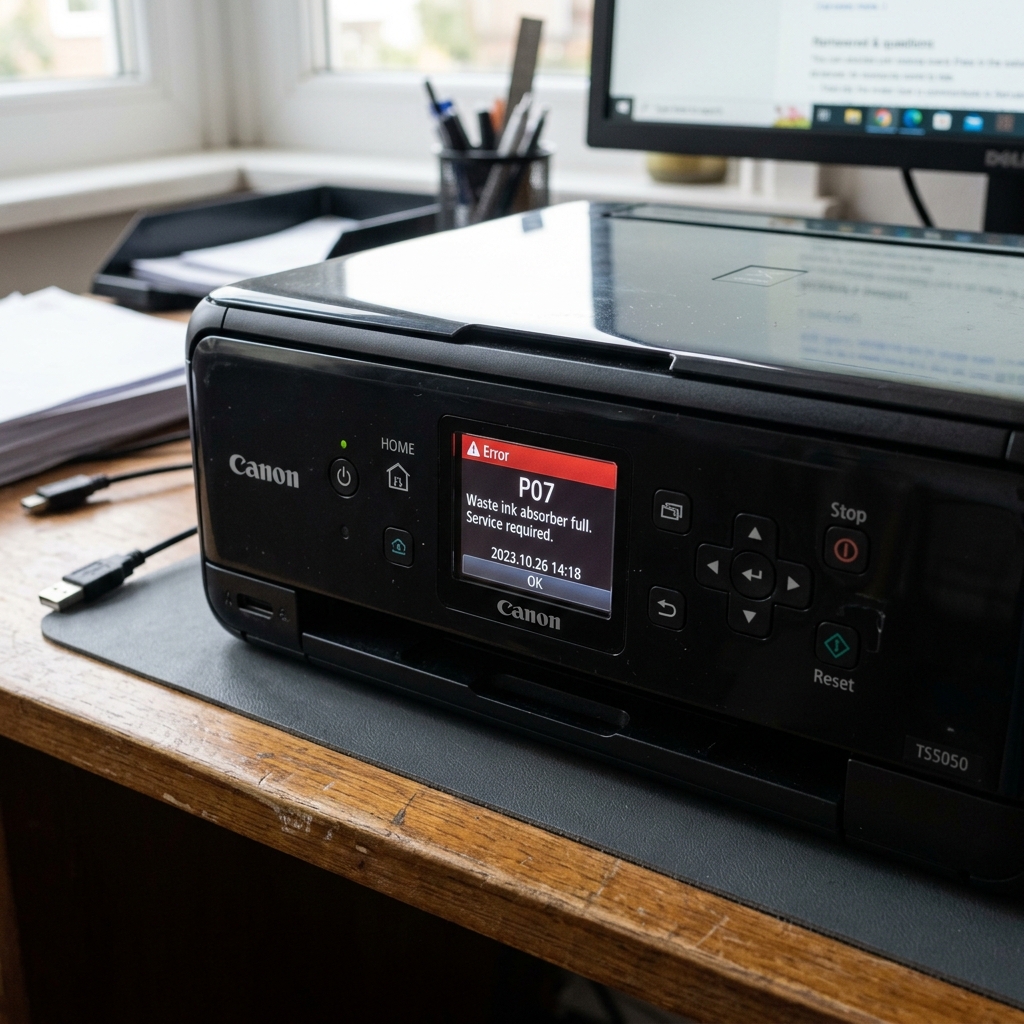
Understanding Error P07 (and 5B00)
On Canon printers with a 7-segment LED screen (like the MP and MG series), the code will flash P... 0... 7. If you check the status on your computer screen at the same time, it will read Support Code 5B00.
This is the Waste Ink Absorber Full error. Every time your printer runs a head cleaning cycle, it pumps waste ink into a thick sponge pad at the bottom of the printer.
A digital counter on the motherboard tracks how many cleanings have occurred. When the math determines that the sponge is 100% saturated, it locks the printer to prevent ink from overflowing onto your desk.
Step 1: Entering Service Mode
You cannot reset the P07 error through normal menus or by unplugging the printer. You must boot the printer into a special diagnostic state called Service Mode.
- Turn the printer completely off, but leave it plugged into the wall.
- Press and hold the Stopong>Stop/Reset button (the red triangle in a circle).
- While holding Stop, press and hold the Power button.
- While continuing to hold the Power button, release the Stop button.
- Press the Stop button exactly 5 times in a row (some older MP models only require 2 presses).
- Release the Power button.
The green power light will flash for a moment and then stay solid. The printer screen will be blank. Your printer is now in Service Mode.
Step 2: Using the Service Tool Software
Now that the printer's digital gates are open, you need a software program to send the reset command. (Note: This requires a Windows PC connected via USB; Wi-Fi and Mac will not work).
- Search online and download the Canon Service Tool (Version 3400, 4720, or 4905 depending on your printer's age). Be careful to download from reputable repair forums to avoid malware.
- Open the Service Tool. If all the buttons are grayed out, your printer is either not in Service Mode, or your specific printer model has locked out the tool (common on newer G-series).
- Look for the section labeled Clear Ink Counter.
- Ensure the "Absorber" dropdown is set to Main.
- Click the Set button next to it.
The printer will whir for a moment and print a single sheet of paper with the text D=000.0 on it. This confirms the digital counter has been reset to 0%. Turn the printer off normally, and turn it back on. The P07 error is gone.
Step 3: The Physical Reality
You have successfully reset the software, but remember: the physical sponge at the bottom of the printer is still soaked in waste ink. If you reset the counter and continue printing for another year, the ink will eventually overflow the plastic tray and leak out the bottom of the machine.
To do the job correctly, you should open the printer casing, remove the soaked felt pads, wash them in warm water, air dry them for two days, and put them back in.
Decoding Canon Error P07 / Error E07 (Waste Ink Absorber Warning)
On Canon PIXMA printers equipped with a single-character 7-segment LED display (e.g., MP280, MP495, MG2522, TS3122), the alternating code P, 0, 7 (or E, 0, 7) represents the Ink Absorber Full / Near Full warning. The internal EEPROM page counter (D-Value) has calculated that the felt waste ink sponge pads in the printer base have reached their maximum absorption capacity.
Step-by-Step P07 Clear & Service Mode Protocol
- Entering Service Mode on Canon 7-Segment LED Models:
- Turn the printer completely OFF.
- Press and hold the Stop/Reset button (Red inverted triangle in circle).
- While continuing to hold Stop/Reset, press and hold the Power button.
- While holding Power, release the Stop/Reset button.
- While still holding Power, press the Stop/Reset button 5 times (for newer TS series models) or 6 times (for older MP series models).
- Release both buttons simultaneously. The power LED will flash green and then turn solid green. The display screen will go completely blank or display a
0, confirming Service Mode.
- Executing the Waste Counter Reset with Canon Service Tool:
- Connect the printer to a Windows PC via USB.
- Launch Canon Service Tool v3400 / v4905 as Administrator.
- In the "Clear Ink Absorber Counter" section, select Main and click Set.
- The printer will cycle its purge motor and print a confirmation line (
D=000.0).
- Reboot into Standard User Mode:
Press the Power button once to turn the printer off. Power it back on normally. Error P07 will be 100% cleared.
Frequently Asked Questions
What is the difference between Error P07 and Error E08?
Error E08 is the preliminary 95% warning ("Ink Absorber Almost Full"), which can be temporarily bypassed by pressing Stop/Reset. Error P07 / 5B00 is the fatal 100% hard lockout that requires a Service Mode reset.
Do I need to change the physical sponge pads right away?
The sponge pads usually have an engineered 20% safety margin, so the printer can safely operate for several more months after the electronic reset before physical sponge saturation occurs.
