


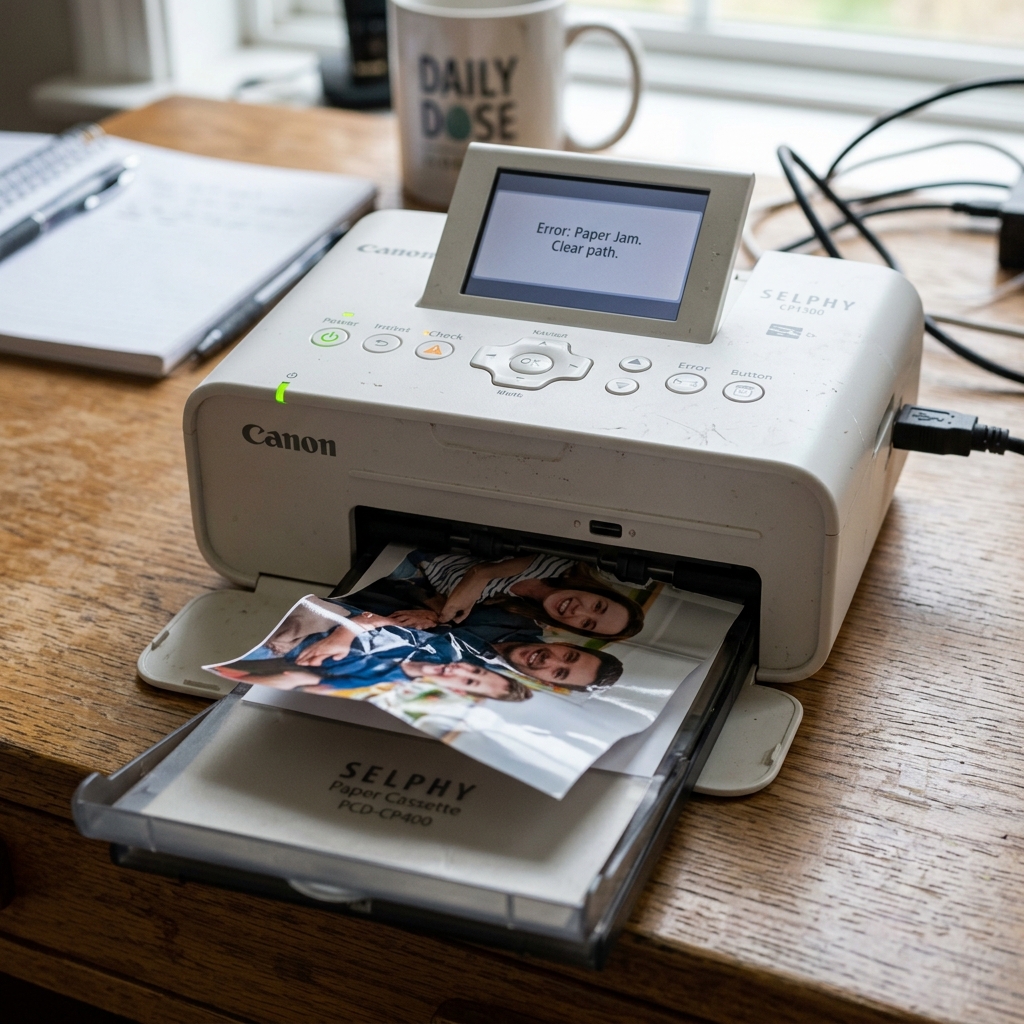
Dye-Sublimation Technology Explained
Canon SELPHY printers (like the CP1200, CP1300, and CP1500) do not use liquid ink. They use dye-sublimation.
A plastic ribbon coated in solid dye is heated up, turning the dye into a gas that bonds with the special photo paper. The paper is pulled back and forth through the printer 4 times (Yellow, Magenta, Cyan, and a clear protective overcoat).
Because the mechanics are entirely different from an inkjet, the troubleshooting is different.
The "Paper Jam" Error
Because the paper moves back and forth four times, if it gets bumped from the rear or the front during printing, it jams.
- Rule #1: Never grab the paper and yank it out while the printer is on. You will tear the delicate dye ribbon inside, ruining the ink cassette.
- Turn the printer off. Wait 10 seconds. Turn it back on. The SELPHY is programmed to slowly eject any stuck paper during the boot-up sequence.
- If the printer refuses to eject it, gently pull the paper straight out from whichever side it is protruding most. You will likely have to throw that piece of paper away.
The "Ink Cassette Empty" Error
Users frequently get frustrated when they put a stack of 10 sheets of paper into the tray, but the printer says the ink cassette is empty.
SELPHY ink cassettes are perfectly calibrated. A 36-print box contains exactly 36 sheets of paper and a ribbon long enough for exactly 36 prints.
If you accidentally ruined 2 sheets of paper and threw them away, you will have 2 blank sheets of paper left when the ink ribbon runs out. You cannot rewind or reuse an ink ribbon.
When it says empty, it is physically out of film. You must insert a new cassette.
The "Wrong Paper" or "Paper Cassette Incorrect" Error
This happens when you mix and match supplies.
If you insert an ink cassette designed for Postcard Size (4x6) prints, but you attach a paper cassette loaded with Credit Card Size or Square paper, the printer's sensors will detect the size mismatch and refuse to print. The ink ribbon size must perfectly match the paper size.
Always buy the all-in-one packs (like the KP-108IN) and replace the ink and paper at the same time.
Master Diagnostic Guide for Canon SELPHY CP Photo Printers (CP1200, CP1300, CP1500)
Canon SELPHY CP series are compact 4x6 Dye-Sublimation Photo Printers. They use an all-in-one cassette containing an ink ribbon cartridge (Yellow, Magenta, Cyan, Overcoat) and specialized postcard photo paper. When paper feeds improperly or the ribbon jams, the LCD screen alerts with specific error prompts.
Common SELPHY Errors and Technical Fixes
- "Cartridge Empty / No Ribbon": Open the side door. Remove the ribbon cartridge. If the ribbon is sagging, turn the drive gear clockwise to take up slack. If all color panels have been used, replace with a new KP-108IN / RP-108 cartridge.
- "Paper Jam / Paper Feed Failure": Ensure the detachable paper cassette is clicked firmly into the front slot until both side pins engage. Load a maximum of 18 sheets. Load with the glossy print side facing UP and the Canon watermark facing DOWN.
- "Maintain 4-Inch Rear Clearance": The photo sheet extends out the rear slot during its four dye passes. If placed against a wall, the paper collides and buckles inside the rollers.
- "Thermal Overheat": The thermal head heats up during back-to-back photo prints. Allow 10 minutes of passive cooling.
Frequently Asked Questions
Can I print from iPhone to Canon SELPHY without Wi-Fi?
Yes. Enable Direct Connection (Wi-Fi Direct) on the SELPHY screen.
Why are there white horizontal lines across my SELPHY photos?
Dust on the thermal printhead. Insert the official Canon SELPHY cleaning sheet into the feed slot to wipe the thermal printhead.
