


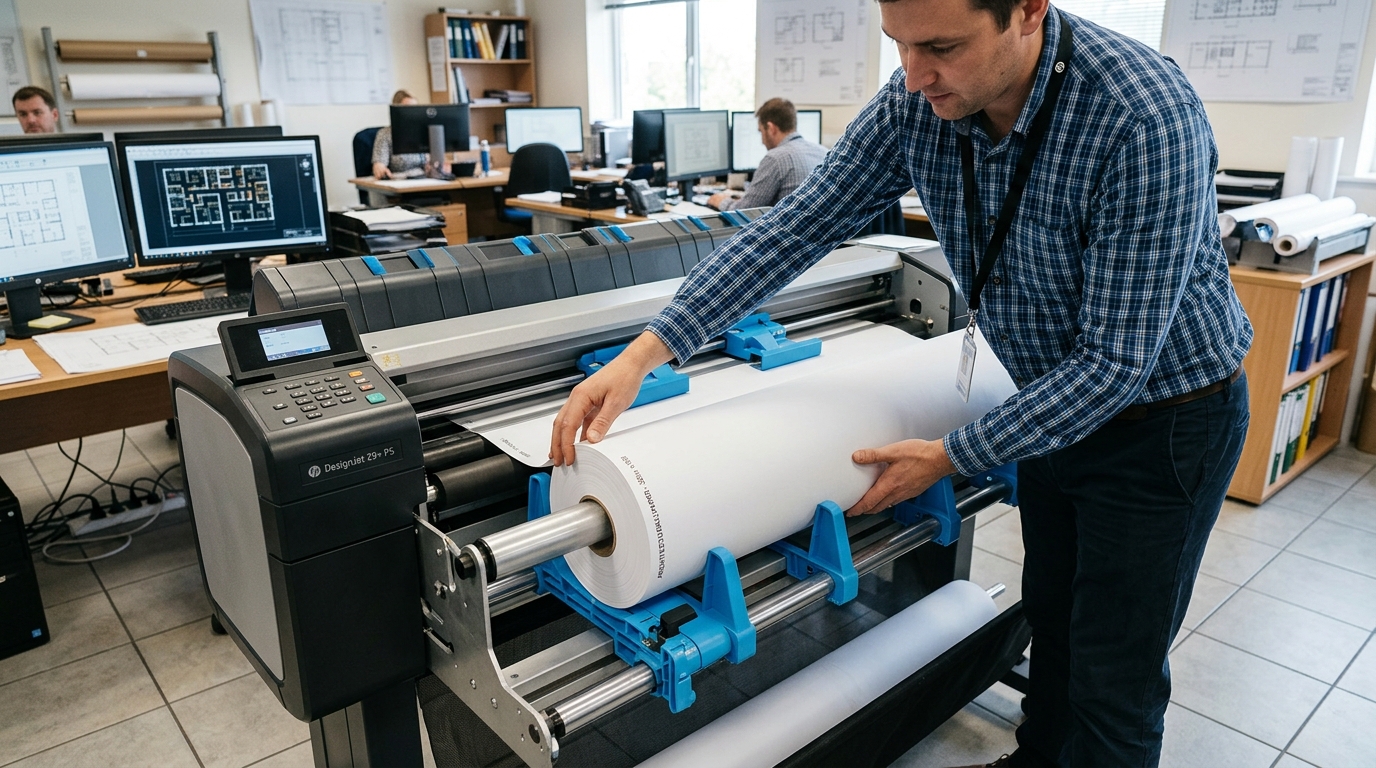
Understanding Canon imagePROGRAF Paper Feed Failures
Canon imagePROGRAF plotters use an air-vacuum platen and multi-sensor edge detection system. The printer continuously checks paper width, skew angle, and feed roller drag.
When the paper edge is cut unevenly, or when the roll holder flanges are loose, the plotter displays error EC21-2F51 or "Cannot detect paper" and halts loading.
Step 1: Check the Roll Holder Spindle and Flanges
The roll must be correctly seated between the fixed and removable flanges before feeding:
- Remove the roll holder: Lift the roll holder spindle out of the printer cradle using both hands.
- Check the white movable flange: Slide the white flange firmly against the paper core. Ensure there is zero lateral play between the flange and roll edge.
- Lock the flange lever: Flip the blue locking lever on the flange shaft to secure the roll core tight.
- Check roll wind direction: Ensure the paper unwinds forward toward the feed slot from the top of the roll.
- Seat into the printer: Lower the spindle into the printer guides until the gear on the black flange engages the drive motor.
Step 2: Trim a Clean 90-Degree Leading Edge
The imagePROGRAF optical edge sensor rejects paper with frayed or angled borders:
- Avoid manual tearing: Never tear large format roll paper across a desk edge by hand.
- Pull paper into cutting position: Pull approximately 8 inches of media past the platen cutting groove.
- Cut square with a guide: Use a straight metal ruler and utility blade to create a clean, square 90-degree cut.
- Inspect corners: Ensure neither corner is bent or dog-eared before inserting into the feed slot.
Step 3: Adjust Vacuum Suction in the Media Configuration Tool
Lightweight bond paper can curl upward, while heavy canvas can drag against platen ribs:
- Open Media Configuration Tool: Launch the Canon Media Configuration Tool software on your computer.
- Select your paper profile: Click your currently loaded media type (e.g., Heavyweight Coated or Canvas).
- Adjust Vacuum Air Suction: If paper bunches up at the leading edge, increase platen vacuum suction from Standard to Strong.
- Send settings to printer: Apply the updated media parameters to the imagePROGRAF unit.
Step 4: Clean the Optical Leading Edge Sensor
Paper dust coats the reflective optical sensor located on the underside of the carriage:
- Turn off the printer: Power down the plotter completely and disconnect the power cord.
- Open the top cover: Slide the carriage assembly manually toward the center of the print path.
- Locate the edge sensor: The sensor is a small optical window on the lower surface of the carriage.
- Wipe gently with dry cloth: Use a dry microfiber lens cloth to clear paper dust. Never use alcohol or solvents on optical sensors.
Frequently Asked Questions
Why does the printer say "Paper skew detected" even when loaded straight?
This happens when the paper roll core is slipping on the holder spindle. Tighten the blue flange lock lever and verify the core is not cracked.
Can I disable automatic skew detection on imagePROGRAF?
Yes. On the touchscreen, go to Paper Menu > Roll Settings > Skew Detection and set it to Loose or Off for emergency prints.
What causes error code EC21-2F51 during paper feed?
Error EC21-2F51 indicates the feed roller motor encountered excessive mechanical drag. Check for torn paper scraps trapped under the platen feed belt.
