


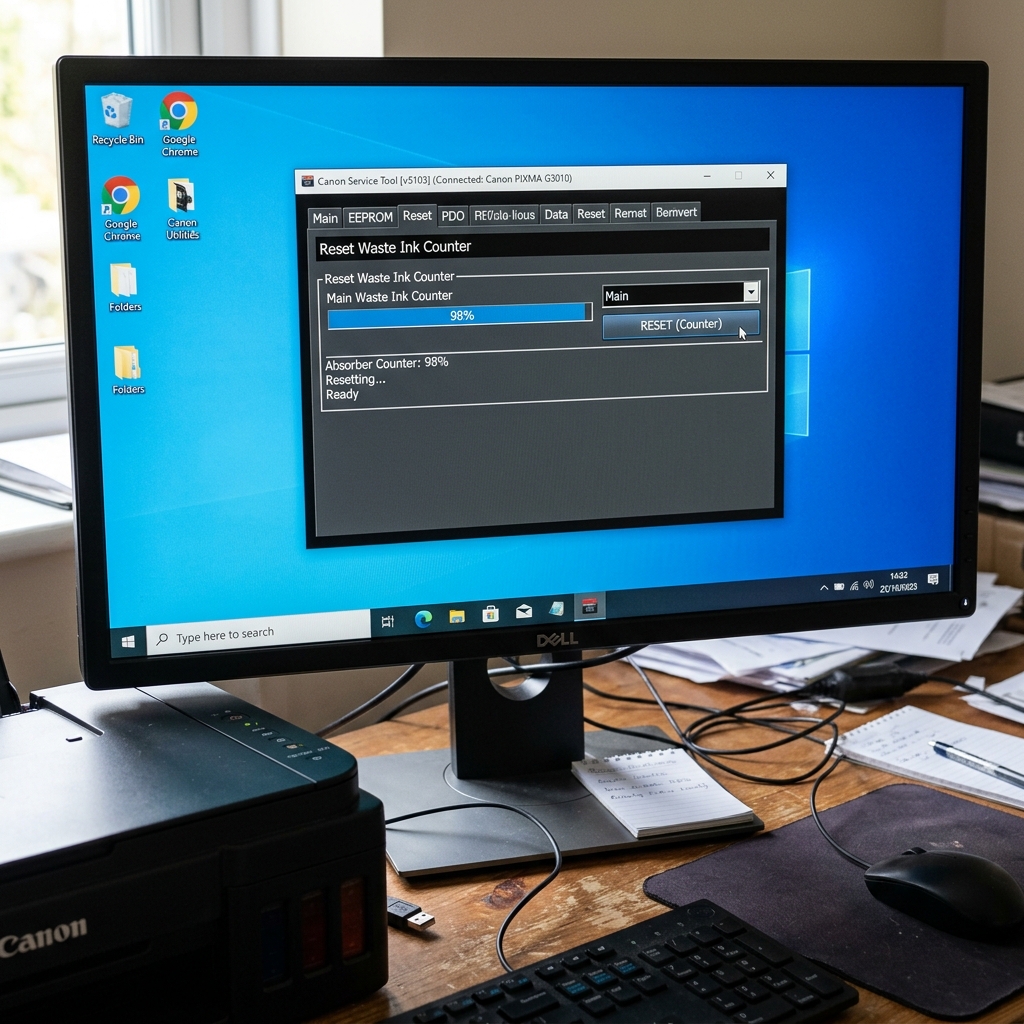
The Software vs. Hardware Reality
Before you reset the digital counter that causes the 5B00 Error , you must understand the risk: you are resetting a software counter, but the physical sponge at the bottom of your printer is still 100% full of liquid ink.
If you reset this counter and continue printing for another 6 to 12 months, the physical sponge will overflow, and thick black ink will leak out of the bottom of the printer, potentially ruining your desk or carpet. We highly recommend opening the printer and replacing or washing the physical pads after you perform this software reset.
Step 1: Entering Service Mode
You cannot reset the counter over Wi-Fi, and you cannot do it on a Mac. You need a Windows PC and a USB cable. Before the software tool can talk to the printer, the printer must be put into Service Mode.
- Turn the printer off, but leave the power cord plugged in.
- Press and hold the Stopong>Stop/Reset button (the red triangle).
- While continuing to hold Stop, press and hold the Power button.
- While holding Power, release the Stop button.
- Press the Stop button exactly 5 times. (Note: Some older models like the MP series only require 2 presses. Newer G-series MegaTanks may require 6 presses).
- Release the Power button.
The green power light will flash and then turn solid. The LCD screen will remain dark. If the yellow alarm light is on, or if the printer simply turns on normally, you failed to enter Service Mode. Turn it off and try the button sequence again.
Step 2: The Service Tool
You must download a leaked copy of Canon's internal factory Service Tool. The version you need depends on your printer's age (V3400 for older models, V4720 for mid-range, V5302 for newer models).
- Connect the USB cable between the printer and the PC.
- Extract and run the Service Tool executable (it does not need to be installed, it runs standalone).
- Look at the top of the window. If the buttons are grayed out, the tool cannot communicate with the printer (either wrong tool version, or the motherboard's EEPROM is locked).
Step 3: Executing the Reset
- Load two sheets of regular A4 or Letter paper into the rear tray.
- In the Service Tool, locate the section titled Clear Ink Counter.
- Change the Absorber dropdown/strong> dropdown box to Main.
- Click the Set button to the g> button to the right of it.
The printer will make mechanical noises and pull a sheet of paper through, printing the text D=000.0. This means the counter is successfully reset to zero. Turn the printer off, then back on normally, and you can resume printing.
Understanding the Canon Waste Ink Absorber Full Error (5B00 / P07 / 1700)
Every time your Canon printer executes an automated nozzle cleaning cycle or initial ink charge, liquid ink is pumped through the printhead and dumped into large porous felt sponge pads housed in the bottom base of the printer chassis (the Waste Ink Absorber). To prevent ink from overflowing onto your desk, the printer's EEPROM maintains an internal mathematical counter (D-Value).
When this counter reaches 100% (typically after 10,000 to 15,000 pages), the printer locks with Error 5B00 (Support Code 5B00 / 1700 / P07).
Step-by-Step Canon Service Mode Reset Workflow
- Enter Canon Service Mode:
- Turn the printer completely OFF.
- Press and hold the physical Stop / Reset (Red Triangle) button.
- While still holding Stop, press and hold the Power button. The power LED will illuminate green.
- While continuing to hold Power, release the Stop button.
- While still holding Power, press the Stop button 5 times consecutively (for newer TS/G models, press 5 times; for older MP models, press 6 times).
- Release both buttons simultaneously. The power LED will flash green and then turn solid green, confirming the printer is in Service Mode.
- Using Canon Service Tool Software (v3400 / v4905 / v5103):
- Connect the printer to a Windows PC via USB cable (Service Mode does not work over Wi-Fi).
- Launch the official Canon Service Tool executable as Administrator.
- Under the "Ink Absorber Counter" section, ensure Absorber: Main is selected.
- Set Counter Value (%) to
0%. - Click the Set button. The printer will make a mechanical clicking sound and print a confirmation line reading
D=000.0.
- Exit Service Mode:
Press the Power button on the printer once to turn it off. Turn it back on normally. Error 5B00 will be completely cleared.
Frequently Asked Questions
Do I need to physically replace the waste ink sponges?
If this is the first time 5B00 has appeared, the physical felt pads typically have enough reserve capacity to absorb ink for several more months. However, for permanent reliability, you should replace the bottom felt pads or install an external waste ink tank modification kit.
What should I do if Service Tool displays Error Code 006?
Error Code 006 in Canon Service Tool means the printer is not in true Service Mode or the USB port is occupied by a background print job. Close all Canon apps, enter Service Mode carefully, and re-run.
