


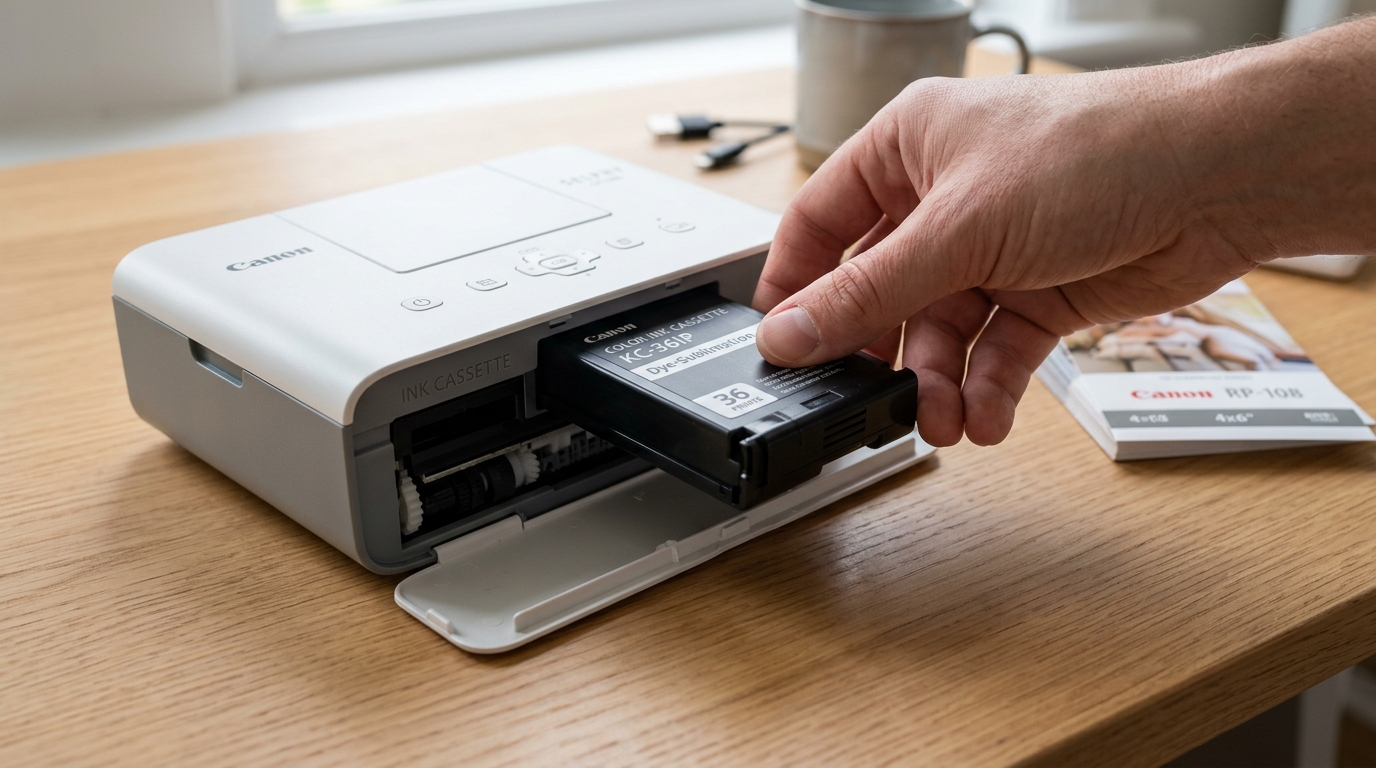
How the Canon SELPHY Ink Cassette Works
Canon SELPHY printers do not use liquid ink cartridges. They use a plastic cassette containing a tri-color thermal transfer ribbon (Yellow, Magenta, Cyan, and Clear overcoat).
When the printer displays "No ink cassette" or "Cannot recognize ink cartridge," the cause is almost always film slack, a microswitch sensor glitch, or mismatched cassette sizing.
Step 1: Tighten Ribbon Slack on the Ink Cassette
If the ribbon film is loose or wrinkled, the printer's optical sensor cannot confirm cassette presence:
- Remove the ink cassette: Slide the compartment latch on the right side of the printer and slide the cassette out.
- Inspect the orange take-up gear: Look at the bottom of the cassette where the orange plastic cog is located.
- Turn the cog clockwise: Rotate the gear gently in the direction of the arrow to take up any slack in the ribbon.
- Ensure the film is flat: The ribbon should be completely taut without sag, folds, or creases across the open window.
- Reinsert the cassette: Push the cassette straight in until the colored lock lever clicks shut.
Step 2: Match Ink Cassette Code with Paper Type
The SELPHY reads mechanical key notches on the cassette body to determine size compatibility:
- Check the cassette label: Locate the model code stamped on the cassette (e.g., KP-108IN, RP-108, or KC-36IP).
- Check the paper cassette: Look at the paper tray loaded in the front slot. Postcard trays (P) require "P" size ink. Card trays (C) require "C" size ink.
- Never force mismatched cassettes: Installing a card cassette with postcard paper will trigger "Ink and paper size mismatch" every time.
Step 3: Clean the Internal Optical Sensor and Door Contacts
Dust inside the ink compartment can blind the optical presence sensor:
- Power off the printer: Turn off the SELPHY and unplug the AC power adapter.
- Open the side compartment: Remove the ink cassette and look inside with a flashlight.
- Inspect the sensor window: Locate the small black sensor recess and the metal microswitch finger on the inner wall.
- Clear dust with compressed air: Blow 2 short bursts of clean compressed air into the compartment to dislodge paper fibers and lint.
- Inspect the door latch: Ensure the outer door closes completely flush against the chassis to depress the safety interlock switch.
Frequently Asked Questions
Why does the printer say the ink is empty when there is still film on the roll?
Canon SELPHY ink cassettes are calibrated to print an exact number of sheets (e.g., 36 sheets per cassette). Once the chip counter reaches zero, the cassette cannot be reused even if film remains.
Can I splice a torn SELPHY ink ribbon back together?
Yes. If the film snapped during a paper jam, tape the two torn ends together with clear Scotch tape, wind the take-up gear past the taped section, and reinsert the cassette.
Are third-party compatible ink cassettes safe to use in SELPHY?
Third-party cassettes often use thinner film that wrinkles easily under heat. We recommend genuine Canon KP-108IN or RP-108 kits for reliable sensor detection.
