


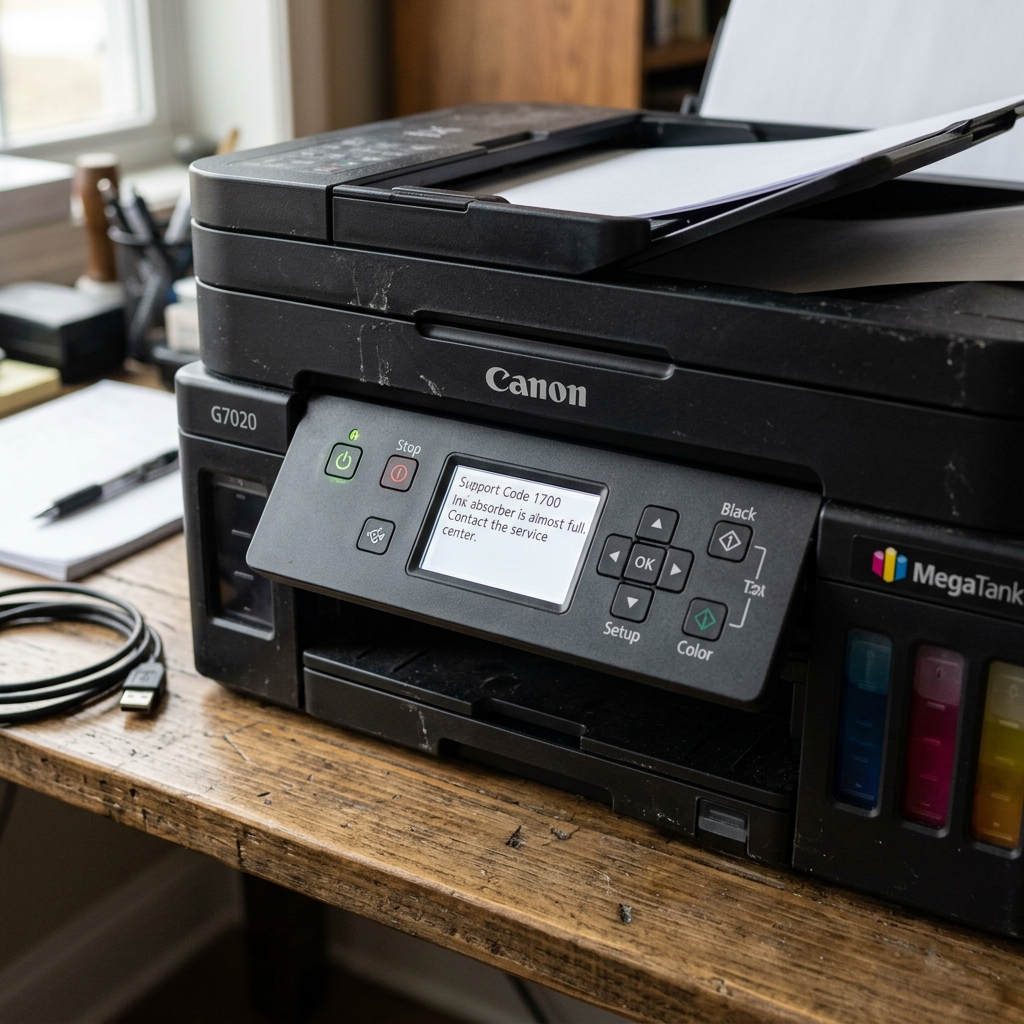
The MegaTank Waste Ink Crisis
If you own a Canon G7020, G3200, G4210, or almost any modern G-series MegaTank printer, and you receive Error 1700 (Waste ink almost full) or Error 5B00 (Waste ink full), you have hit a massive roadblock.
For decades, users could put their Canon printers into Service Mode and use a free software tool to reset the digital waste ink counter. However, with the release of the MegaTank series, Canon changed the hardware architecture.
The EEPROM Lockout
On modern G-series printers, the EEPROM (the memory chip that stores the waste ink counter) is hardware-locked against unauthorized software flashing.
If you attempt to use the standard Canon Service Tool on a G7020, one of two things will happen:
- The software tool will freeze, crash, or return "Error 006" or "Error 002".
- The printer will enter a state called "Service Mode Lock." The green power light stays on solid, but the printer refuses to accept any commands. You literally cannot turn it off without pulling the power cord.
Once a printer is in Service Mode Lock, it is permanently bricked from accepting software resets. Do not pay for eBay software reset keys for G-series printers; they are scams.
The Only Three Solutions
Because the software route is blocked, you only have three physical options to get your G7020 printing again.
1. Professional Repair / Motherboard Replacement
You can send the printer to Canon. They will replace the physical ink sponges and install a brand-new motherboard with a factory-zero EEPROM chip.
Alternatively, you can buy a replacement motherboard online (ensure it is the exact same region and model) and swap it yourself. This usually costs between $60 and $90.
2. The Hardware Flasher (Advanced Micro-Soldering)
If you are skilled with a soldering iron, you can physically remove the EEPROM chip (usually an 8-pin SPI chip labeled 25Q16 or similar) from the motherboard.
Using a CH341A USB hardware programmer connected to a PC, you can flash a clean, 0% waste ink BIN file directly onto the chip, and then solder the chip back onto the motherboard. This costs about $15 in tools but requires extreme precision.
3. Buy a New Printer
For many users, micro-soldering is out of the question, and paying $90 for a motherboard makes no economic sense. Unfortunately, the EEPROM lockout on the G-series forces many of these excellent printers into early retirement.
Understanding Error 1700 on the Canon MegaTank G7020 / G6020
Support Code 1700 on the Canon PIXMA MegaTank G7020 indicates that the Waste Ink Absorber is at 95% Capacity. Unlike older inkjet models, high-volume MegaTank printers process thousands of pages, causing waste ink from borderless overspray and automated cleaning cycles to accumulate faster.
How to Clear and Manage Error 1700 on the G7020
- Bypass the Warning to Continue Printing:
When Error 1700 appears on the G7020 LCD display, press the physical OK button. The printer will dismiss the alert and proceed with printing.
- Plan for Service Mode Reset Before 100% Lockout (5B00):
Pressing OK allows approximately 500 to 1,000 additional prints. When the counter hits 100% (Error 5B00), the printer will lock completely until reset via Canon Service Tool (v5103) in Service Mode.
- Inspect the Bottom Sponge Reservoir:
MegaTank printers dump significant fluid into the base sponges. For long-term reliability, replace the internal felt absorber pads or install an external waste bottle mod.
Frequently Asked Questions
How many pages does a Canon G7020 waste ink absorber last?
Under standard office document printing, the G7020 absorber lasts between 15,000 and 25,000 printed pages.
Does running frequent Ink Flushes accelerate Error 1700?
Yes. Each Ink Flush dumps roughly 30ml of liquid ink into the absorber box, filling the counter significantly faster than normal printing.
