


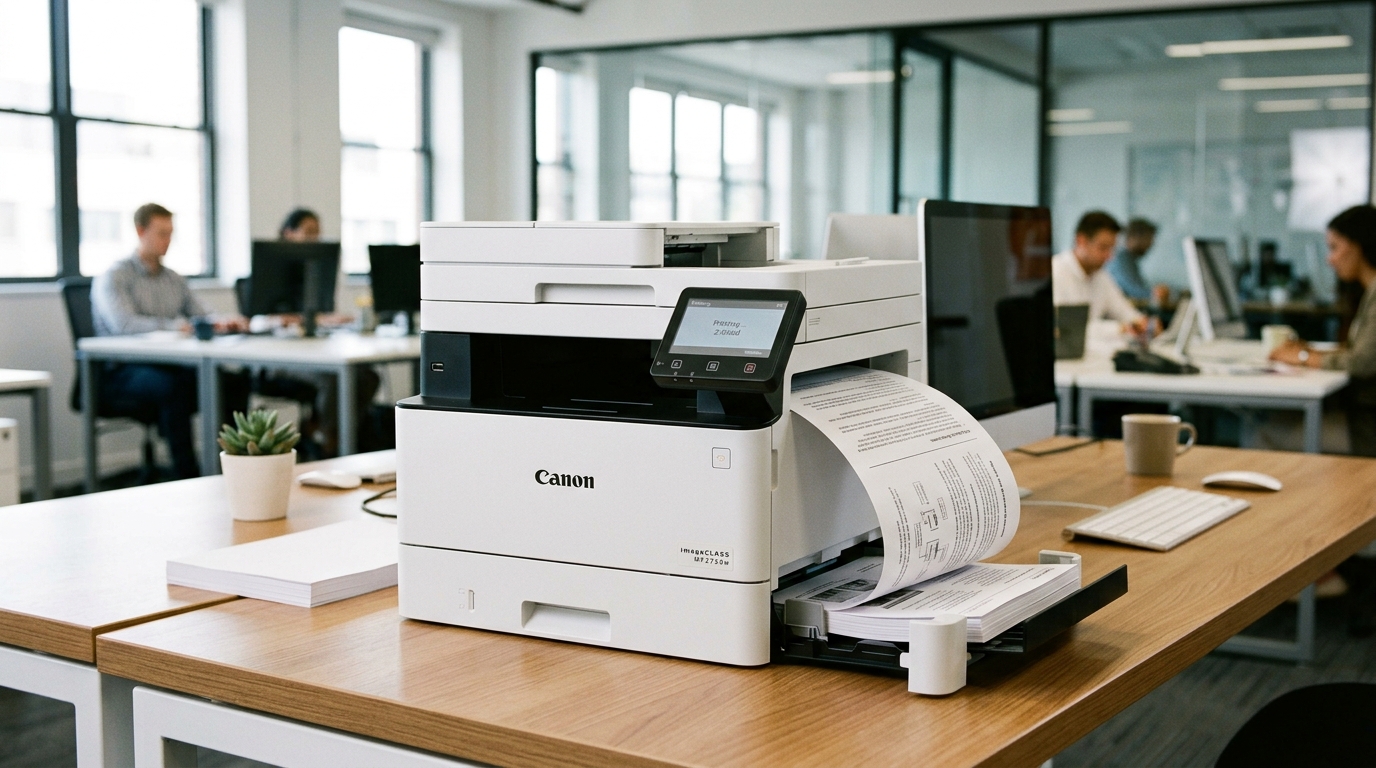
Why Canon imageCLASS Duplex Printing Fails
Canon imageCLASS laser printers feature an internal paper turnaround unit that flips sheets for automatic two-sided (duplex) printing.
When the 2-Sided option is grayed out on your computer or paper jams immediately during sheet reversal, the issue stems from driver feature defaults or unsupported paper weights.
Step 1: Enable the Duplexing Unit in Windows Printer Properties
When Windows installs generic class drivers, it frequently disables the hardware duplex module by default:
- Open Printers & Scanners: In Windows 11/10, open Settings > Bluetooth & devices > Printers & scanners.
- Open Printer Properties: Click your Canon imageCLASS printer and select Printer properties (not Printing preferences).
- Click Device Settings tab: Navigate to the Device Settings tab at the top.
- Enable Duplexing Unit: Under Configuration Options, find Duplexing Unit and change it from "Not Installed" to Installed.
- Apply changes: Click Apply and OK. The 2-Sided printing option will now appear active in all print dialogs.
Step 2: Check Supported Paper Weights and Dimensions
The internal duplex turnaround flapper requires specific paper flexibility:
- Check paper weight: Duplex printing only supports standard paper between 16 lb bond and 28 lb bond (60 g/m² to 105 g/m²).
- Unsupported duplex media: Never attempt two-sided printing on envelopes, labels, index cards, or heavy cardstock. These cause severe reversal roller jams.
- Standard paper sizes only: Automatic duplexing is mechanically restricted to Letter, Legal, and A4. Custom dimensions or A5 sizes disable duplexing automatically.
Step 3: Inspect the Internal Duplex Reversal Flapper
Paper dust or torn fragments can stick the internal reversal gate:
- Turn off the printer: Power down the unit and unplug the power cord.
- Open the rear access door: Lower the rear cover and check the duplex reversal path.
- Inspect the plastic flapper gate: Gently push the spring-loaded black plastic flapper with your finger. It should spring back freely without sticking.
- Clean rubber feed rollers: Wipe the small gray rubber duplex transport rollers with a lint-free cloth dampened with water to remove slick paper powder.
Frequently Asked Questions
Why is the 2-Sided checkbox grayed out on my Mac?
If the printer was added via generic AirPrint rather than the official Canon UFR II driver, duplex options may not be communicated. Re-add the printer using the Canon driver.
Why does page 2 print upside down when duplexing?
In your print dialog, verify the Binding Edge setting. Use "Flip on Long Edge" for standard portrait orientation and "Flip on Short Edge" for landscape booklets.
Can I copy 2-sided documents using the scanner glass?
Yes. Select 2-Sided Copying on the screen. The printer will prompt you to scan side 1, flip the original on the glass, scan side 2, and print both sides automatically.
