


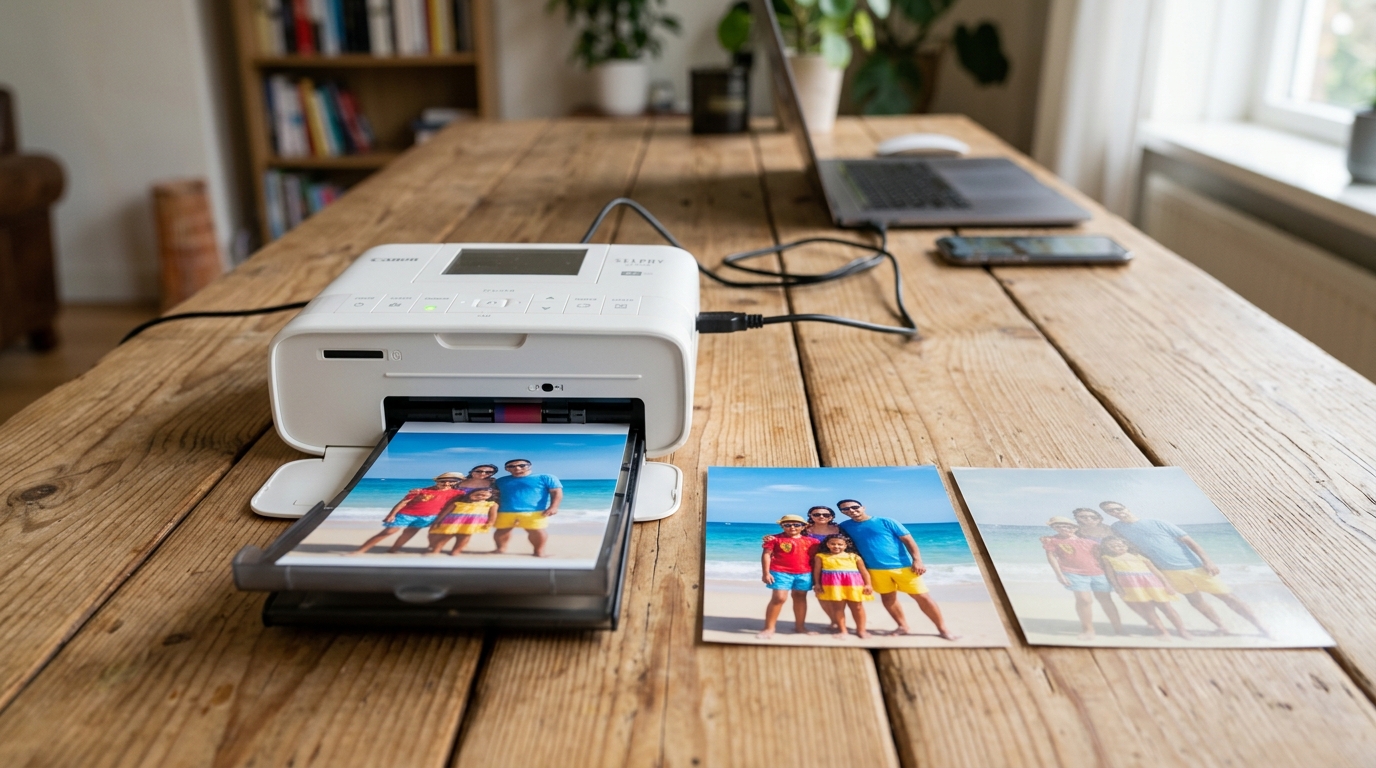
Why Canon SELPHY Photos Look Faded or Washed Out
Dye-sublimation produces vivid, highly saturated colors by heating solid dye into gas. If the thermal printhead is dirty or the ribbon film has degraded from heat exposure, prints appear pale and desaturated.
Faded prints can also stem from disabled glossy overcoats, counterfeit ribbon kits, or aggressive automatic exposure settings in smartphone photo apps.
Step 1: Clean the Thermal Printhead Line
Paper dust and airborne residue insulate the heating elements on the thermal printhead:
- Power off and unplug the printer: Ensure the printer has been powered down for at least 10 minutes so the thermal head cools completely.
- Remove the ink cassette: Slide out the ink ribbon cassette from the right side.
- Locate the printhead heating bar: Look inside the top roof of the ink compartment. You will see a narrow glass-like ceramic bar.
- Clean with a dry cleaning sheet or microfiber: Wipe the heating bar gently with a dry lens-cleaning microfiber cloth. Never touch the heating line with metal tools or harsh solvents.
- Reinsert the cassette: Reseat the ink ribbon and test print a high-contrast photo.
Step 2: Check for Expired or Heat-Damaged Ink Film
Dye-sublimation ribbons are sensitive to ambient temperature and moisture:
- Inspect ribbon film: Pull out the ribbon cassette and look at the colored panels. The film should look semi-transparent and vibrant.
- Avoid hot storage: Never leave spare SELPHY paper and ink packs in hot car trunks, direct sunlight, or humid basements. Excess heat prematurely sublimates the dye.
- Check for counterfeit supplies: Genuine Canon paper packs (KP-108IN, RP-108) feature the watermarked "Canon" logo on the backside of each sheet. Counterfeit packs produce washed-out colors.
Step 3: Adjust App Image Optimizer Settings
The default image optimization in mobile apps can over-brighten already well-lit photos:
- Open SELPHY Photo Layout app: Select the image you want to print.
- Tap Print Settings: Scroll down to the Image Optimize toggle.
- Disable Image Optimize: If your photo looks washed out with blown-out highlights, turn Image Optimize OFF to print the raw image data.
- Adjust Color Finish: Ensure the finish is set to Glossy (Finish 1). Semi-gloss finishes (Finish 2/3) have a slightly softer matte appearance.
Frequently Asked Questions
Why do dark shadows look grainy or pale on my SELPHY prints?
Dye-sublimation requires significant heat to achieve deep black densities. If your room temperature is below 50°F (10°C), allow the printer to warm up to room temperature before printing.
Can I reuse paper that already fed through the printer once?
No. Re-running previously printed sheets through the SELPHY melts the existing overcoat layer, damaging the thermal printhead and leaving faded color streaks.
Will changing the power source make SELPHY prints brighter?
If printing on a third-party battery pack with low charge, the thermal head may not reach optimal sublimation temperatures. Test with the original AC wall adapter.
