


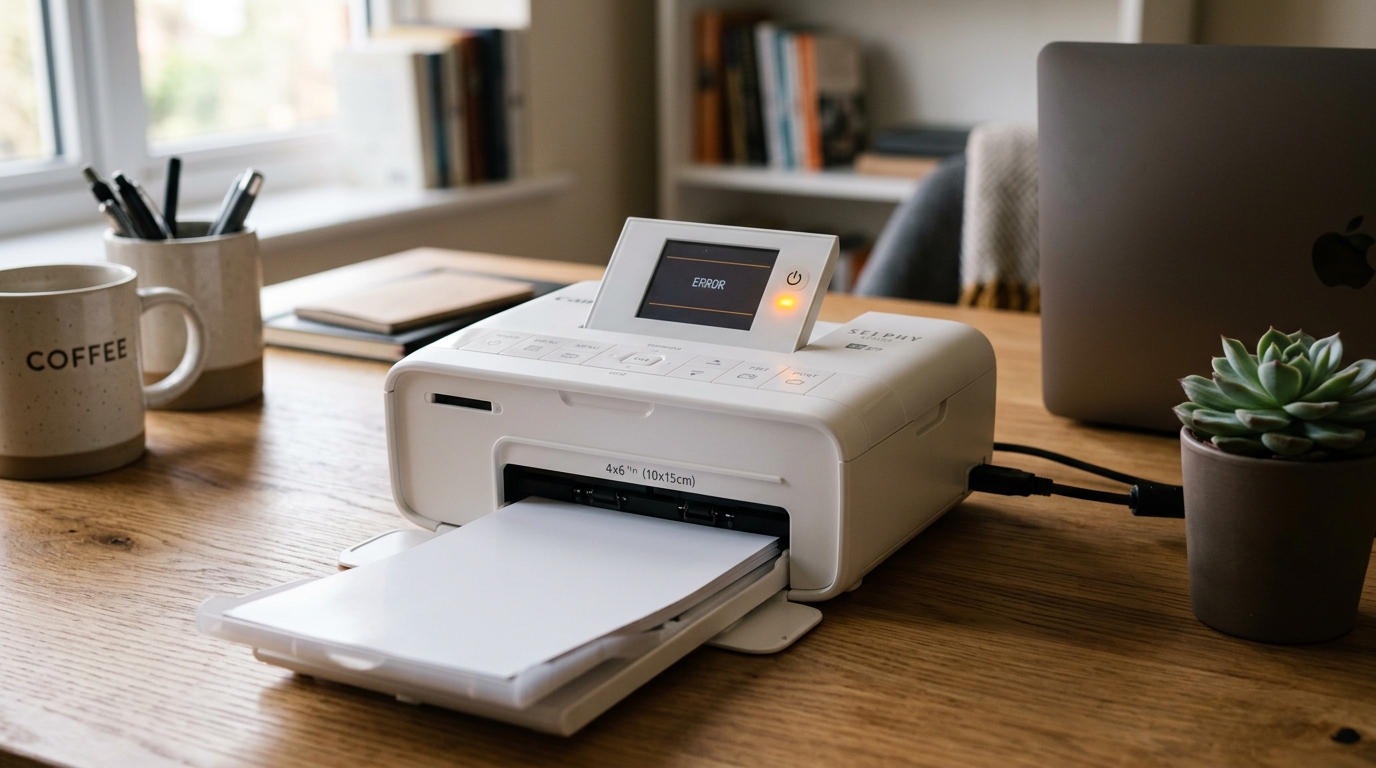
Understanding Canon SELPHY CP1500 Print Mechanics
The Canon SELPHY CP1500 uses a 4-pass dye-sublimation process. The photo sheet feeds in and out of the printer 4 times: Yellow, Magenta, Cyan, and clear protective overcoat.
If anything obstructs the front cassette or the rear ejection slot, the CP1500 halts the print cycle immediately to prevent tearing the delicate ink ribbon.
Step 1: Verify Rear Clearance and Flat Surface Placement
Because the photo sheet travels completely through the back of the unit during each color pass, physical clearance is mandatory:
- Clear at least 4 inches behind the printer: Ensure the printer is not placed directly against a wall, books, or cables.
- Clear 4 inches in front: The paper cassette must sit completely flat on the desk without hanging over edges.
- Keep the printer level: Operating the SELPHY on an angled or soft surface (like a couch or carpet) causes roller feed misalignment.
Step 2: Inspect Paper Cassette Size and Sheet Capacity
Loading the paper cassette incorrectly prevents the pickup roller from grabbing sheets:
- Check sheet capacity: Never load more than 18 sheets of photo paper into the cassette at once. Overfilling causes double-feeding.
- Check paper orientation: Load paper with the glossy side facing UP. Do not touch the glossy printable surface with bare fingers.
- Insert cassette firmly: Slide the paper cassette into the front compartment until it clicks audibly into place.
- Open the output flap: Ensure the middle cover of the paper cassette is flipped open to receive the finished photo.
Step 3: Reset the Print Queue and Mobile App
A corrupted print job in the mobile queue will block all subsequent prints:
- Force close the app: Swipe away the Canon SELPHY Photo Layout app from your phone's multitasking view.
- Power cycle the CP1500: Press and hold the power button until the screen turns off. Wait 15 seconds and turn it back on.
- Reconnect via QR code: Open the SELPHY Photo Layout app, tap the printer icon, and scan the QR code displayed on the CP1500 LCD screen.
- Send a single test print: Try printing a single photo directly from your camera roll rather than a complex multi-photo collage.
Frequently Asked Questions
Why does the CP1500 say "Paper and ink do not match"?
This happens if you load postcard paper (KP-108IN) while a card-size ink cassette (KC-36IP) is installed. The paper cassette and ribbon cassette sizes must match exactly.
Why does the paper feed out the back and stop during printing?
This is normal operation. The paper must extend out the rear slot between passes as the printer applies each individual color layer (Yellow, Magenta, Cyan, Gloss).
Can I print from a USB flash drive on the CP1500?
Yes. Insert a FAT32-formatted USB flash drive or SD card directly into the slot on the front of the CP1500 and select photos using the LCD menu.
