


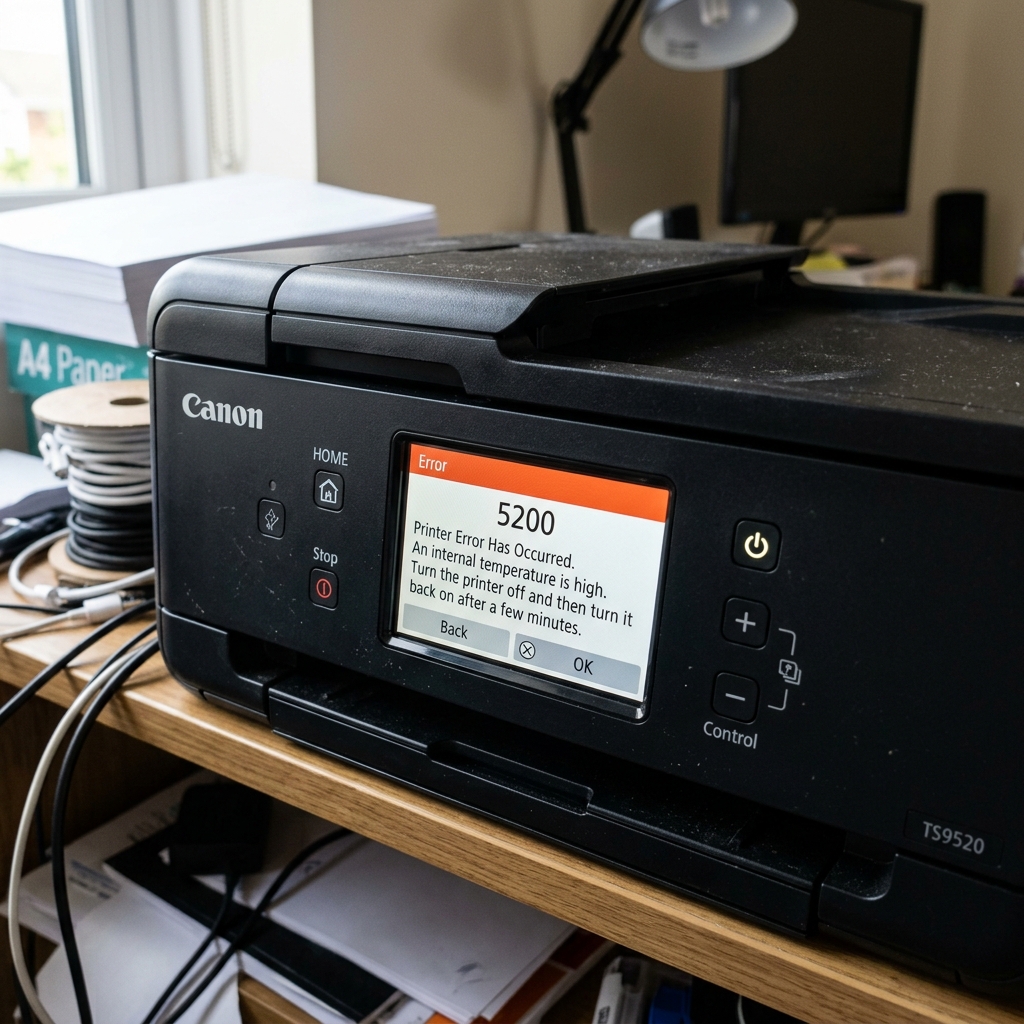
Understanding Thermal Protection Error 5200
Canon printers use thermal inkjet technology, meaning the printhead generates extreme, localized heat (over 300°C at each nozzle) to vaporize ink and force droplets onto paper. Under normal conditions, the liquid ink flowing through the nozzle channels acts as a coolant, absorbing the heat and carrying it away.
Error 5200 is triggered when the motherboard's temperature monitoring circuit detects that the printhead assembly, the power supply board, or the internal chassis temperature has exceeded safe operational limits. This is a safety feature designed to prevent component damage or fire risk.
Cause 1: Printing with Empty or Low Cartridges
The single most common cause of error 5200 is running the printer with one or more ink cartridges that are nearly or completely empty.
When a cartridge runs dry, the thermal resistors inside the printhead continue firing at 300°C, but there is no liquid ink flowing through the channel to absorb the heat. Within minutes, the accumulated thermal energy causes the printhead temperature to spike, triggering the 5200 shutoff.
- Remove all cartridges and visually inspect them. If any cartridge feels noticeably lighter than the others, it is likely empty.
- Replace the empty cartridge. Even if you only print in black and white, a single dry color cartridge will overheat its corresponding nozzle bank and trigger 5200.
Cause 2: Clogged Nozzles Restricting Ink Flow
Even if your cartridges are full, the ink might not be flowing. If the printhead nozzles are severely clogged with dried ink, the resistors fire, but the ink cannot reach them to provide cooling.
- Remove the printhead from the carriage (lift the gray locking lever).
- Soak the nozzle plate in warm distilled water for 15 minutes.
- Gently blot the nozzle plate with a damp paper towel. You should see ink colors bleeding onto the towel, confirming the channels are open.
- Reinstall the printhead, refill or replace the cartridges, and run a cleaning cycle.
Cause 3: Environmental Overheating
Canon printers have an operating temperature range of approximately 5°C to 35°C (41°F to 95°F). If the printer is placed in direct sunlight near a window, or right next to a space heater or radiator, the ambient temperature can push the internal temperature past the safety threshold.
Move the printer to a cooler, well-ventilated location. Ensure there is at least 6 inches of clearance behind the rear vent. Turn the printer off and let it cool for 30 minutes before attempting to print again.
Cause 4: Power Board Failure (Rare)
In rare cases, the 5200 error is caused by a failing voltage regulator on the printer's internal power supply board. If the board is sending excessive voltage to the printhead, the resistors are forced to generate more heat than designed. This typically requires professional repair or board replacement.
Understanding Canon Error 5200 / Support Code 5200 (Printhead Overheating)
Canon Support Code 5200 is a dedicated Printhead Thermal Protection / Overheating Fault. Each nozzle on a Canon thermal printhead contains a micro-resistor that heats to over 500°F (300°C) for microsecond bursts.
The liquid ink itself acts as a coolant. When cartridges run dry, or when air blocks the ink channels, the nozzles fire dry without ink coolant, causing the printhead silicon die temperature to exceed safe limits.
Step-by-Step Resolution for Error 5200
- Check Ink Levels Immediately:
Open the front access door. Check if any cartridge or MegaTank reservoir is completely empty. If ink is depleted, refill the tanks or install new genuine Canon FINE cartridges immediately.
- The 30-Minute Thermal Cooldown:
Power OFF the printer and unplug the AC power cable from the wall. Leave the machine powered down in a cool room for at least 30 minutes to allow the printhead silicon substrate to cool to true ambient temperature.
- The Reset Button Override Protocol:
- With the printer powered OFF, press and hold the Stop/Reset (Triangle) button.
- While holding Stop/Reset, press and hold the Power button.
- When the power LED turns on, release the Stop/Reset button while continuing to hold Power.
- Press the Stop/Reset button 2 times (or 5 times on select models).
- Release the Power button. The printer will initialize and clear the thermal latch.
- Perform a Deep Cleaning to Re-Prime Nozzle Ink:
Once the printer boots to ready, run one Deep Cleaning cycle from the Maintenance menu to flood the dry nozzles with liquid ink coolant.
Frequently Asked Questions
Will continuing to print with Error 5200 permanently ruin my printer?
Yes. Firing dry thermal nozzles will physically burn out the micro-resistors within seconds, permanently destroying the printhead.
Why does Error 5200 happen on brand new Canon MegaTank printers?
On newly installed MegaTank printers, if the initial Ink Flush / Initial Ink Charge process was skipped or interrupted, the delivery tubes remain filled with air, triggering 5200.
