


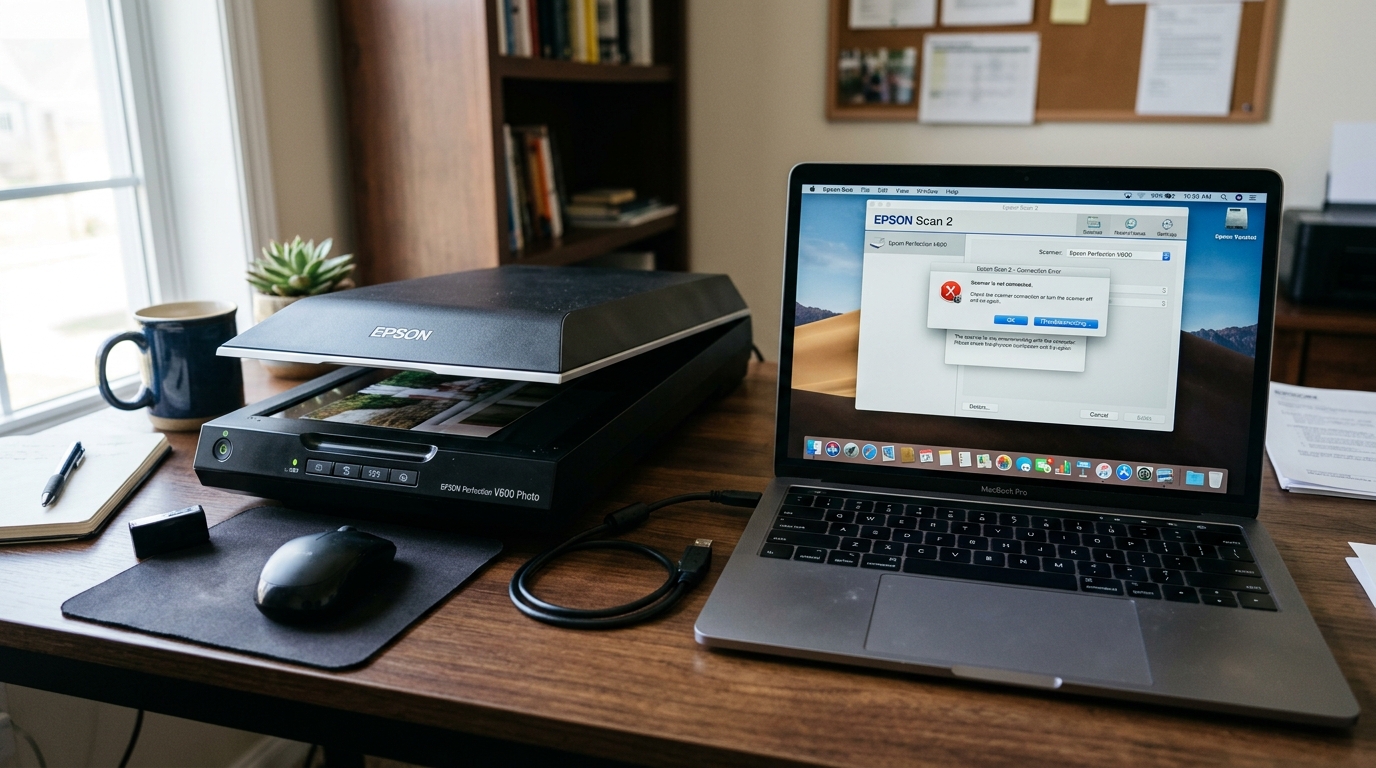
Resolving Epson Perfection Scanner Detection Errors
Epson Perfection photo flatbed scanners (including the V39, V600 Photo, and V850 Pro) deliver high-resolution film and document digitizing. Communication stalls prevent Epson Scan 2 or SilverFast from initializing the optical carriage.
When the software reports "Cannot communicate with the scanner" or "Scanner is not ready", the root cause is usually a engaged transport lock, unpowered USB hub, or TWAIN driver conflicts.
Step 1: Check the Optical Transportation Lock
Epson Perfection scanners feature a physical mechanical slide lock designed to immobilize the optical mirror carriage during shipping:
- Locate the lock switch: Inspect the bottom underside or rear base plate of the scanner body.
- Slide to unlock: Slide the switch firmly from the locked padlock symbol to the Unlocked position.
- Check transparency unit lock: On the V850 Pro and V600, check the secondary lid lock inside the transparency hood.
- Cycle scanner power: Turn the scanner power off for 10 seconds, then power back on to let the carriage complete its homing cycle.
Step 2: Connect Directly to a Root USB Port
High-resolution flatbed scanners require sustained USB bus power and uninterrupted signal bandwidth:
- Avoid unpowered USB hubs: Never connect through unpowered keyboard USB ports or multi-port adapters.
- Plug into motherboard rear ports: On desktop PCs, connect directly to rear I/O USB 2.0 or USB 3.0 ports.
- Use high-speed shielded cable: Replace cables longer than 6 feet with a quality shielded USB-A to USB-B cable.
- Check AC power adapter: Ensure the scanner's external 24V power brick is connected firmly to a dedicated wall socket.
Step 3: Reinstall Epson Scan 2 and TWAIN Drivers
Windows 11 updates and macOS Sequoia security policies frequently break legacy TWAIN driver hooks:
- Uninstall existing software: Open Windows Installed Apps or macOS Applications and uninstall Epson Scan and Epson Event Manager.
- Reboot your computer: Restart the operating system to clear active background scanner services.
- Download latest Epson Scan 2: Visit Epson support and download the latest 64-bit Epson Scan 2 package for your OS.
- Run installer as Administrator: Install the software completely before reconnecting the USB cable.
- Launch Epson Scan 2 Utility: Open the utility, select Scanner > Test Connection to confirm communication.
Step 4: Configure macOS Privacy & Security Permissions
macOS restricts third-party peripheral software from reading hardware buses without explicit user approval:
- Open System Settings: Click the Apple menu and select System Settings.
- Navigate to Privacy & Security: Open Privacy & Security > Files and Folders.
- Grant full permissions: Ensure Epson Scan 2 and Epson Event Manager have access toggled on.
- Check Image Capture: Open Apple's built-in Image Capture app to test if the scanner is recognized at the core system level.
Frequently Asked Questions
Why does the scanner make a grinding noise when powered on?
A grinding noise indicates the optical transportation lock is still engaged while the carriage motor tries to move.
Can I use an Epson Perfection scanner with VueScan or SilverFast?
Yes, both VueScan and SilverFast provide dedicated 64-bit drivers that bypass Epson Scan 2 entirely.
Why does Epson Scan 2 hang on "Warming Up"?
This occurs when the optical carriage cannot calibrate white balance on the small calibration notch at the top of the glass.
