


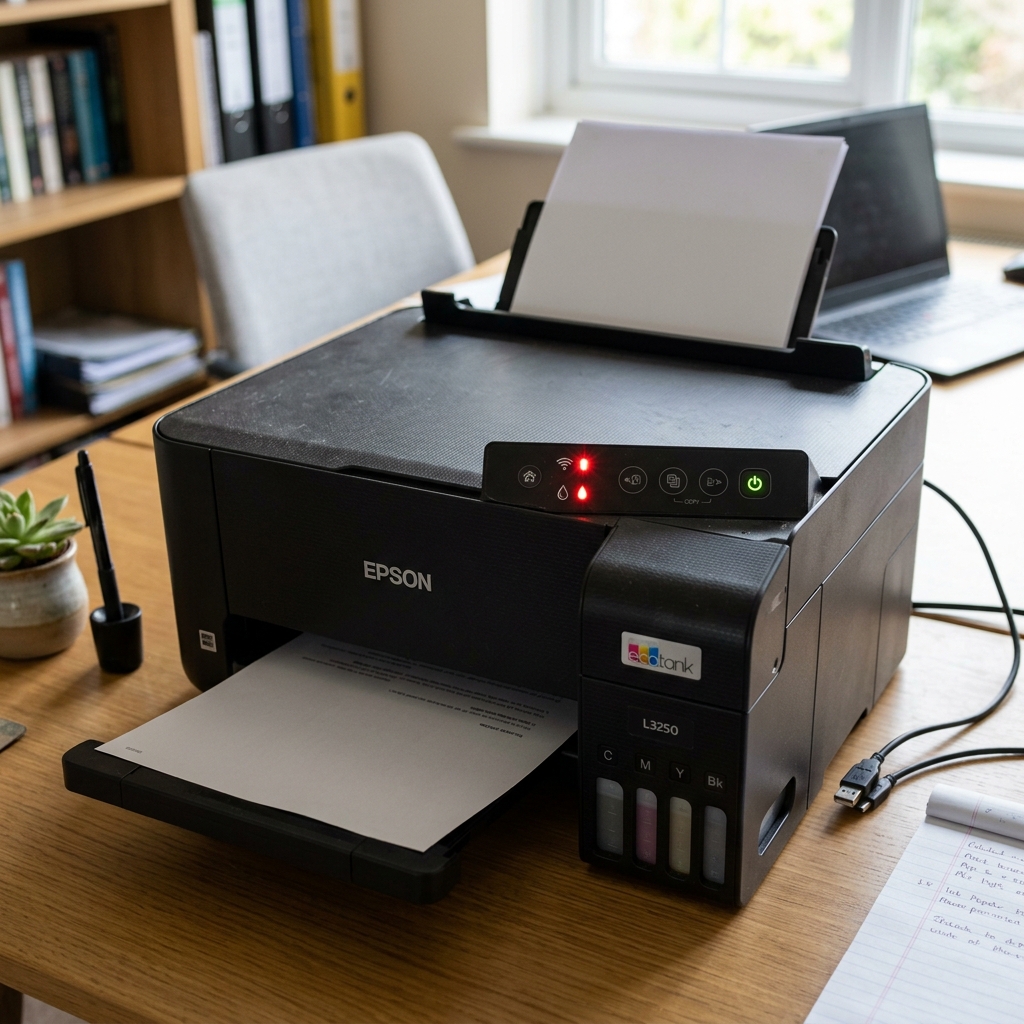
Decoding the L3250 Control Panel
The Epson EcoTank L3250 is a fantastic, cost-effective printer, but it lacks an LCD screen. This means any error—from a complex network failure to a simple paper jam—is communicated entirely through a series of blinking LEDs on the front panel.
The Wi-Fi and Wi-Fi Direct Lights
The L3250 has two network lights: a standard Wi-Fi icon (for connecting to your home router). A Wi-Fi Direct icon (a phone icon, for connecting directly to your mobile device without a router).
- Both Wi-Fi Lights Blinking Alternately: The printer's firmware (internal software) is currently updating. Do not turn the printer off. Wait 5 to 10 minutes for it to finish.
- Orange Wi-Fi Light Blinking: A WPS pairing error. You pressed the Wi-Fi button on the printer and the WPS button on your router, but they failed to communicate within the 2-minute time limit. Press the Wi-Fi button on the printer once to clear the error, move the printer closer to the router, and try again.
- Wi-Fi Light Solid Green, but Cannot Print: The printer is connected to your router, but your phone/PC is likely on a different network (e.g., your phone is on the 5GHz band, and the printer is on the 2.4GHz band). Ensure both devices are on the exact same network name.
The Paper Light (Sheet Icon)
- Solid Red: The printer is out of paper, or the rollers failed to grab a sheet. Load a neat stack of paper into the rear feed and press the physical Copy (B&W or Color) button to resume printing.
- Blinking Red: A physical paper jam. Turn the printer off, open the front access door, and carefully pull out any crumpled paper. Turn it back on to clear the error state.
The Ink Light (Teardrop Icon)
- Blinking Red: The software estimates that the ink in the tanks is getting low. You can continue to print, but you should visually inspect the tanks.
- Solid Red: The software estimates the tanks are completely empty and has locked the printer. Refill the physical tanks with ink. Then, press and hold the Cancel (Triangle inside a circle) button for 5 seconds. This resets the digital ink counter, and the light will turn off.
The Fatal Hardware Error
If the Power, Wi-Fi, Paper. Ink lights are all flashing rapidly at the exact same time, the motherboard has initiated an emergency stop. Unplug the printer and check the internal carriage track for foreign objects (like paperclips or torn paper) blocking the printhead from moving.
Understanding the LED Blink Combinations on the Epson EcoTank L3250
The Epson EcoTank L3250 is a compact Wi-Fi printer featuring dedicated LED icons for Wi-Fi, Wi-Fi Direct, Paper, and Ink. When red lights begin blinking, the combination of which specific LEDs are flashing identifies the exact hardware fault.
L3250 LED Diagnostic Matrix
| Blinking LED Pattern | Hardware Error State | Required Resolution |
|---|---|---|
| Paper Light Blinking | Paper Jam or Paper Size Mismatch | Clear jammed paper; press Paper button to resume. |
| Ink Light Blinking | Ink Levels Low / Initial Charge Required | Refill tanks; hold Stop/Cancel button for 5 seconds to reset ink counter. |
| Paper & Ink Blinking Alternately | Waste Ink Pad Counter Near End of Life | Service is required; reset waste counter with Epson Adjustment Tool. |
| Paper & Ink Blinking Simultaneously | Fatal Hardware Error / Carriage Jam | Clear foreign objects; clean encoder strip; perform power drain reset. |
| Wi-Fi & Wi-Fi Direct Blinking Together | Wi-Fi Connection Error / Wrong Password | Rerun Wi-Fi setup via Epson Smart Panel app. |
Frequently Asked Questions
How do I reset the ink light on the Epson L3250 after refilling?
Press and hold the physical Stop (Triangle) button for 5 seconds until the power light flashes. The printer will reset its ink level tracking state.
Why do all lights flash on the L3250 when powered on?
Simultaneous flashing of all lights (Power, Paper, Ink, Wi-Fi) indicates a fatal error — usually a foreign object lodged in the carriage path or a detached encoder strip.
