


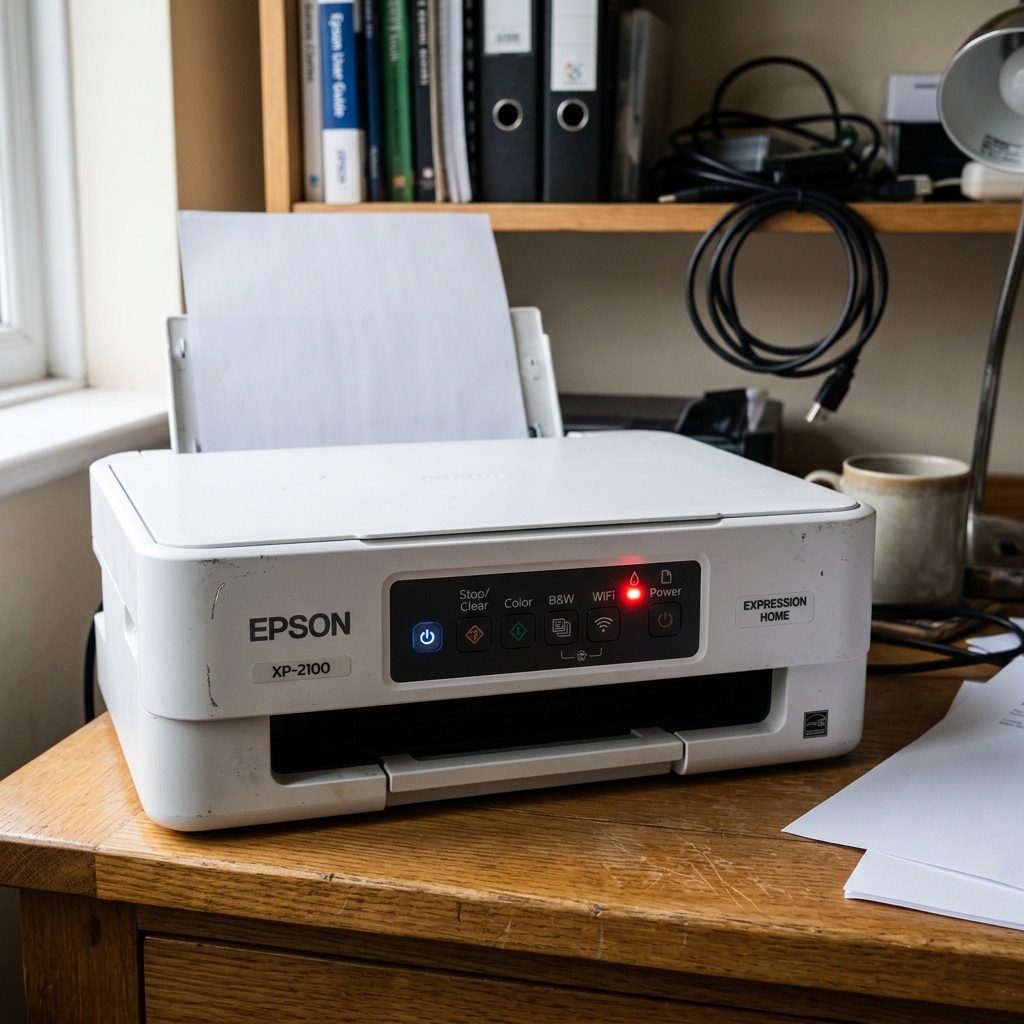
The Secret Language of Blinking Lights
If you own an entry-level Epson printer (like the L-series EcoTanks or basic XP-series Expression Home models), you don't have the luxury of an LCD screen telling you exactly what is wrong. Instead, you are faced with a cryptic combination of a green power button and a blinking red light next to an icon of a Drop of Ink or a Sheet of Paper.
These lights are not random. Epson has programmed specific blink frequencies and solid states to tell you exactly what error the printer has encountered. You just need the decoder ring.
Pattern 1: The Paper Light (Sheet Icon)
Solid Red Paper Light
What it means: The printer is out of paper, or the paper feed rollers failed to grip the top sheet.
The Fix: Load a neat stack of paper into the rear feed. Do not overfill it.
Ensure the plastic paper edge guides are snug against the sides of the paper stack. Press the physical paper button (or the start copy button) once to force the printer to try grabbing the paper again.
Fast Blinking Red Paper Light
What it means: A paper jam has occurred. The printer detected the paper entering the mechanism, but the sensor at the exit did not detect it leaving.
The Fix: Turn the printer off. Open the main cover and the rear access panel (if your model has one).
Carefully pull out any crumpled paper. Always pull the paper in the direction it naturally flows through the printer to avoid stripping the plastic gears.
Turn the printer back on to clear the error state.
Pattern 2: The Ink Light (Drop Icon)
Solid Red Ink Light
What it means: A fatal ink error. Either a cartridge is 100% empty, the cartridge chip is not recognized, or (on EcoTanks) the software has determined the tank must be refilled.
The Fix: If you use cartridges, press the ink button once. The printhead will move to the center and point to the empty cartridge.
Replace it. If you use third-party cartridges and the light remains solid, the printer's firmware has rejected the chip.
You must use an older firmware or an official Epson cartridge.
Slow Blinking Red Ink Light
What it means: Ink is running low. This is a warning, not a stoppage.
The Fix: You can continue printing. The printer is simply letting you know you should order a replacement soon.
Pattern 3: The Fatal Alternating Blink
Ink and Paper Lights Blinking Alternately (Back and Forth)
What it means: The Waste Ink Pad counter has reached its maximum limit. This is a hard software lock designed to prevent waste ink from overflowing onto your desk.
The Fix: You cannot clear this by unplugging the printer or holding buttons. You must connect the printer to a PC via USB and use a utility like the WIC Reset Utility to reset the EEPROM counter to 0%.
You should also physically replace the sponge pads at the bottom of the printer.
Pattern 4: All Lights Blinking Simultaneously
Power, Ink, and Paper Lights Flashing Very Fast at the Same Time
What it means: General Fatal Error. The motherboard has detected a severe hardware failure. This could be a jammed printhead carriage, a disconnected scanner cable, or a blown fuse on the motherboard.
The Fix: Turn the printer off and unplug it. Open the lid and ensure there is absolutely nothing blocking the printhead from moving left to right.
If the path is clear, plug it back in. If the lights flash instantly upon power up before the printer even tries to move, the motherboard or scanner unit is dead and requires professional repair.
Decoding Red Light Blink Cadences on Display-Free Epson Printers
On entry-level Epson printers without LCD screens (such as L120, L3110, L3210, ET-2720, and XP-2100), the flashing pattern of the Paper and Ink LEDs communicates all mechanical, sensor, and firmware exceptions. Decoding whether lights flash together, alternately, or individually pinpoints the required repair.
Exhaustive Diagnostic Blink Reference Table
| Blink Pattern | Hardware Fault Identified | Immediate Technical Resolution |
|---|---|---|
| Paper Light Blinking Alone | Paper Jam / Paper Feed Failure | Clear jammed sheets; press Paper button to resume. |
| Ink Light Blinking Alone | Ink Depleted / Cartridge Unrecognized | Refill tanks; hold Stop/Cancel button for 5 seconds. |
| Paper & Ink Blinking In Unison (Together) | Carriage Jam / Foreign Object Obstruction | Clear debris from carriage rail; clean encoder strip with water. |
| Paper & Ink Blinking Alternately | Waste Ink Absorber Pad Full (Service Required) | Reset internal EEPROM counter using Epson Adjustment Tool or WIC Reset. |
Frequently Asked Questions
How do I reset the printer if all lights flash rapidly?
Perform a 30-minute power drain: disconnect the AC cord, hold the Power button for 30 seconds while unplugged, and leave disconnected for 30 minutes to discharge on-board capacitors.
Can a dirty encoder strip cause the paper and ink lights to flash together?
Yes. If grease or ink mist coats the clear linear timing strip, the carriage motor loses positioning tracking, flashing both lights simultaneously.
