


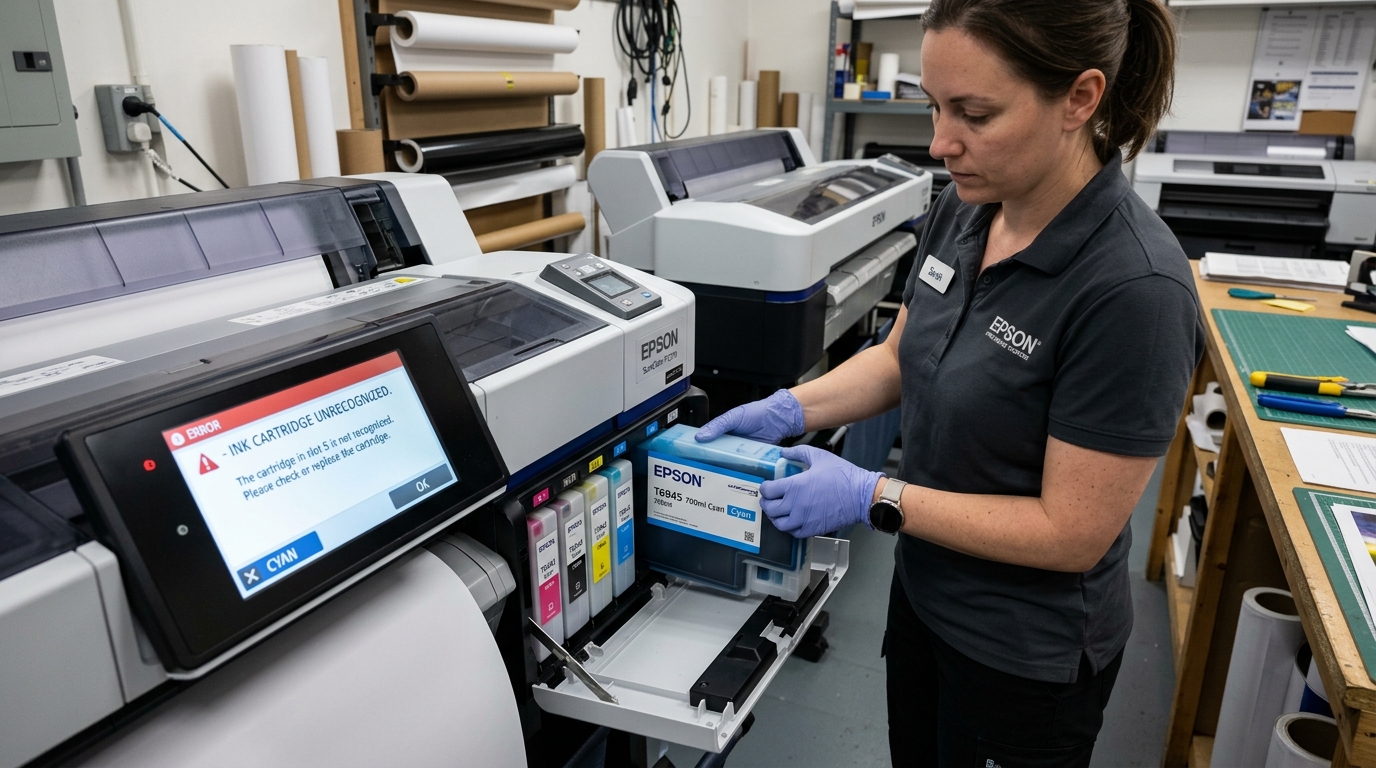
Troubleshooting SureColor Ink Recognition Errors
Epson SureColor large-format printers use UltraChrome PRO and HD pigment ink cartridges equipped with cryptographic smart chips. The printer verifies ink level counters, expiration dates, and cartridge authenticity in real time.
When the screen displays "Cannot recognize ink cartridge" or "Cartridge Error", the cause is usually dirty chip contact pins, improper latching, or firmware lockouts.
Step 1: Inspect and Reseat the Problematic Cartridge
A slight mechanical displacement prevents the contact spring pins inside the ink bay from touching the cartridge chip:
- Identify the flagged color: Check the front LCD screen to note which specific ink slot indicates an exclamation mark.
- Open the ink bay door: Release the front or side ink compartment latch.
- Press to eject: Press the cartridge release lever and pull the ink tank straight out of its guide channel.
- Inspect guide rails: Check inside the slot for broken plastic tabs, paper fragments, or bent spring fingers.
- Re-insert firmly: Push the cartridge back into the slot until it clicks audibly against the internal manifold.
Step 2: Clean the Cartridge Smart Chip Contacts
Ink mist, airborne dust, and protective oils coat the gold electrical contacts on the cartridge base:
- Locate the gold contact pad: Turn the removed cartridge over to examine the green circuit board with gold pins.
- Dampen a lint-free cloth: Use a micro-drop of 99% isopropyl alcohol on a lint-free microfiber wipe.
- Gently clean the contacts: Wipe the gold pads carefully to remove grease or fingerprint smudges.
- Inspect for scratches: Ensure the gold bonding pads are not physically gouged or delaminated.
- Allow to dry: Let the solvent dry completely for 60 seconds before reinstalling the cartridge.
Step 3: Check for Sub-Tank Lockout and Firmware Restrictions
Modern SureColor firmware blocks third-party refilled chips or older revision cartridge batches:
- Verify genuine UltraChrome cartridges: Confirm the cartridge SKU matches your printer model region (e.g., T46Y series for SureColor P700).
- Disable automatic firmware updates: Turn off automatic firmware updates in the Epson Printer Utility to prevent sudden chip DRM locks.
- Test with another cartridge: If you have another genuine cartridge of the same color, insert it to test whether the bay sensor itself is functional.
Step 4: Perform a Full System Hard Reset
Residual static charge in the printer's mainboard memory can lock the ink recognition circuit in a permanent error loop:
- Power down cleanly: Press the power button and wait for the carriage and ink valves to park.
- Unplug AC power cord: Disconnect the main power cable from the back of the plotter.
- Discharge residual power: Press and hold the power button for 15 seconds while unplugged.
- Wait 10 minutes: Allow the internal capacitors and volatile memory buffer to clear completely.
- Reconnect and restart: Plug the power cord directly into the wall outlet and power on.
Frequently Asked Questions
Why does the printer reject an ink cartridge that still has ink inside?
The electronic microchip tracks estimated drop counts independently of physical ink weight and locks out when its count expires.
Can I swap chip positions between different color slots?
No, each cartridge chip is hard-coded with a unique color identification code; swapping chips causes immediate slot mismatch errors.
What should I do if the internal connector pins inside the ink bay are bent?
Do not attempt to bend delicate pins back by hand; damaged bay connector blocks must be replaced by a certified Epson technician.
