


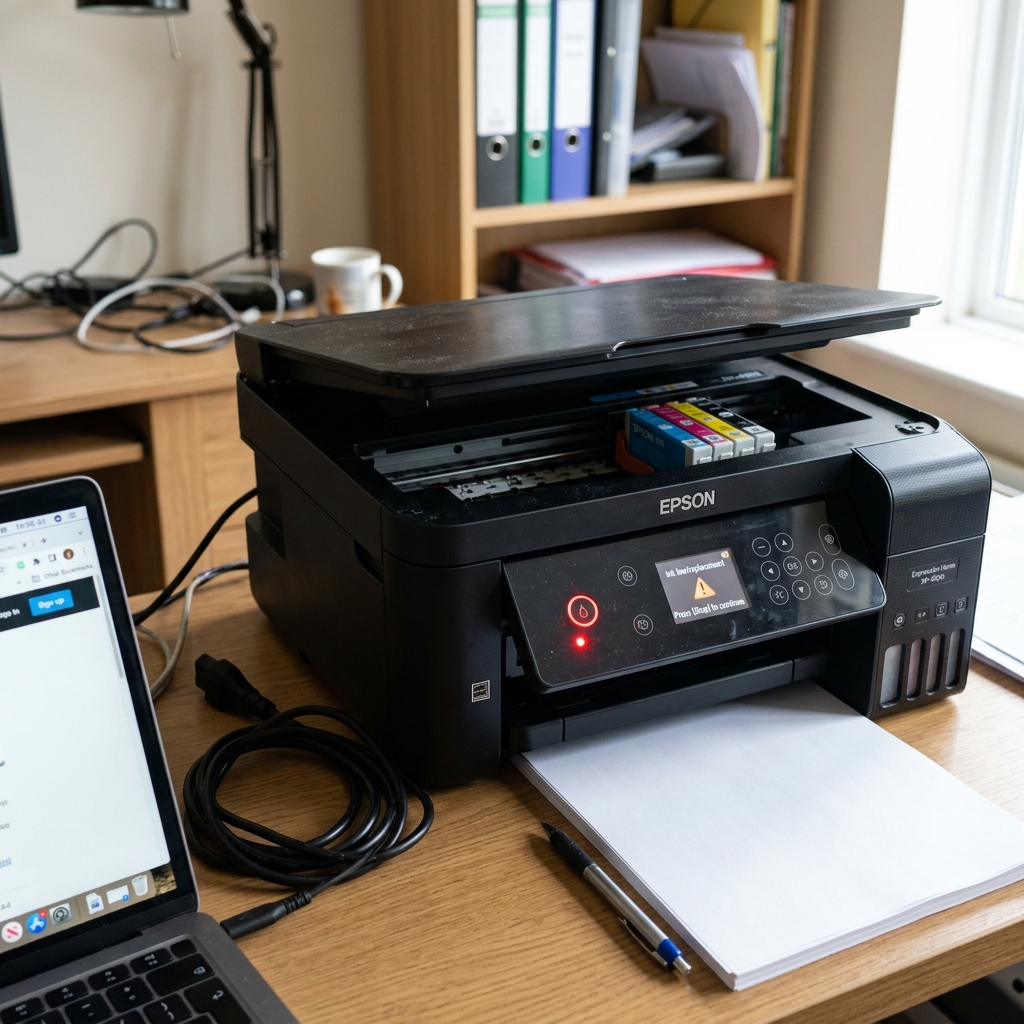
The Unrecognized Cartridge Error
You ran out of ink, went to the store (or ordered online), popped a brand new cartridge into your Epson printer, and closed the lid. Instead of returning to a ready state, the printer whirs for a moment, and the red ink light starts blinking (or turns solid red) again.
The printer is telling you it either cannot physically see the new cartridge, or it refuses to accept it.
Fix 1: The Physical Seating
Epson cartridges require a surprising amount of downward force to lock into place. When you push them into the carriage, a small plastic spike pierces the foil seal on the bottom, and a plastic clip locks over the top.
If you don't hear a loud, distinct "Click," the golden microchip on the front of the cartridge is not making contact with the tiny metal reader pins inside the carriage. Open the lid, press down firmly on the top of the new cartridge until it clicks, and close the lid.
Fix 2: Cleaning the Microchip
The printer relies entirely on the tiny green-and-gold circuit board (the microchip) on the front of the cartridge to know how much ink is inside and whether the cartridge is genuine.
If you accidentally touched this chip with your bare thumb, the oil from your skin can act as an insulator, preventing the printer's pins from reading it.
- Remove the new cartridge.
- Take a Q-tip (cotton swab) and dip it lightly in isopropyl alcohol.
- Gently wipe the golden contacts on the cartridge chip.
- Let it dry for 10 seconds, and reinstall it.
Fix 3: The Third-Party Firmware Block (DRM)
If you purchased cheap, third-party "compatible" ink cartridges from Amazon or eBay, and the light is solid red, you are likely the victim of a firmware block.
Epson makes its profit on ink, not printers. To stop you from using cheap ink, they push "Recommended Updates" to your computer. These updates silently change the printer's firmware to recognize and block the microchips used by third-party ink manufacturers.
If your printer updated recently, it will instantly reject the new third-party cartridge. To fix this, you have two options:
- Return the cheap ink and purchase an expensive, genuine Epson OEM cartridge.
- Downgrade your firmware: Use a computer to flash an older version of the printer's firmware via USB Recovery Mode, which removes the block. (See our guide on downgrading Epson firmware for step-by-step instructions).
Fix 4: Regional Locking
Did you buy your printer in the US, but bought replacement ink while traveling in Europe? Epson cartridges are region-locked.
A genuine cartridge bought in the UK (even if it has the exact same model number) will trigger a blinking red ink light if inserted into a printer purchased in North America. The only fix is to buy ink from the correct region.
Why the Epson Ink Light Blinks After Installing a Brand New Cartridge
When an Epson cartridge-based printer (WorkForce, Expression Home, Stylus series) continues to blink or illuminate the ink drop LED after you insert a fresh cartridge, the printer has failed to establish an electronic handshake with the cartridge microchip, or the carriage latch has not locked down completely.
Exhaustive Fix for Unrecognized New Cartridges
- Remove the Yellow Air Vent Pull-Tab:
Before installing a new Epson cartridge, you MUST peel off the yellow plastic tape labeled "PULL" from the top of the cartridge. If this tape remains, the vacuum inside the ink chamber prevents ink from priming, and the carriage sensor triggers an ink starvation alert.
- Clean the Microchip Contact Pads:
Remove the new cartridge. Locate the green circuit board on the back with small gold contact pads. Skin oils from handling can create electrical resistance. Wipe the gold pads with a microfiber cloth moistened with 99% isopropyl alcohol. Let dry for 2 minutes.
- Inspect the Carriage Spring Pins:
Look inside the carriage bay where the cartridge docks. You will see small, gold-plated wire spring contacts. If one pin is bent down flat or coated in dried ink sludge, it cannot read the chip. Gently lift bent pins using non-conductive fine tweezers.
- The Firm Latching Push:
Press downward on the center of the cartridge with your thumb until you hear and feel a loud, distinct mechanical CLICK. If the plastic retaining tab is not fully engaged, the cartridge sits 1mm too high, breaking electrical contact.
Frequently Asked Questions
Why does the printer reject third-party / compatible cartridges?
Epson frequently releases automatic background firmware updates that alter the cryptographic handshake with cartridge microchips. If you use third-party cartridges, disable automatic firmware updates in the printer settings.
Can I bypass the ink light to print with remaining colors?
On most Epson desktop printers, when one cartridge is recognized as missing or empty, all printing is suspended to protect the Micro Piezo printhead from dry firing.
