


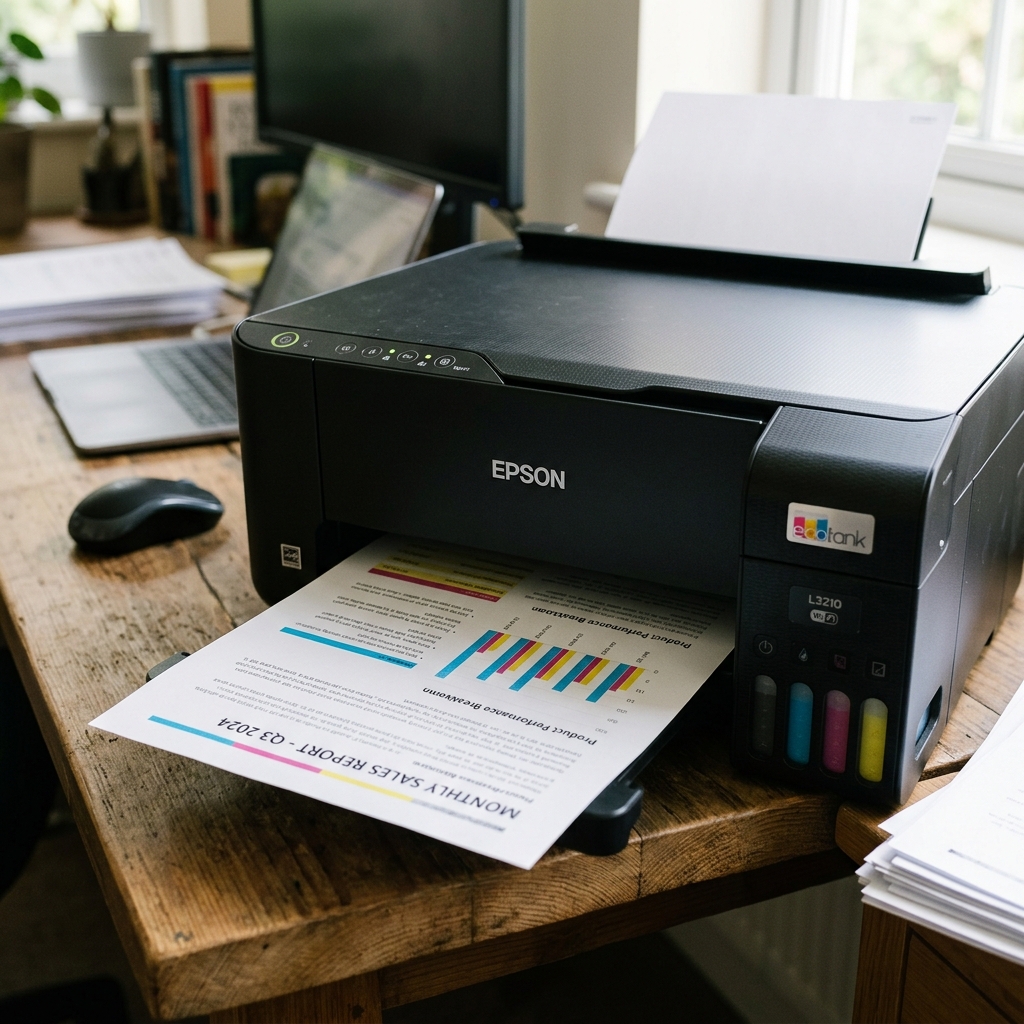
The L3210 Black Ink Problem
The Epson L3210 (and its sister models like the L3110 and L3250) is an incredibly popular entry-level EcoTank. It is cost-effective and reliable, but it has one Achilles' heel: after a few months of light use, it will often stop printing black ink entirely, while the cyan, magenta, and yellow continue to print perfectly.
Because the black ink on this model is used exclusively for text documents and is thicker than the dye-based colors, it is significantly more prone to clogging and air-lock issues.
Check 1: Visual Inspection of the Tubes
Unlike cartridge printers, you can physically see the ink delivery system on the L3210.
- Turn the printer on and lift the entire scanner bed unit up so you can see the internal mechanics.
- Look at the bundle of four translucent silicone tubes traveling from the ink tanks on the right to the moving printhead carriage.
- Locate the tube carrying the black ink. Is it solid black, or do you see massive pockets of clear air?
If the tube is full of air, the black printhead is starved. Running a standard Head Cleaning will not fix this, as it lacks the suction to pull a massive air bubble through the system.
You have two choices: run a Power Cleaning (which wastes massive amounts of color ink alongside the black), or manually prime the damper.
Fix 1: Manually Priming the L3210 Damper
This is the most effective fix for the L3210 that saves your ink and your maintenance pad.
- When the printhead carriage is in the center of the printer, unplug the power cord from the wall to freeze it in place.
- Look at the top of the printhead carriage. There is a small, clear plastic cover holding the tubes down, secured by a single small Phillips-head screw. Remove this screw and lift the cover off.
- You will see four plastic cartridges (dampers) plugged into the printhead. Squeeze the plastic tab on the back of the Black damper and lift it straight up.
- Take a standard 10ml plastic syringe (without a sharp needle). Insert the plastic tip into the round valve at the bottom of the black damper.
- Slowly pull the syringe plunger back. You will see the air bubble travel through the tube, into the damper, and into your syringe, followed by solid black ink.
- Once you draw solid black ink, remove the syringe, push the damper back down onto the printhead until it clicks, and screw the cover back on.
- Plug the printer in and run one standard Head Cleaning to finish the job.
Fix 2: The Warm Water / Windex Flush
If your black tube is perfectly solid with no air bubbles, but the L3210 still prints blank pages, the black pigment ink has dried and crystallized inside the microscopic ceramic nozzles of the printhead.
Because pigment ink dries like a hard plastic, standard suction won't break it. You must dissolve it.
- Unplug the printer and move the carriage to the center.
- Fold a paper towel into a long strip and slide it underneath the printhead carriage to catch liquid.
- Unclip and remove the black damper just like in Fix 1.
- You will see a small plastic spike sticking up from the printhead where the damper used to sit. This is the ink intake port.
- Fill a syringe with 2ml of Windex (or a 50/50 mix of warm distilled water and isopropyl alcohol). Attach a short piece of silicone tubing to the syringe, and push the other end over the plastic spike.
- Gently push the plunger to inject the fluid into the printhead. Let it sit for 15 minutes to dissolve the clog, then gently push the rest through.
- Remove the syringe, reseat the damper, and remove the wet paper towel. Run a Head Cleaning cycle to pull fresh ink back into the newly cleared nozzles.
Why the Epson EcoTank L3210 Stops Printing Black Ink
The Epson EcoTank L3210 uses pigment black ink (Epson 003) for razor-sharp text and dye-based color inks. Because pigment black particles are denser and dry faster than dye inks, leaving the L3210 idle for more than 2-3 weeks can cause black nozzles to form a solid plug, or cause the black damper to lose its hydraulic prime.
Step-by-Step Restoration Protocol for L3210 Black Nozzles
- Check the Black Ink Tank Level:
Ensure the black ink reservoir is filled above the lower limit line. Running the printer with an empty black tank pulls air into the black delivery tube.
- Execute Head Cleaning via Hardware Buttons:
Press and hold the physical Stop (Triangle) button on the control panel for 5 seconds until the power LED begins flashing. The printer will run a 2-minute cleaning cycle. Print a nozzle check to evaluate improvement.
- The 12-Hour Rest Period:
If black nozzles are still partially missing after 2 cleanings, turn off the printer and let it rest for 12 hours. Fresh ink solvent will soften the dried pigment plug naturally.
- Manual Black Damper Syringe Priming:
If black output remains 100% blank, unclip the black damper from the carriage, insert a syringe into the bottom valve, and draw 2ml of ink until solid black fluid fills the damper.
Frequently Asked Questions
Can I put dye black ink into the L3210 pigment black tank?
Mixing dye and pigment black inks can cause chemical clumping in the damper filter. Always use compatible 003 pigment black ink for the L3210.
Why does color print perfectly while black is completely missing?
The black channel has its own dedicated printhead manifold and larger nozzle array. Dye colors remain fluid longer, while pigment black dries out first during periods of disuse.
